
A tour of the screen
The menu, the search box, the bell and your account menu, and how to find anything fast.
On this page
Every screen of Enpod has the same three parts: a menu on the left, a top bar, and the page itself.
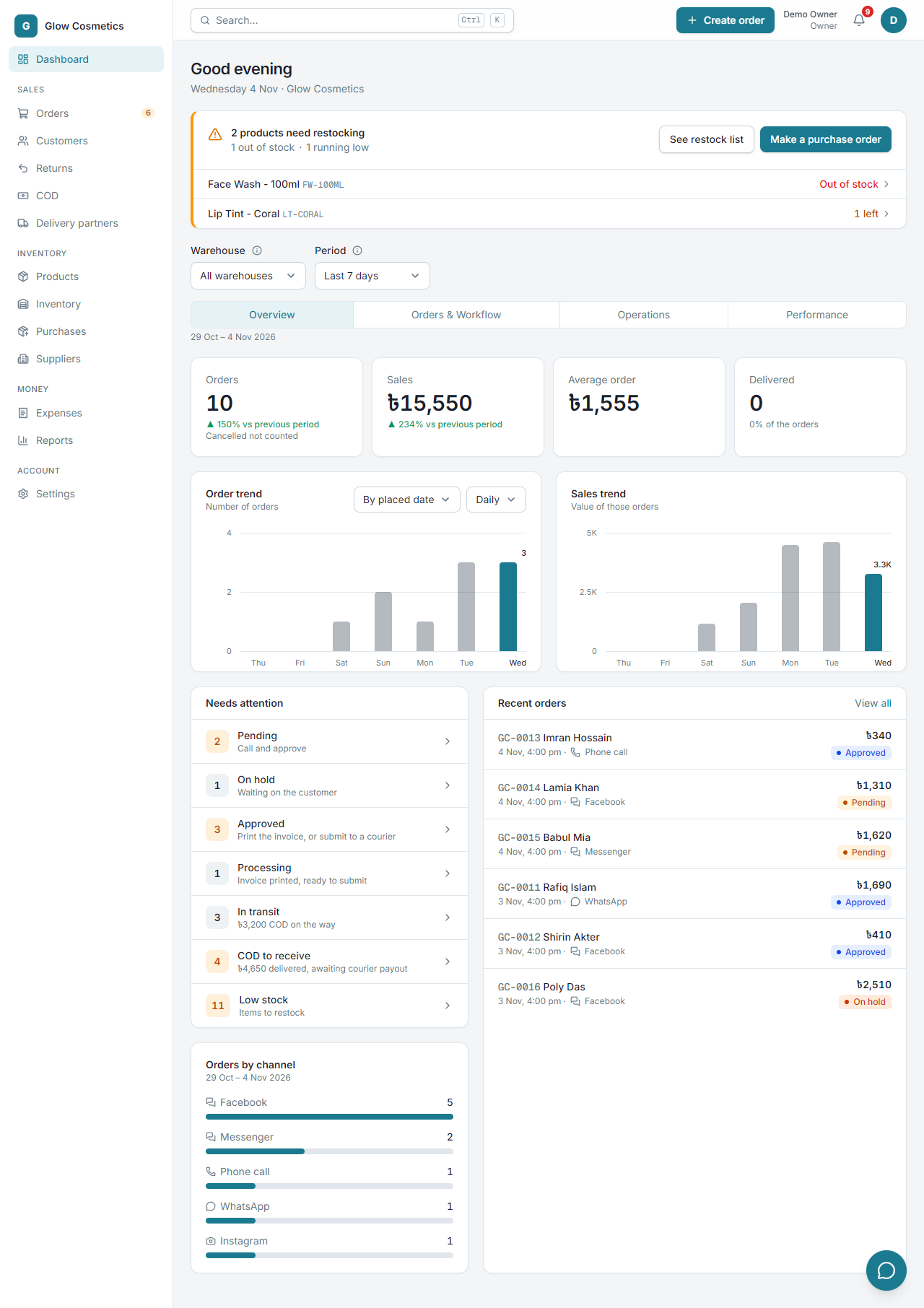
The menu on the left#
The menu has four groups. You only see what your role allows.
| Group | Pages |
|---|---|
| Sales | Orders, Customers, Returns, COD, Delivery partners (your couriers) |
| Inventory | Products, Inventory, Purchases, Suppliers |
| Money | Expenses, Reports |
| Account | Settings |
The small number next to Orders is how many orders are waiting for you (for example pending ones). On a phone the menu hides behind the button at the top left: see Using it on your phone.
The search box#
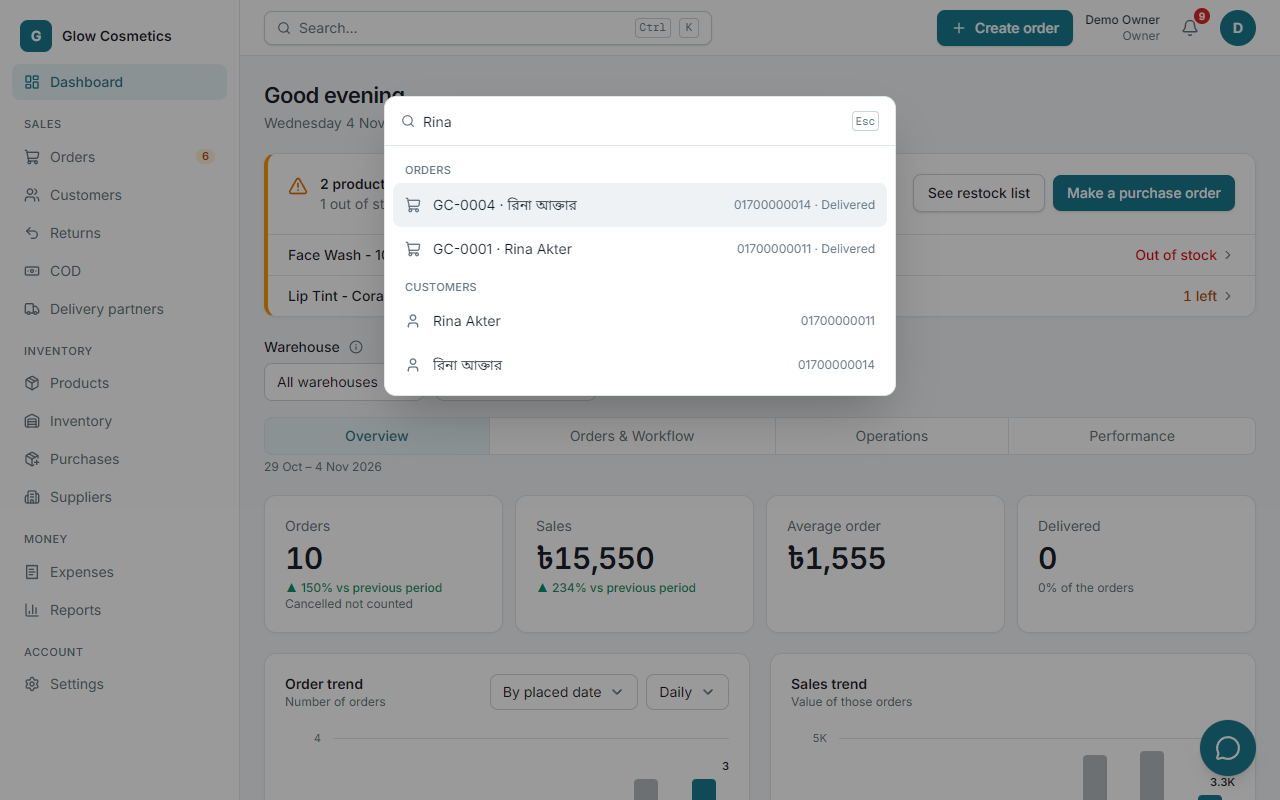
The box at the top finds orders, customers and products at the same time. Press Ctrl + K from anywhere to jump into it.
- Type a name, a phone number, an order number (like
GC-0012) or a product name or SKU. - Use the arrow keys and Enter, or click a result.
Create order#
The green Create order button is always at the top right. It opens the new order form.
The bell#
The bell shows what happened that you should know: a parcel was delivered, a courier returned one, stock is low, a teammate did something important. The red number is how many you have not seen yet.
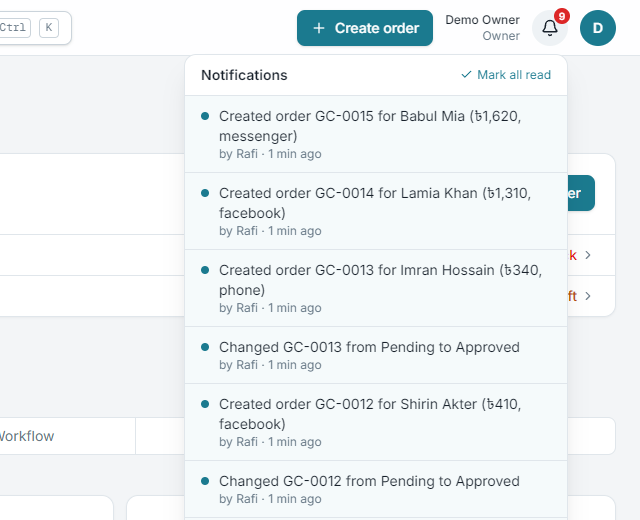
Click a notice to go straight to the order or product. Read all of them, with filters, in Activity log and notifications.
Your account menu#
Click your round picture (top right).
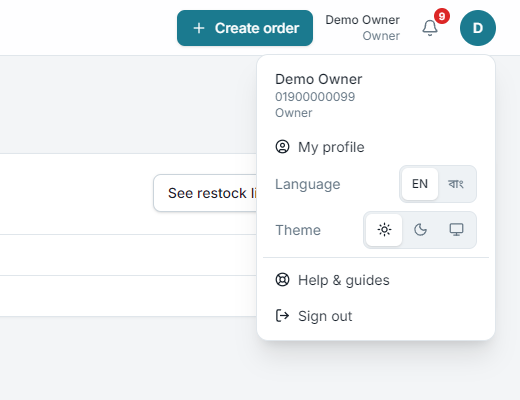
- My profile: your name, mobile number and picture, and the businesses you belong to. See Your profile.
- Language: English or বাংলা. The whole app changes language. See Bangla and English together.
- Theme: Light, Dark or System.
- Switch business: only if you belong to more than one.
- Sign out.
Small helpers on every page#
- Copy buttons next to phone numbers and tracking codes copy them in one click.
- The speech bubble next to a phone number opens WhatsApp with the order message already written.
- The small (i) next to an order or customer shows a quick summary when you hover or click it: Quick view.
- The small (i) next to a field's name (in forms and settings) explains what to type there. Hover it, or tap it on a phone; Esc or a tap elsewhere closes it. The grey example text inside an empty field shows what a good answer looks like.
- The app and this guide open in the light theme. Choose Dark, or System (it follows your device), from the theme button or your account menu; the choice is remembered.