Using it on your phone
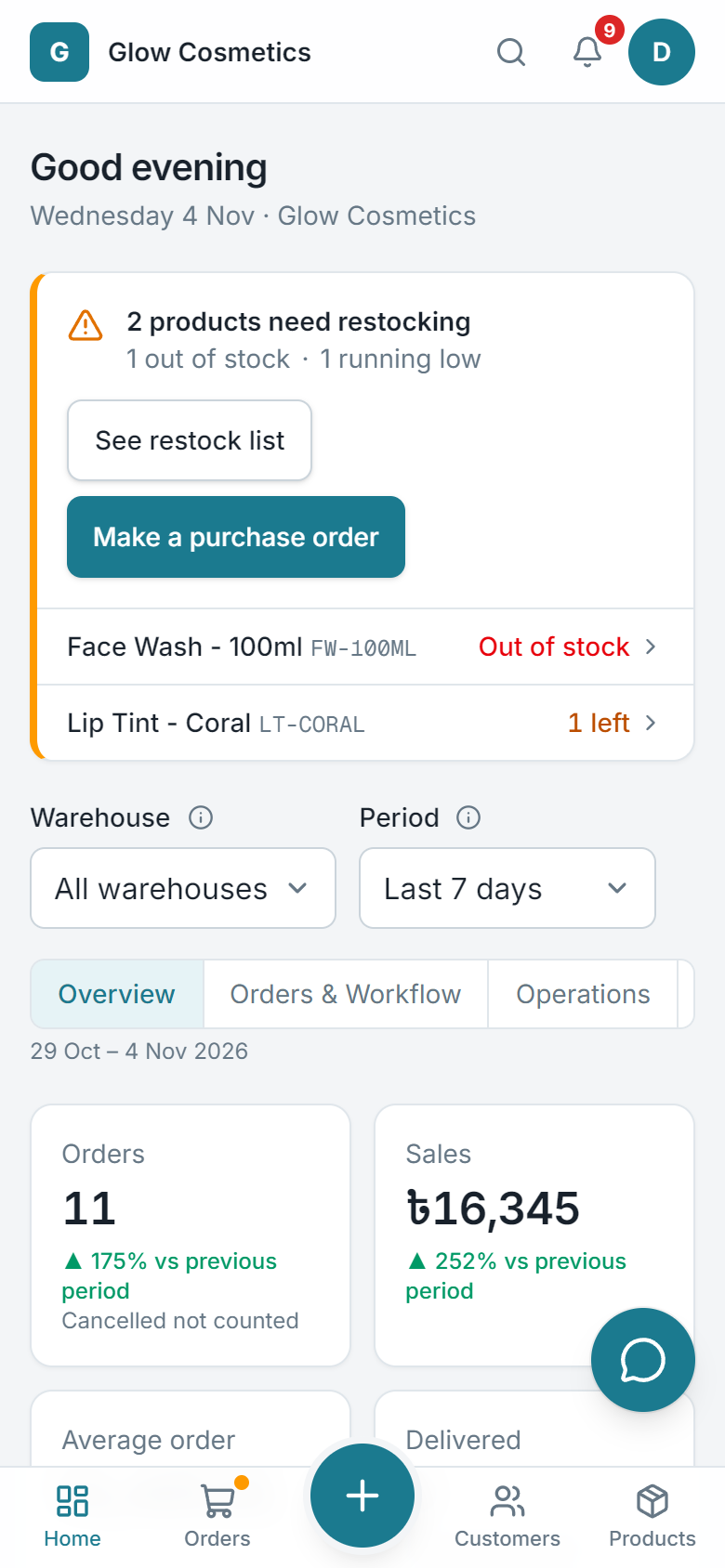
Enpod works in your phone's browser: take orders, check parcels and see your numbers anywhere.
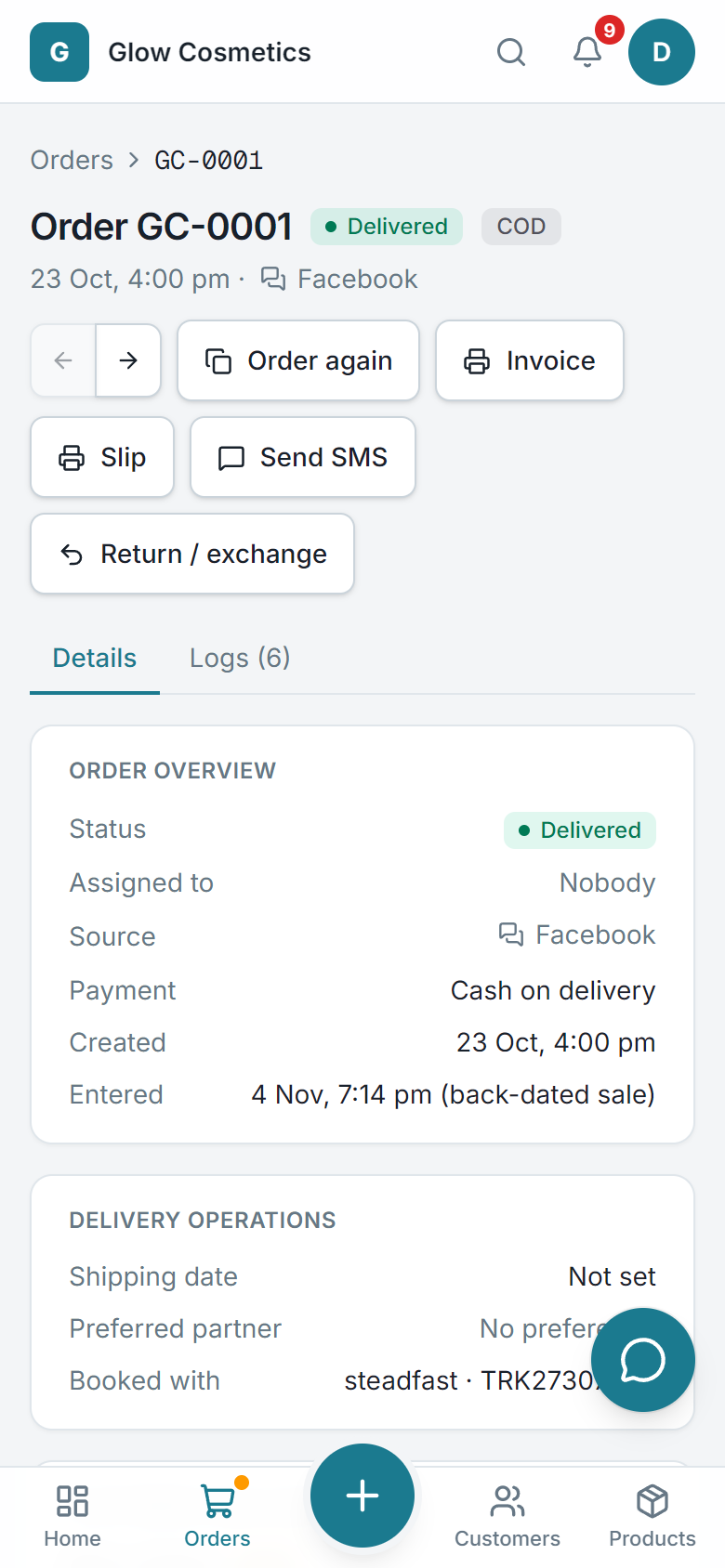
There is nothing to install. Open Enpod in your phone's browser (Chrome on Android, Safari on iPhone) and sign in. Every page rearranges itself for a small screen.
What changes on a phone#
- The menu is behind the button at the top left. Tap it to open the menu, and tap anywhere else to close it.
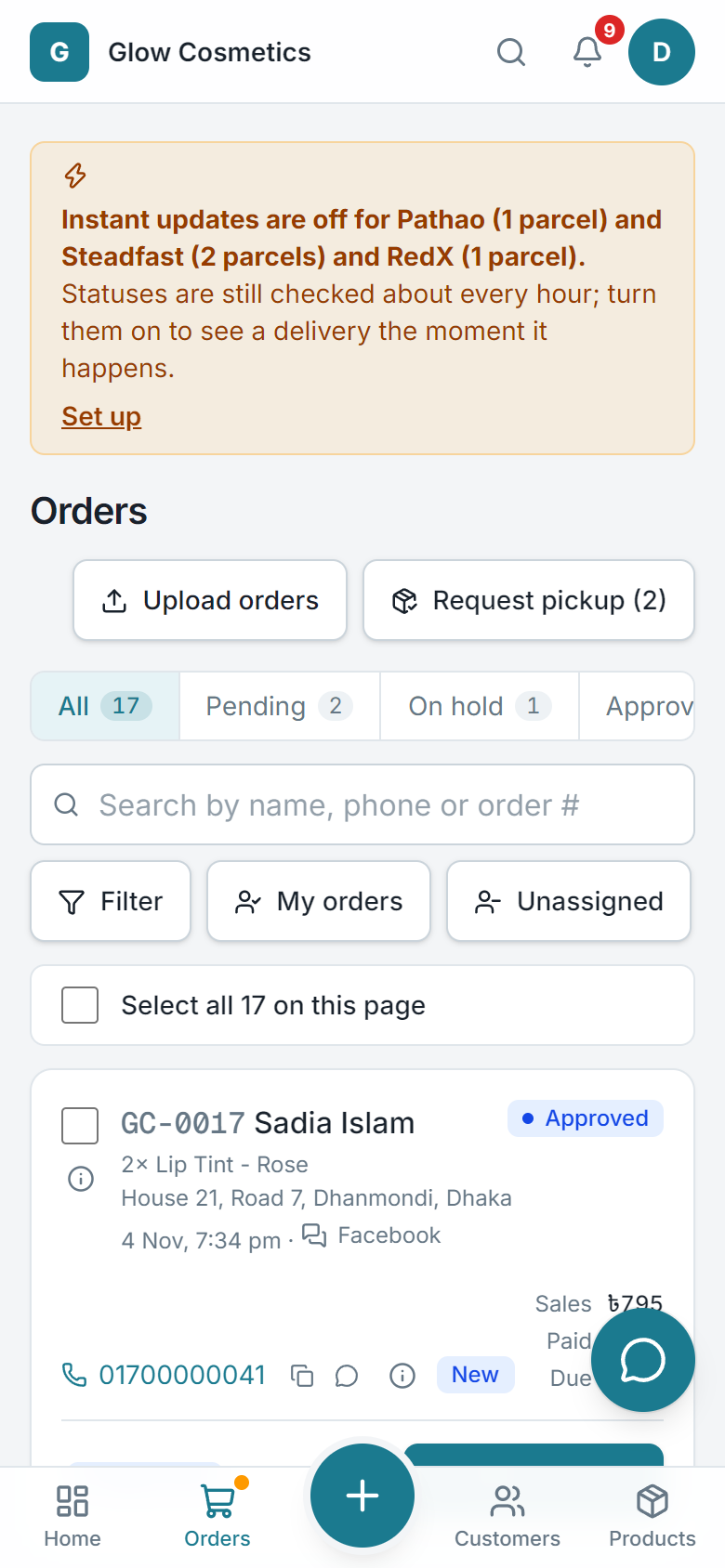
- Tables turn into cards: one card for each order or customer, with the same buttons.
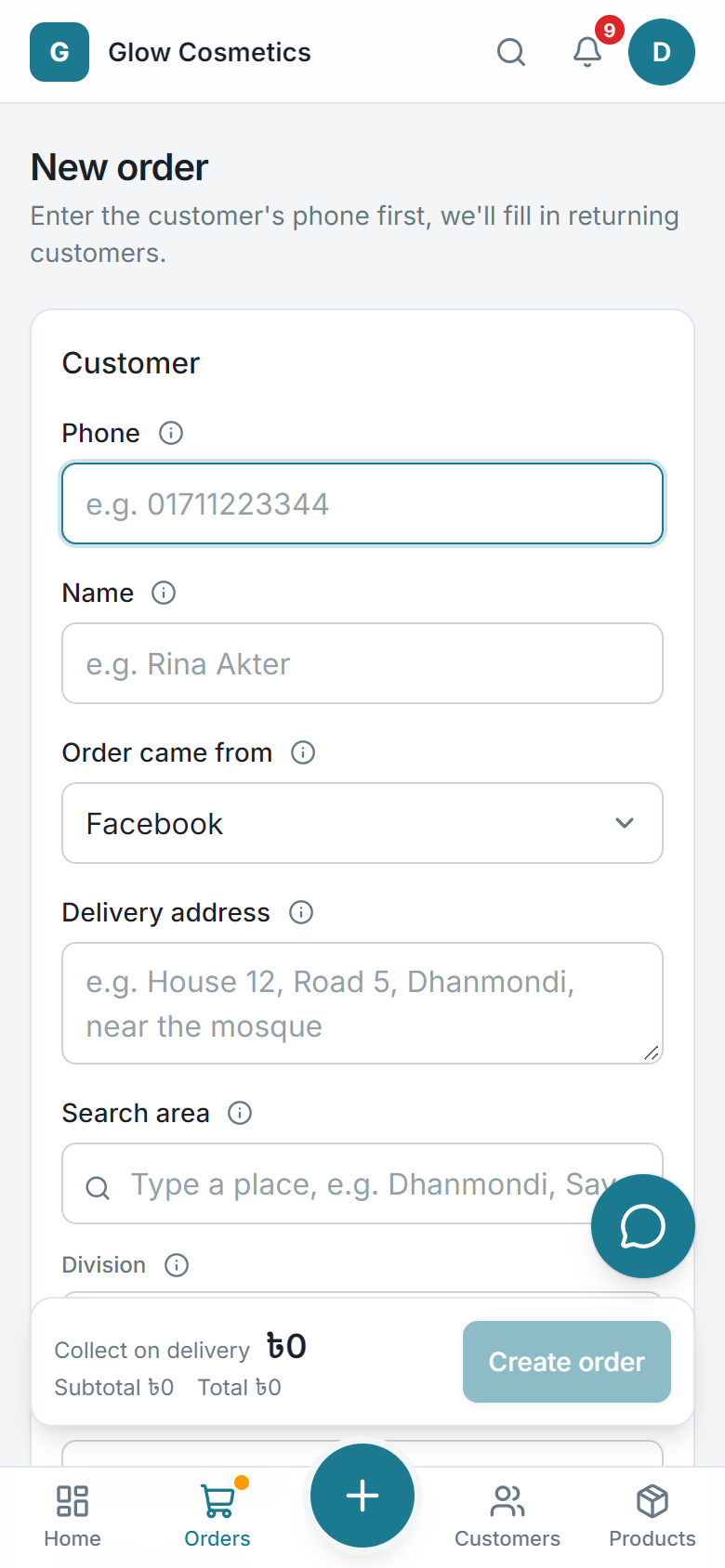
- Forms stack in one column, and the Create order bar stays at the bottom.
- Big enough to tap. Buttons and fields are at least 44 px tall, and small icons (copy, WhatsApp, quick view) have a larger area around them, so a thumb hits the right one.
- No zooming. Form fields use 16 px text, so the phone does not zoom in when you tap a box.
- Search has its own row on the Orders list, so you can read what you type.
- Bangla works on a phone too. Switch it in the account menu. See Bangla and English together.
The pages fit every screen from a small phone (320 px wide) to a wide desktop monitor. Nothing needs sideways scrolling except wide tables, which scroll inside their own box.
Take an order on the go#
- Tap Create order.
- Fill in the phone, name, address, products and delivery, as on the computer. See Take an order.
- Tap Create order at the bottom.
Check and act on orders#
The Orders list shows each order as a card with its status and the buttons you need, such as Approve or Submit to courier.
The bell#
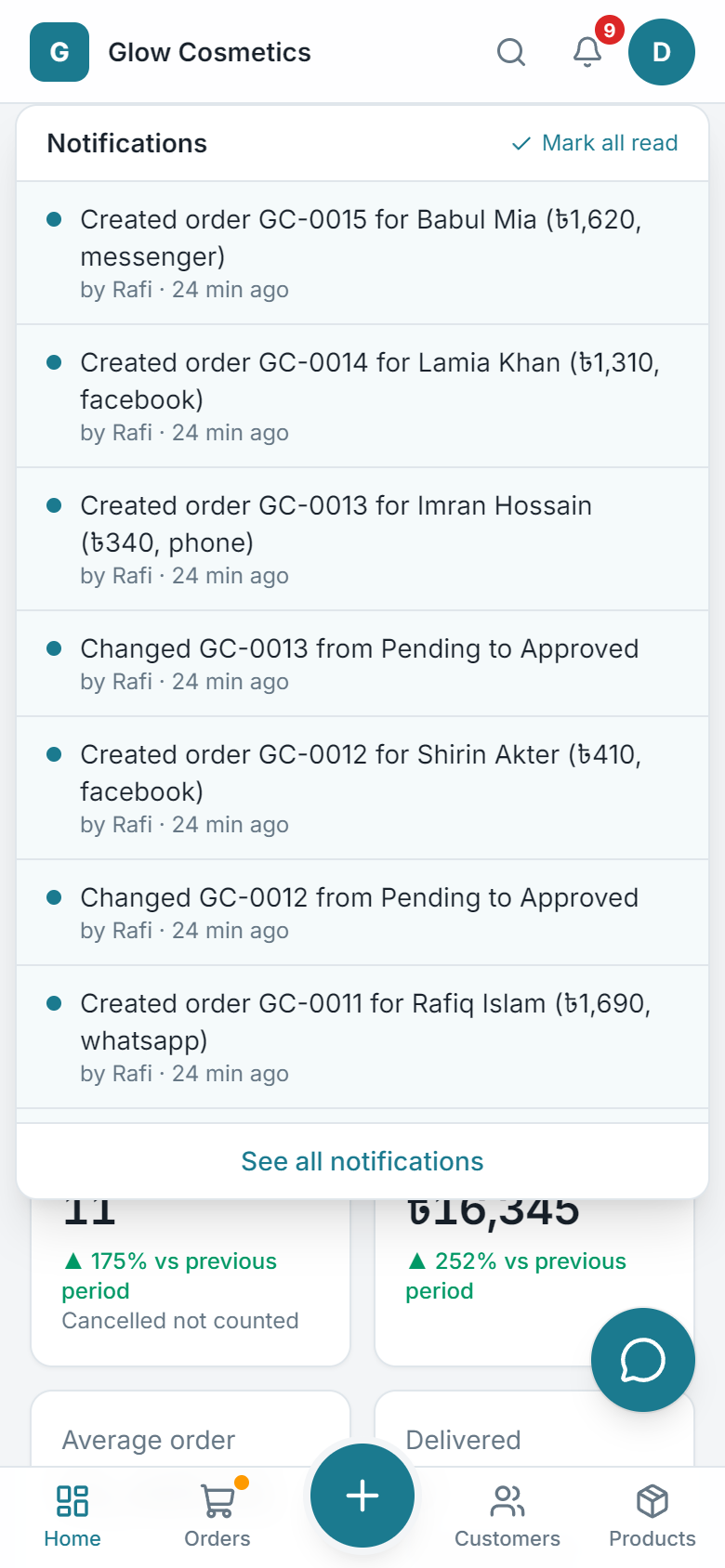
The bell works the same way. Tap a notice to open the order.