
Sign up and set up your business
Create your account with your mobile number (checked by an SMS code), set up your business, sign in and out, and switch between businesses.
On this page
Create your account#
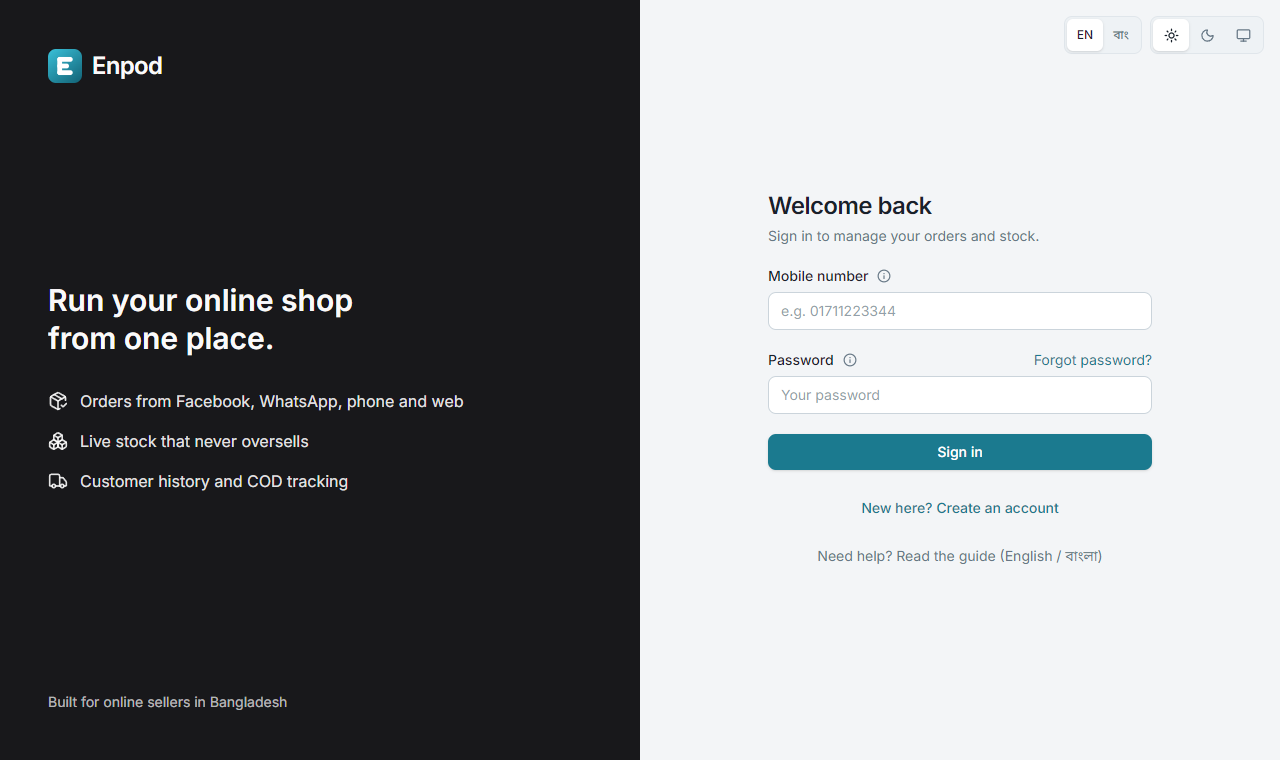
- Open the Enpod address your team gave you. You see the sign-in page.
- Press New here? Create an account.
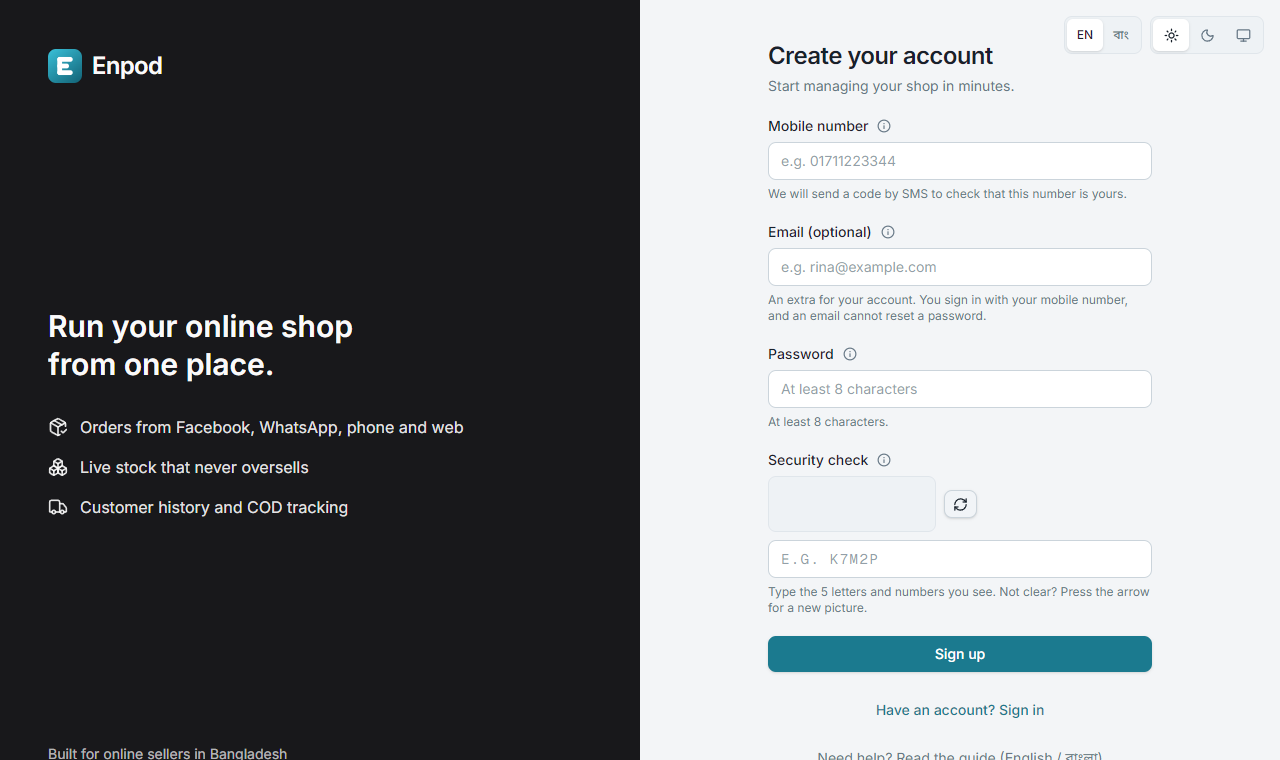
- Type your mobile number (like
01711000001) and choose a password of at least 8 characters. An email is optional (see below). - Type the 5 letters and numbers you see in the small picture (the security check; capital or small letters both work, and the arrow gives a new picture), then press Sign up. The same check appears when you ask for a code again and on Forgot password.
- Enpod sends a 6-digit code by SMS to that number. Type it on the next page. The code works for 10 minutes. If it does not come, press Send the code again after a minute; Change number fixes a wrong number. Five wrong tries lock a code, and you ask for a new one.
You can start setting up your business as soon as the number is verified. Until then the rest of the app stays closed: your mobile number is how you sign in, so we check that it is yours.
If you made your account earlier, with an e-mail#
You can keep signing in with your e-mail. A yellow warning at the top of every page asks you to verify your mobile number: press Verify now, type your number, and then the code that is sent to it. You can also do it in My profile → Mobile number. From then on you can sign in with your number too, using the same password.
If the platform has set a deadline, the warning shows it. After the deadline, an account that has not verified its number can open nothing except the verification page.
Set up your business#
After signing up you answer a few questions. Only the business name is required; you can skip everything else and fill it in later in Settings.
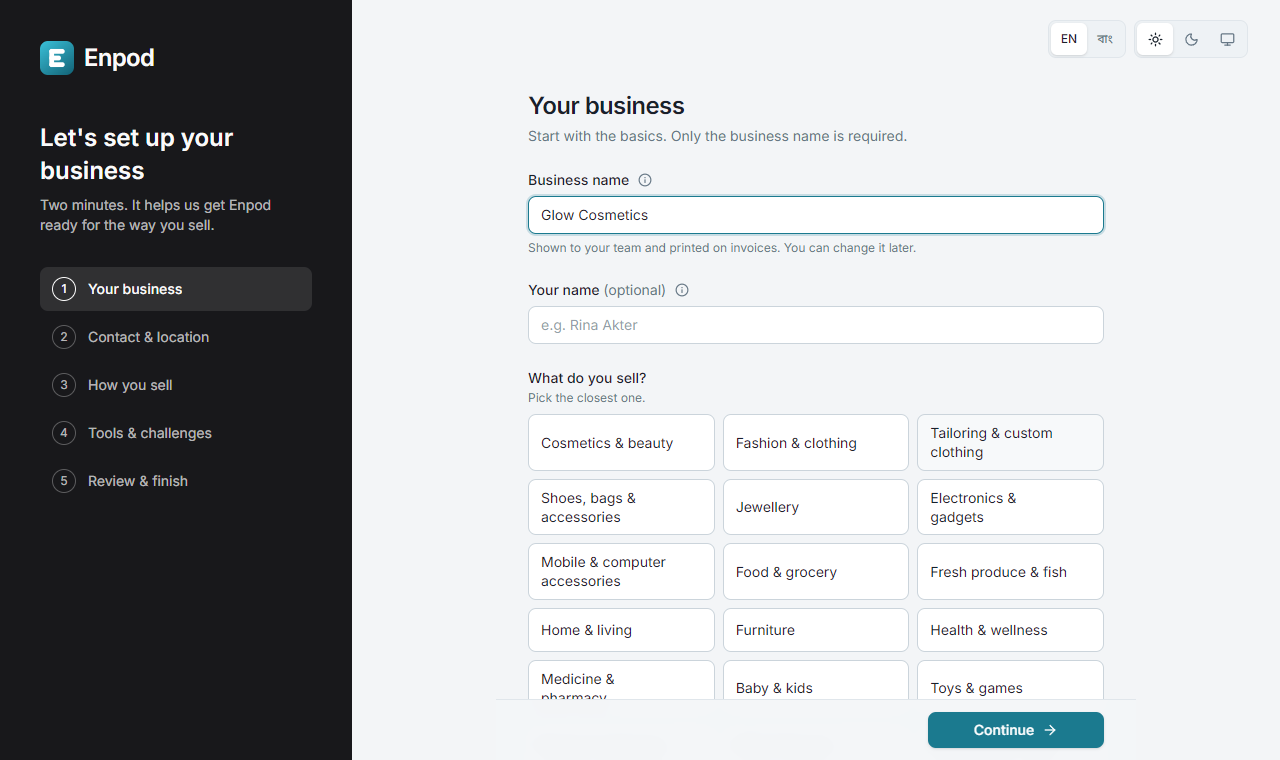
- Your business: the name of your shop (printed on invoices) and what you sell.
- Contact and location: phone and address of the shop, used on invoices.
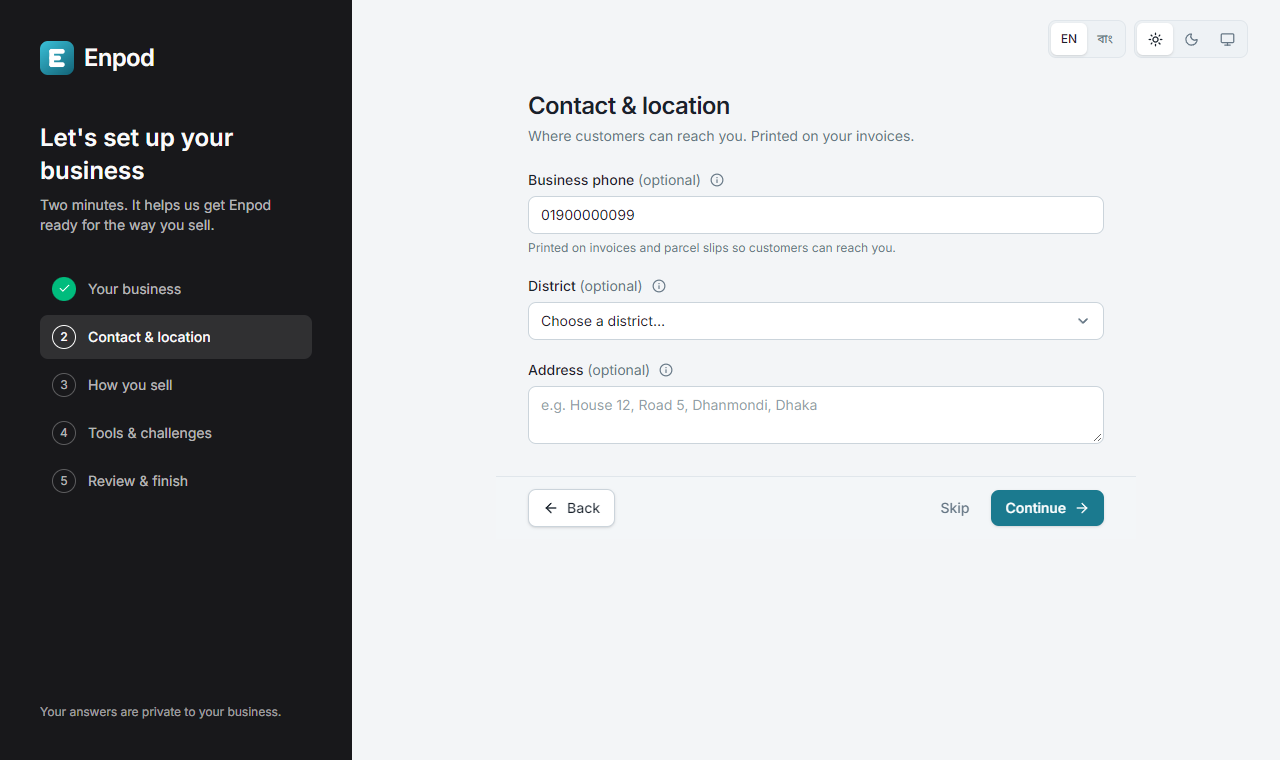
- How you sell: where your customers come from.
- Tools and challenges: what you use today and what is hard.
- Review and finish: press Create my business.
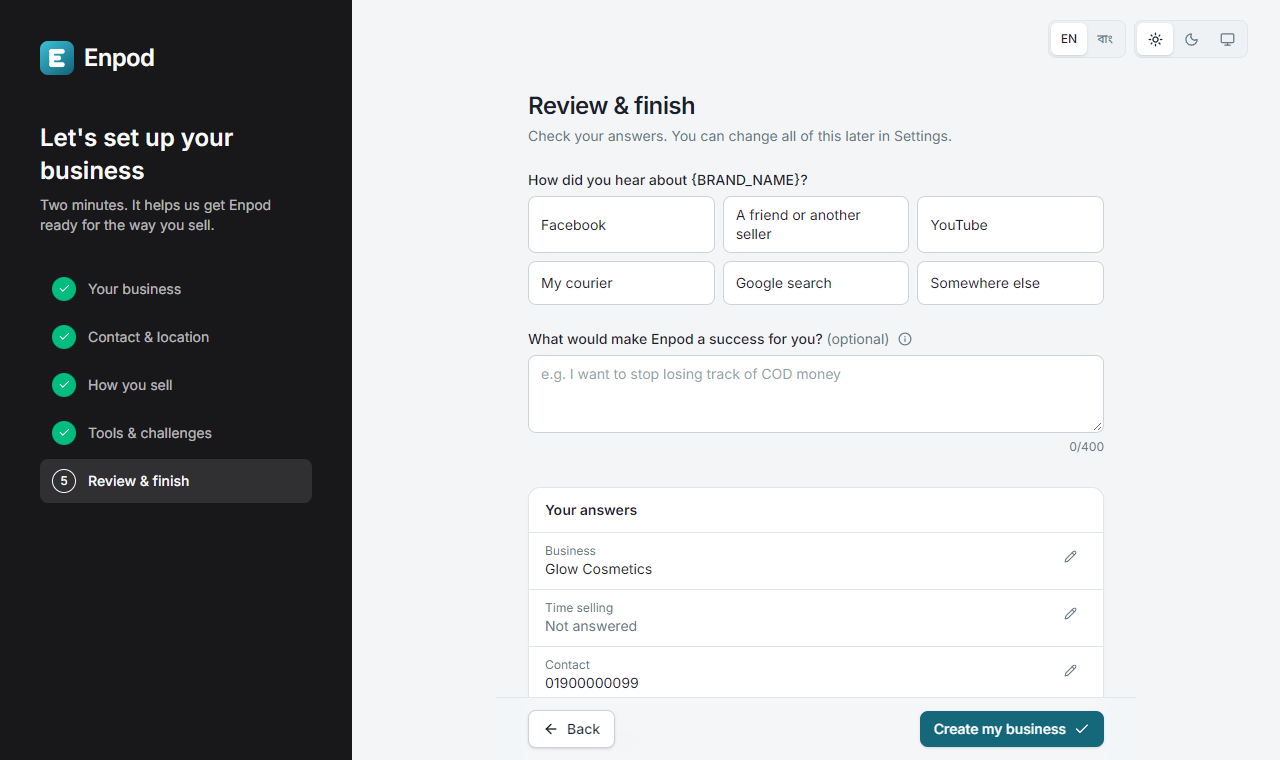
You land on the Dashboard. A short getting started list there shows what to do next: add products, add your first order and connect a courier.
Sign in and sign out#
- Sign in: your mobile number and your password. An email cannot be used to sign in. If an older account was made with an email and its number was never verified, ask the platform team to help you add the number.
- Forgot your password: press Forgot password on the sign-in page, type your mobile number, and then the code sent to it by SMS together with a new password. Every other device is signed out. Only a verified number can do this. You can also change it while signed in: My profile → Change password.
- Sign out: click your round picture (top right) and choose Sign out.
Every sign-in is recorded in the business's activity log with the time and device.
One person, more than one business#
If you belong to more than one business (for example you own one and help run another), the account menu shows Switch business. The name at the top left tells you which business you are in.
Your plan#
A new business starts on the Free plan. See Plan and billing for what each plan includes.