
Products
Add simple products or products with sizes and shades, count them in kg or litres, set prices and the SKU, import and export, and work on many at once.
On this page
A product is either a simple product (one item, for example a mug or a bag of rice) or a product with variants (for example Vitamin C Serum in 30ml and 50ml). Each item has its own SKU, price and stock. You can count a product in pieces, kilograms, litres and more: see Units.
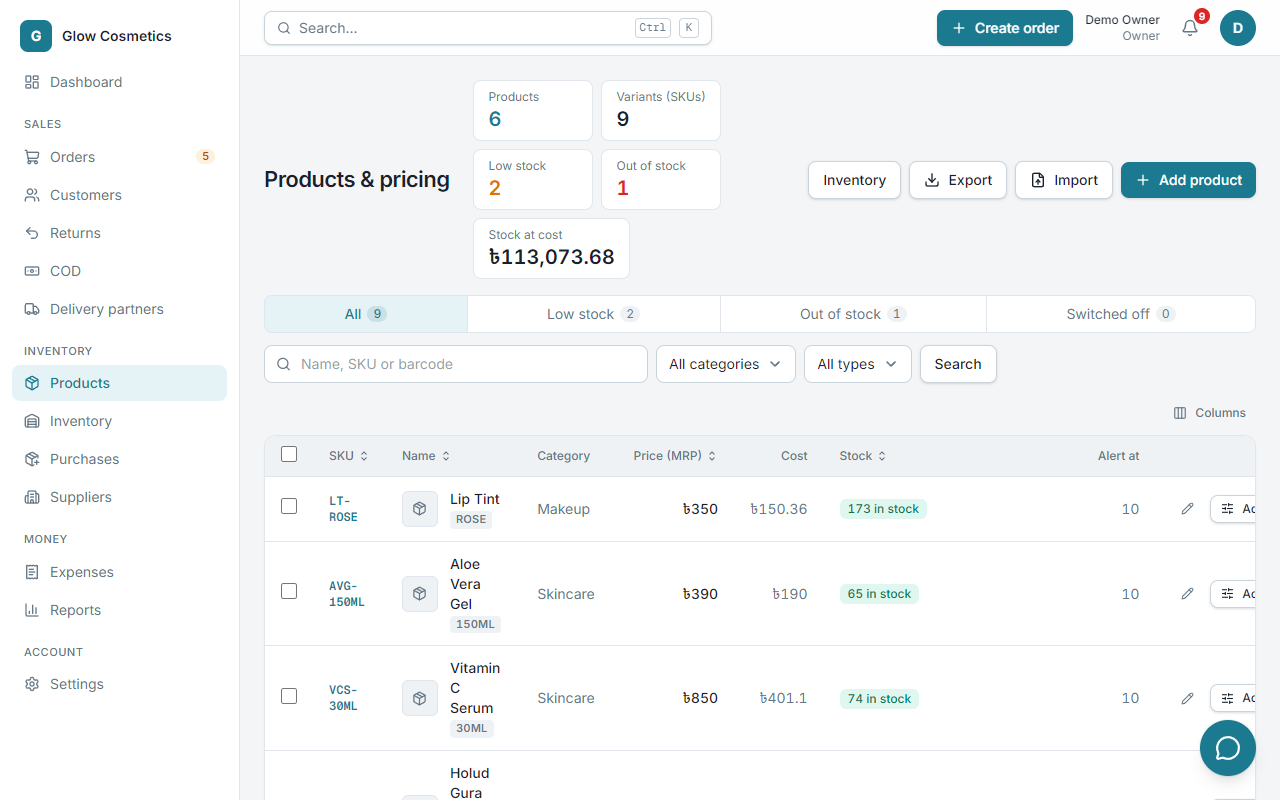
Add a product#
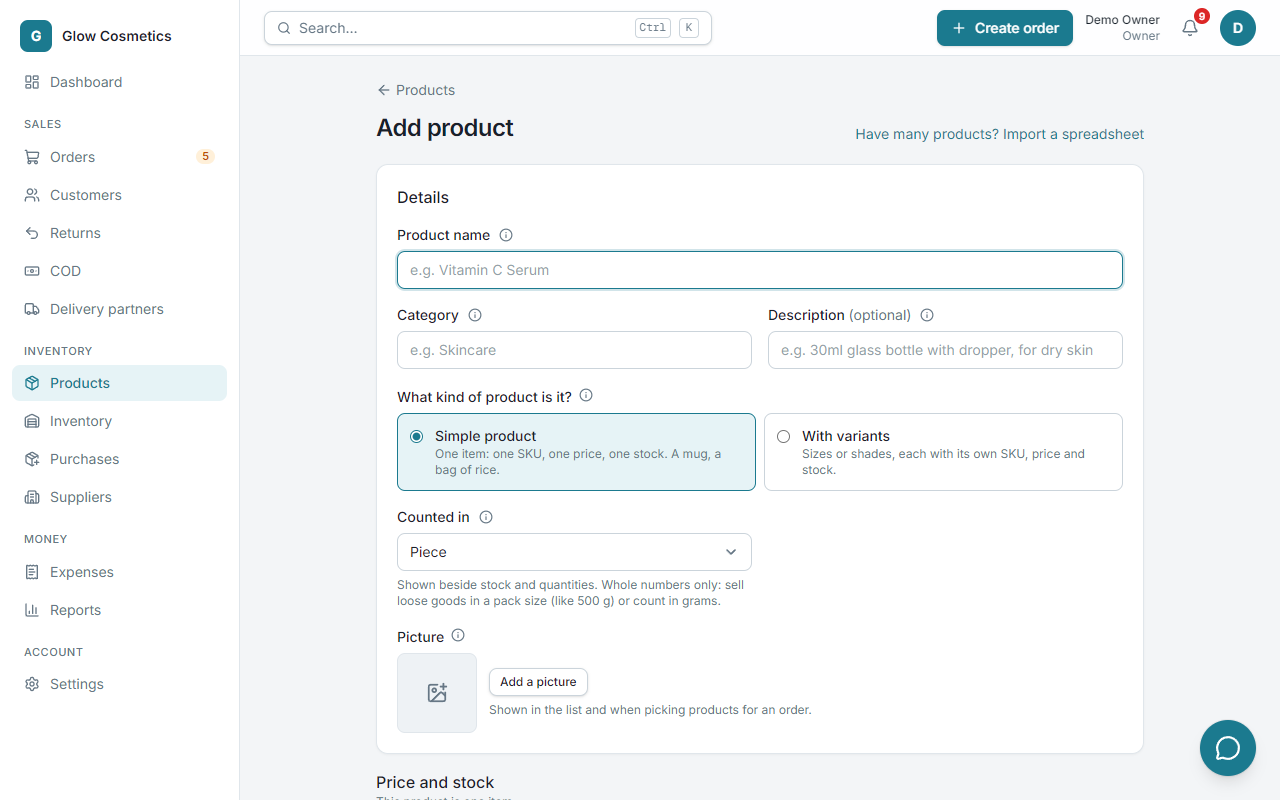
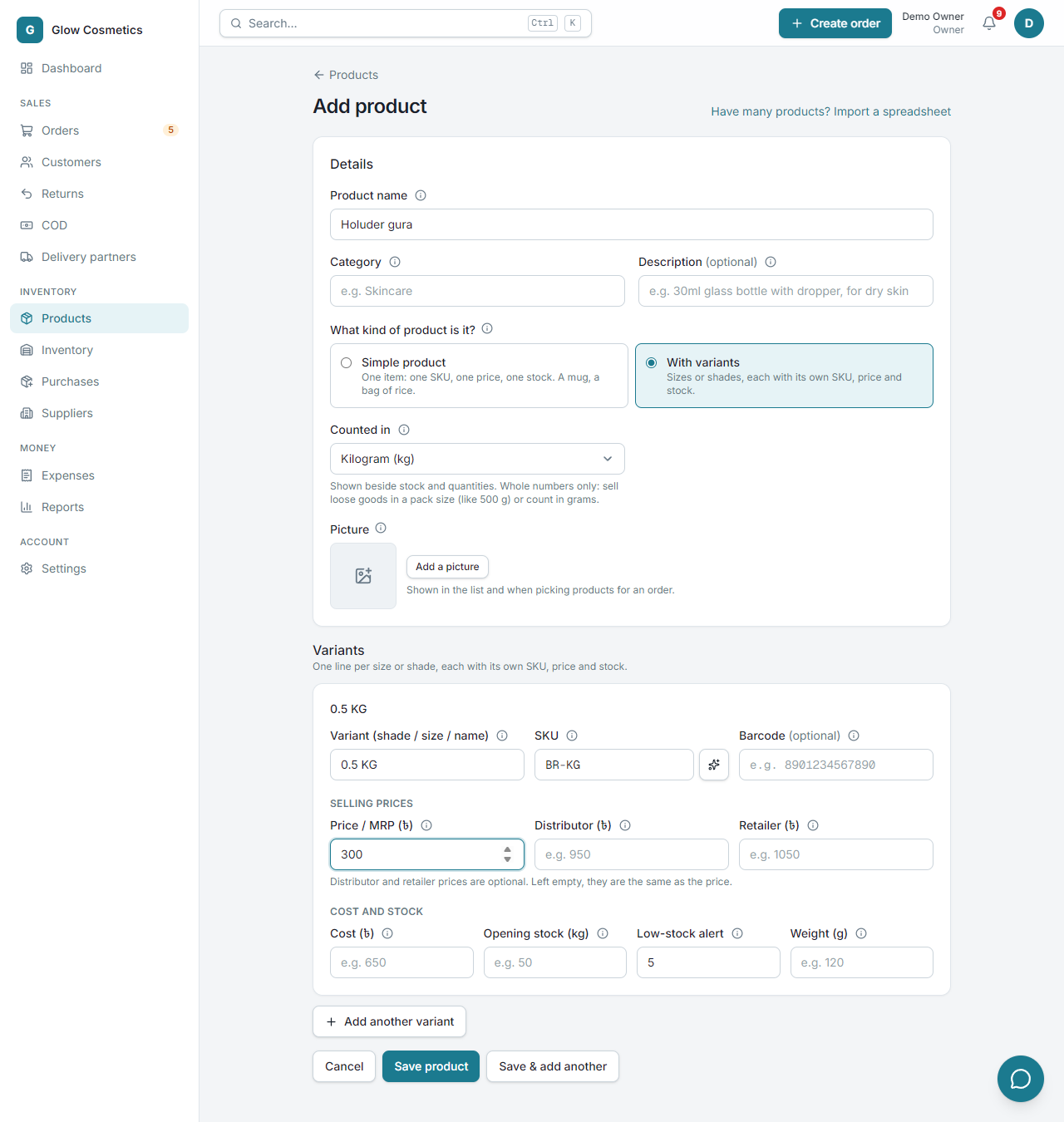
- Go to Products → Add product.
- Type the Product name. You can type it in English or Bangla.
- Choose a Category. It suggests the ones you already use, or type a new one, which is added to your list. Capitals and extra spaces don't matter: skincare and Skincare are the same category.
- Add a short Description if you want, and a Picture: press Add a picture and choose a photo. It is shrunk automatically.
- Choose What kind of product is it?: Simple product or With variants. See Simple product or with variants.
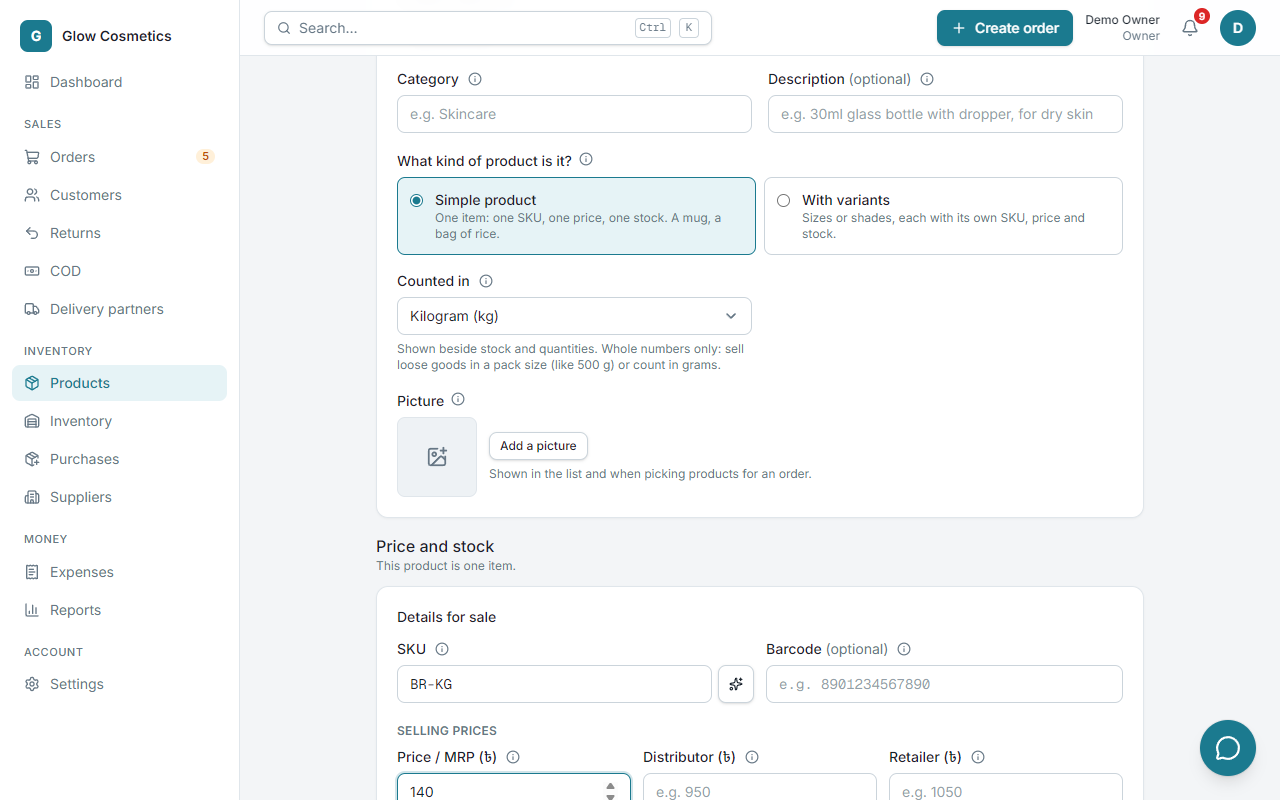
- Under Counted in choose what you sell it by (pieces, kg, litre ...). See Units.
- Fill in the card for the item (a simple product has one card; with variants, one card for each size or shade):
- Variant (shade / size / name), for example
0.5 KG. Only asked for products with variants. - SKU: your code for the item. See The SKU suggests itself.
- Barcode (optional): type it, or scan it with a barcode scanner.
- Price (৳): what you sell it for (the normal price, called MRP).
- Distributor (৳) and Retailer (৳) (optional): cheaper prices for shops that buy from you. Leave them empty if the price is the same. See Price types.
- Cost (৳): what you paid. Only people with the cost permission see this. The margin is shown beside it.
- Opening stock: how many you have now. This can only be set when the variant is created.
- Low-stock alert: warn me when stock falls to this number.
- Weight (g): used to fill in the parcel weight when you book a courier.
- Variant (shade / size / name), for example
- Add another variant (products with variants only) copies the price, cost and alert from the last one.
- Press Save product, or Save & add another to keep the category and start the next product.
Simple product or with variants#
The first thing the form asks is what kind of product it is:
- Simple product: one item with one SKU, one price and one stock, for example a mug or a bag of rice. The form is short: there is no variant name and no Add another variant.
- With variants: sizes or shades, each with its own SKU, price and stock, for example a lip tint in Rose and Coral. Every variant needs a name.
You can change your mind when you edit the product:
- A simple product can become one With variants: add a name to its variant, then add more.
- A product with more than one variant cannot become a simple one (the choice is greyed out and says why). Switch off the extra variants first.
- A product that gets a second variant (for example from a spreadsheet import) becomes With variants by itself.
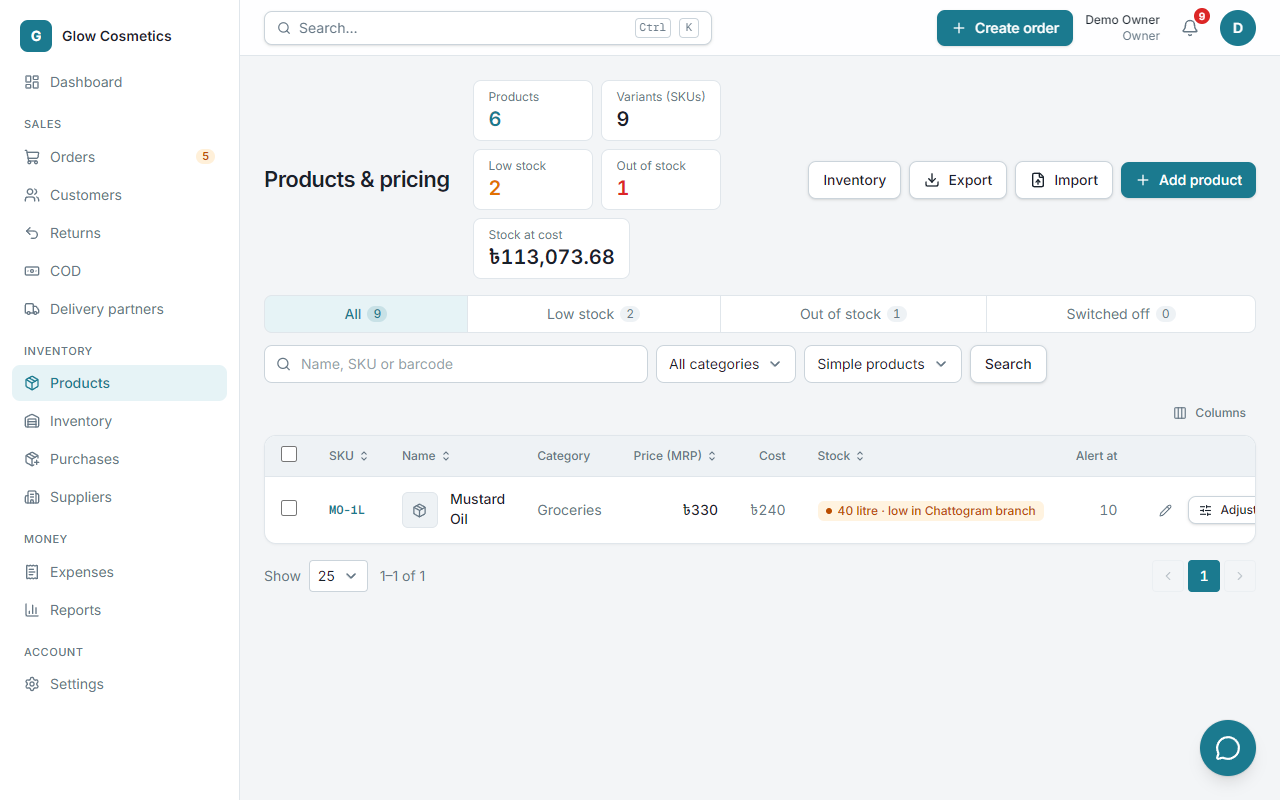
On the product list, the Product type box next to the search shows only simple products or only products with variants.
Units: kg, litre and more#
Counted in is what a product is sold by: Piece (the default), pair, set, dozen, pack, box, bottle, jar, bag, kilogram, gram, litre, millilitre, meter or square foot.
The unit is written beside the quantity wherever you see it: the stock on the product and stock pages, the order form (2 kg, 12 litre in stock), the order page, the printed invoice and the pick list. Pieces are not written out: 2 stays 2.
Price types: MRP, Distributor, Retailer#
Sell to shoppers and to shops at the same time? Give a variant up to three prices:
- Price / MRP: the normal price for a customer.
- Distributor: the price for a distributor who buys in bulk.
- Retailer: the price for a shop that resells.
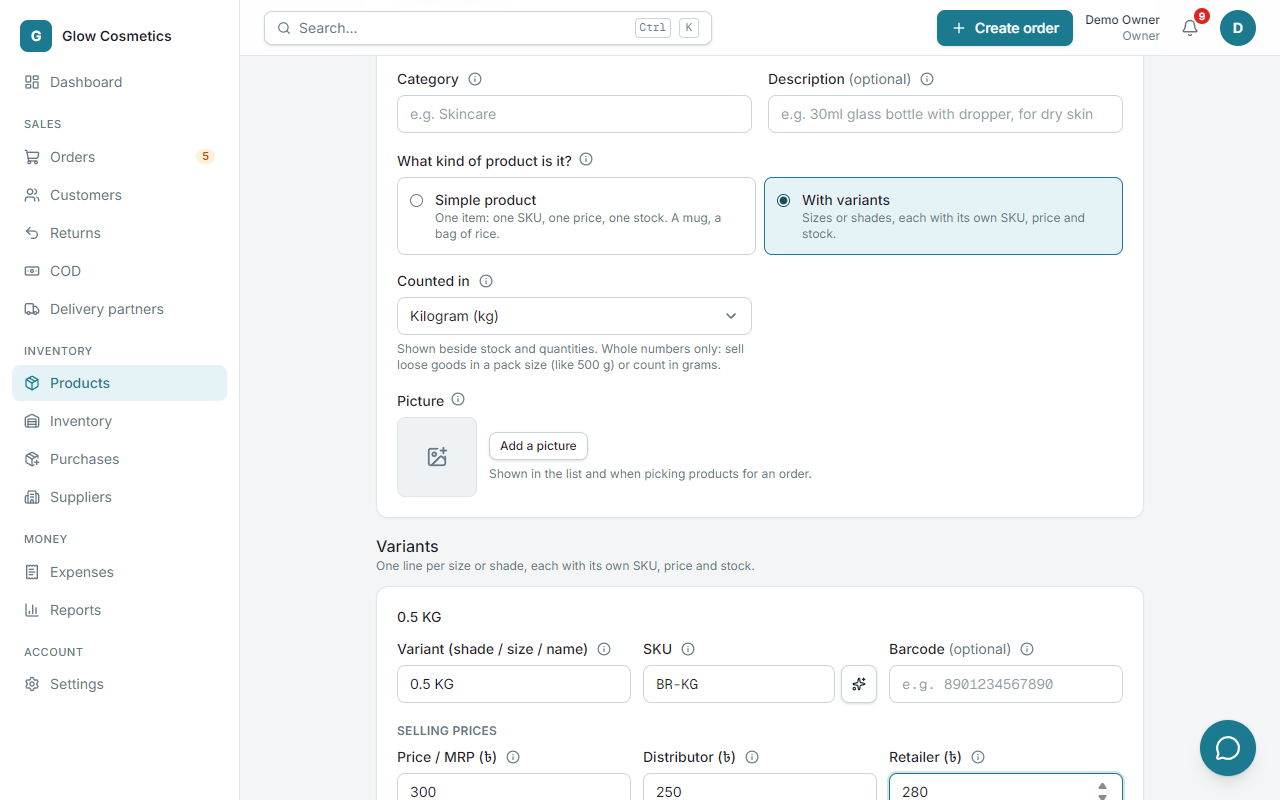
An empty Distributor or Retailer price means the same as MRP. On the product page and the products list the three prices are shown side by side. When you take an order you choose the Price type, and every item takes that price (see Create an order). You can also set the usual price type of a customer (see Customers).
Because a distributor price is simply that customer's list price, selling at it needs no discount permission. Selling below it still needs the Give discounts permission, as before.
The spreadsheet import and export have two more columns, price_distributor and price_retailer. An empty cell in an import leaves the existing price as it is.
The SKU suggests itself#
While you type the product name and the variant, Enpod proposes a SKU. For example:
| Product name | Variant | SKU |
|---|---|---|
| Holuder gura | 0.5 KG | HG-05KG |
| Holud | 0.5 KG | HO-05KG |
| Holuder gura | (none) | HG-001 (then HG-002, HG-003 …) |
| হলুদের গুরা | 0.5 KG | HG-05KG (Bangla names give English letters) |
The letters come from the first letters of the name's words. Typing in the SKU box takes over; the sparkle button next to it brings the suggestion back. A code already used gets -2, -3.
The product page#
Click a product to open it.
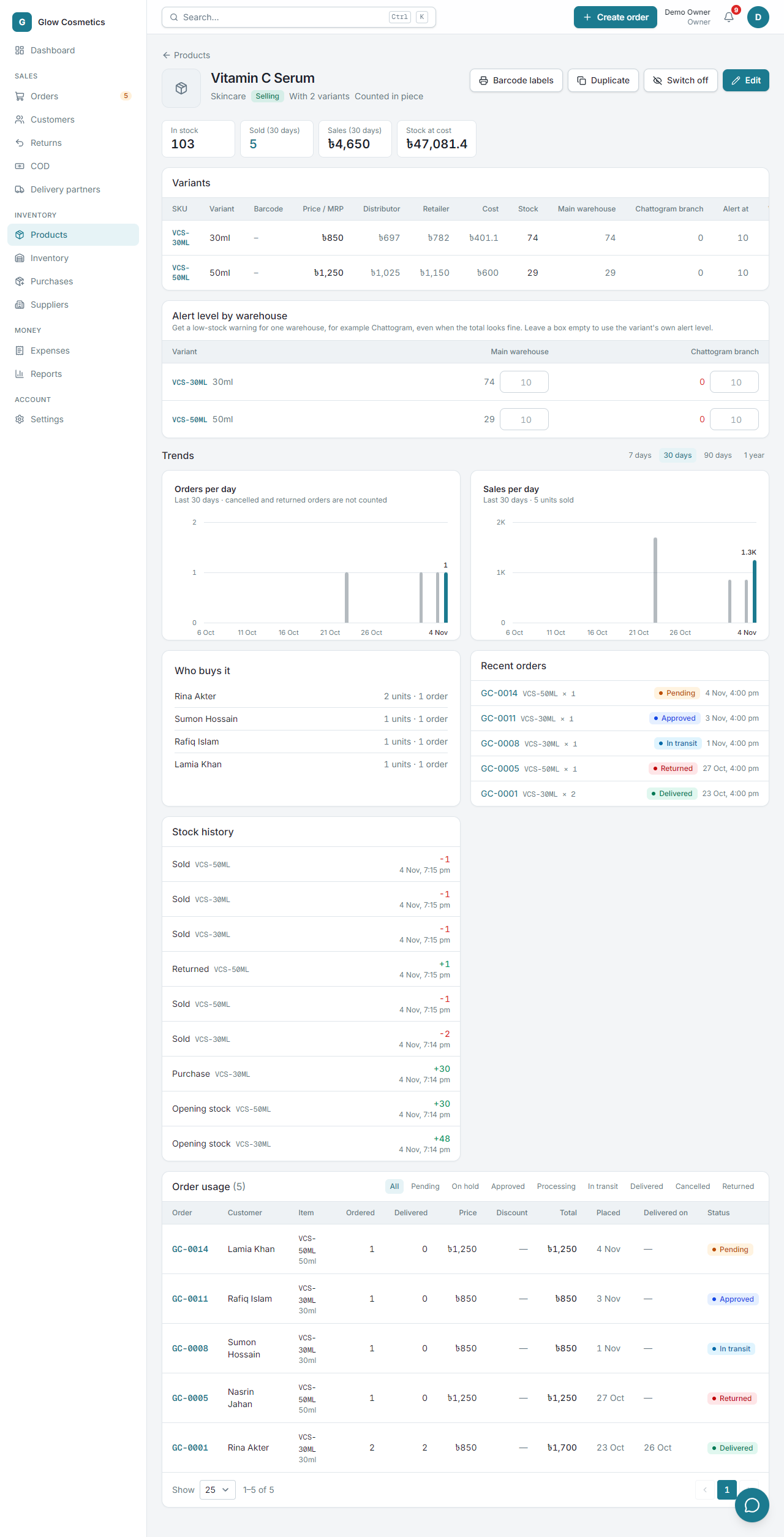
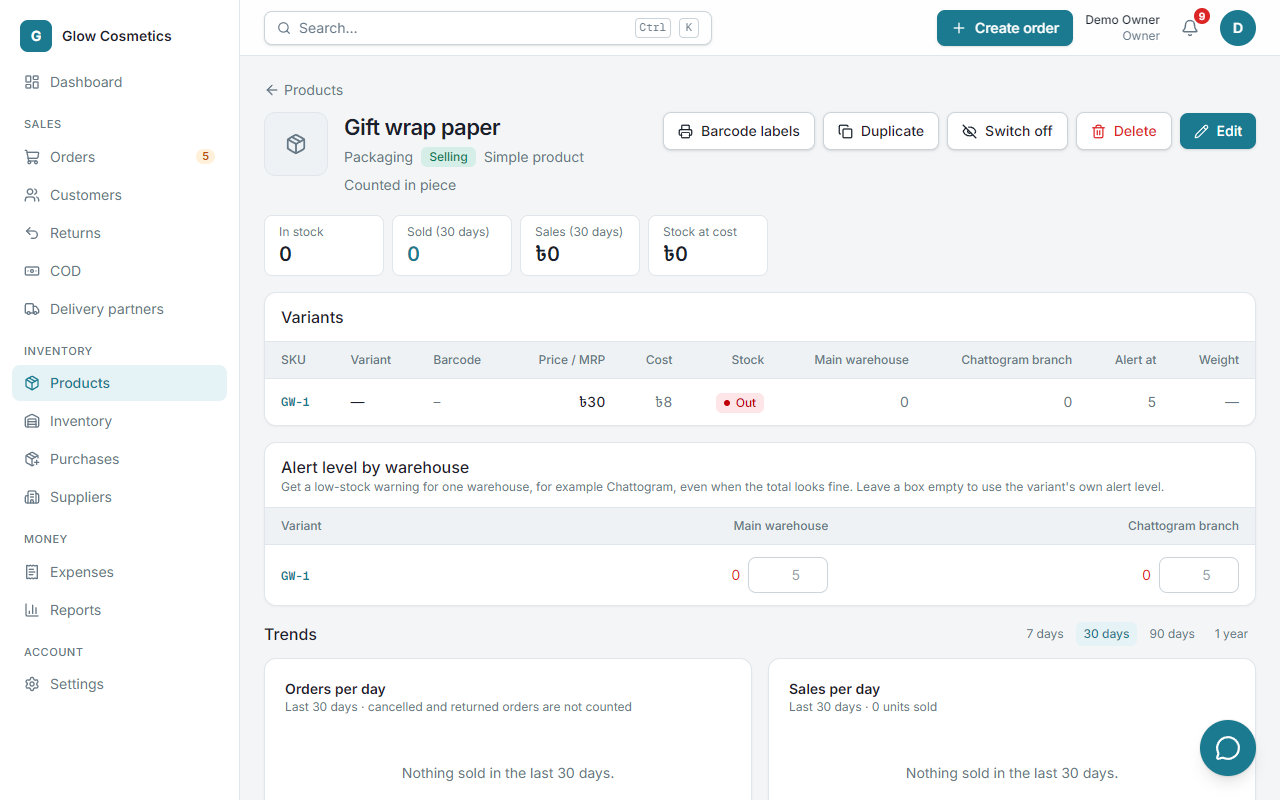
You see each variant with its barcode, price, cost, stock (per warehouse if you have several), alert level and weight, plus:
- Units sold per day over 7, 30 and 90 days: the trend.
- Who buys it and the recent orders that include it.
- The stock history of its variants.
- Buttons: Barcode labels, Duplicate, Switch off and Edit.
Alert level by warehouse#
If you keep stock in more than one warehouse, the product page has an Alert level by warehouse card. It lists each variant with the stock in every warehouse and a box for the level at which you want a warning in that warehouse. Type a number and leave the box to save it. Leave a box empty to use the variant's own Low-stock alert.
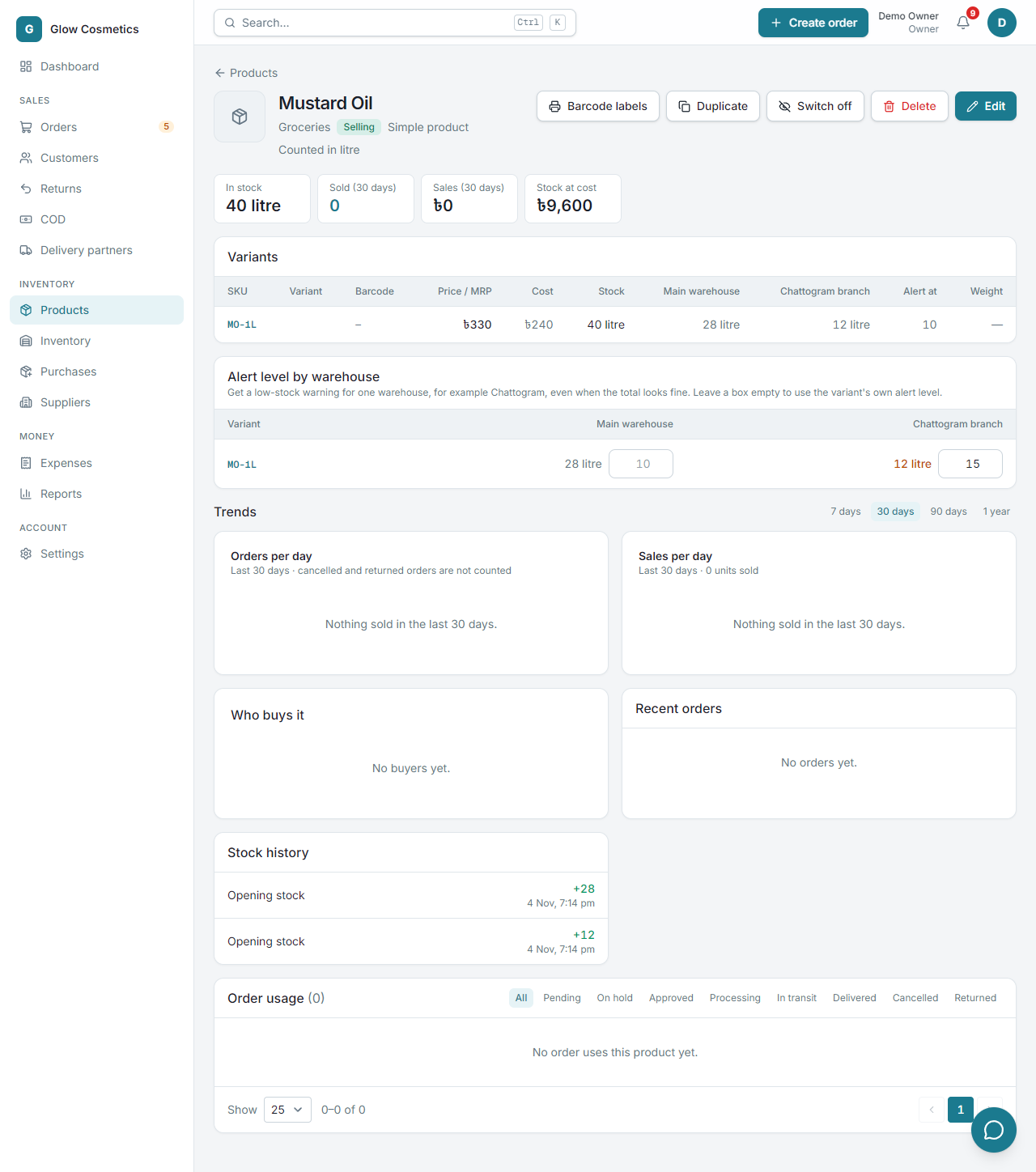
This is for a case like: you have 40 litres in total, but only 12 in Chattogram, where you want a warning at 15. The stock page then shows Low in Chattogram even though the total looks fine, and the low-stock counts on the dashboard follow the warehouse's own level. Only owners and admins can change these levels.
Edit, duplicate, switch off#
- Edit changes names, prices, barcode, weight, or adds a variant. Stock is not changed here: use Adjust stock or a stock count, so every change has a reason and a history.
- Duplicate makes a copy with
-COPYSKUs and no stock. - Switch off stops selling a variant. It is never deleted, so old orders keep their history.
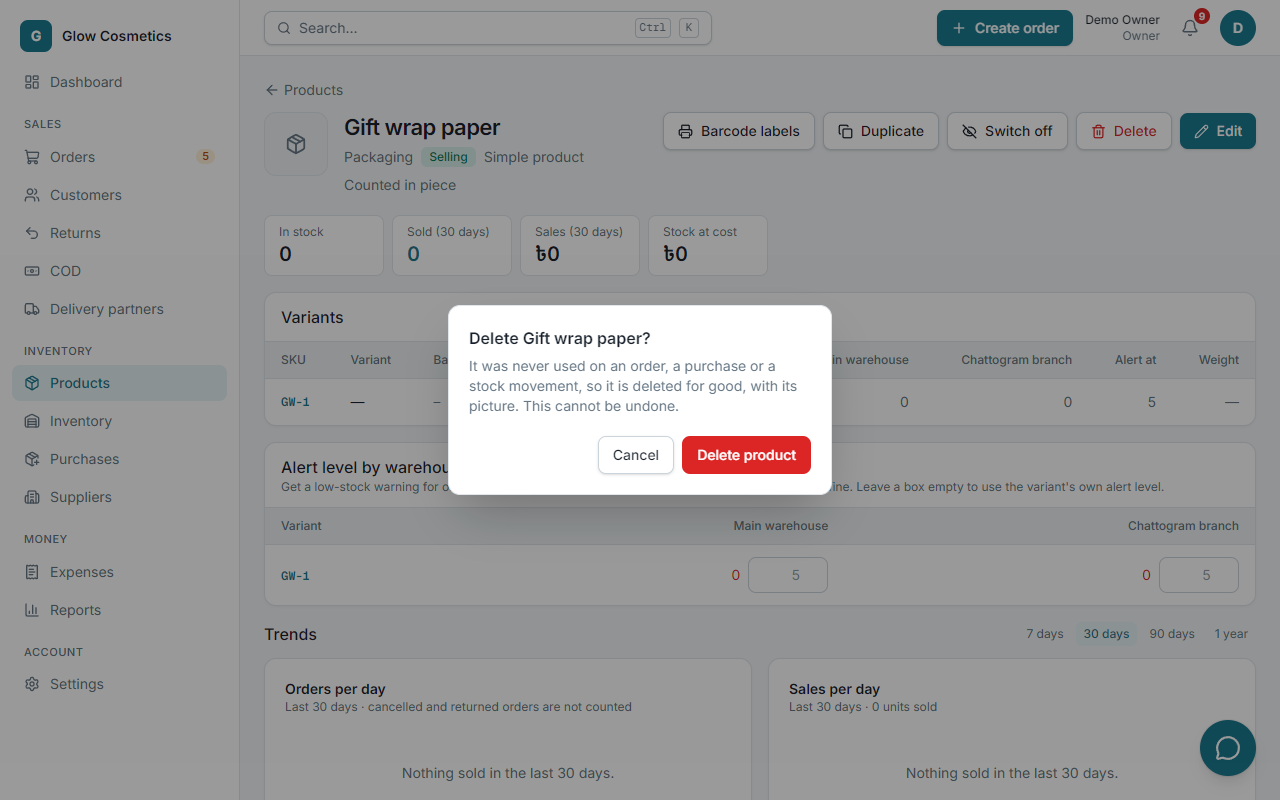
- Delete (on the product page) removes a product for good, with its picture. It only appears for a product that was never used: not on any order, return, purchase or purchase order, and with no stock movement other than the opening stock typed in when it was added. You confirm first, and the delete is written in the activity log. Anything that has been used can only be switched off, so your history stays whole.
Work in the list#
The tabs are All, Low stock, Out of stock and Switched off. Search by name, SKU, variant or barcode, and filter by category.
- Click a price or an alert level to change it in place. Press Enter to save, Esc to cancel.
- Adjust stock next to a row changes the stock: see Inventory.
- Tick rows for bulk work: change Prices (set to a number, change by a percent, or add or subtract ৳, with a before and after preview), Category, Alert level, Switch off / on, Labels (barcode stickers) and Export.
Import products from a spreadsheet#
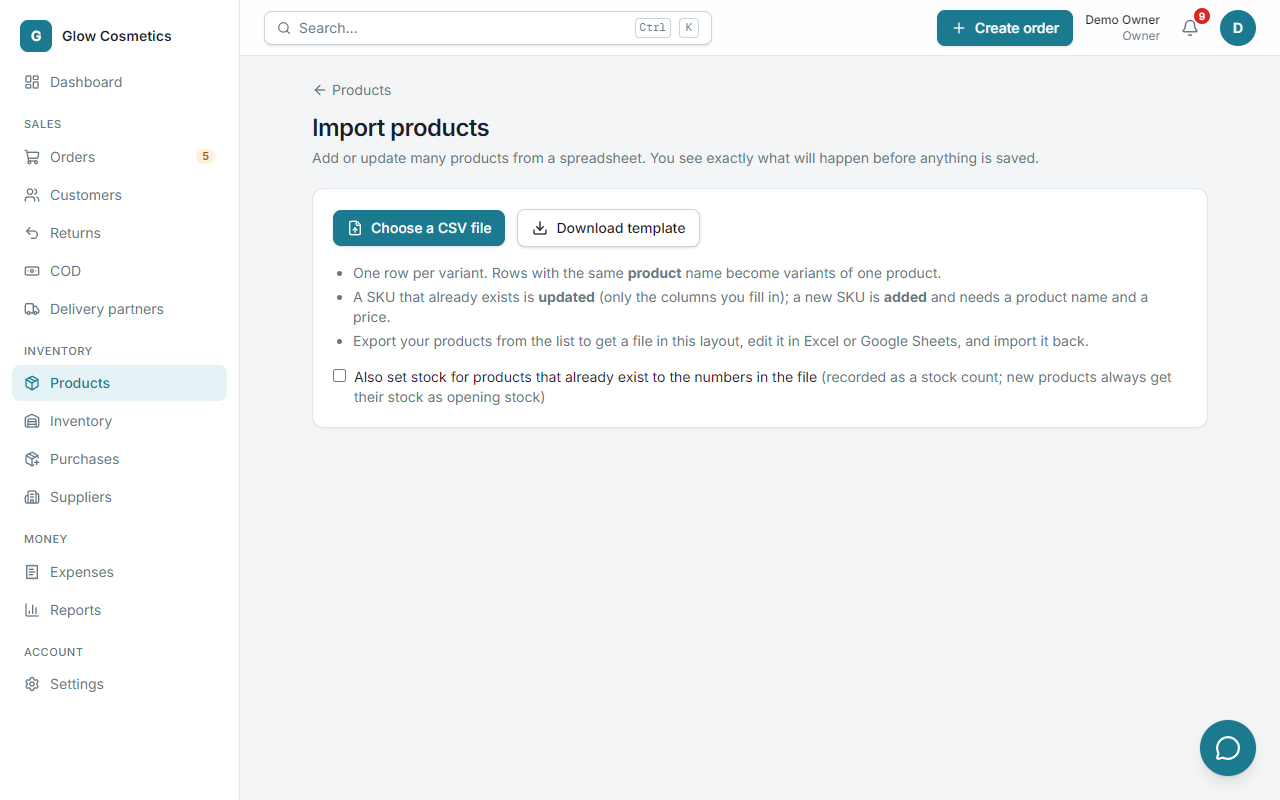
- Press Import (or the link Have many products? Import a spreadsheet).
- Download the template, or use your own file. Headings such as Product Name, Item Code, Selling Price and Qty are understood.
- Choose the file. Every row is shown as Add, Update or an error in plain words. Nothing is saved while any row has a problem.
- Confirm. A SKU that already exists is updated (only the columns you filled). A new one is added and needs a name and a price. Rows with the same product name become variants of one product.
Barcode labels#
Select products and press Labels. Print them on an A4 sheet (3 × 8) or on a 50 × 30 mm roll: the barcode, name, variant and price.
Where your pictures live#
Product pictures are stored safely in your own business's folder. Only the owner and admins can add or remove them. When you change or remove a picture, or delete a product, the old picture file is deleted too, unless another product (a copy you made with Duplicate, say) still shows it.