
Take an order
Create an order in about a minute, for a new or a returning customer, with delivery, payment and notes.
On this page
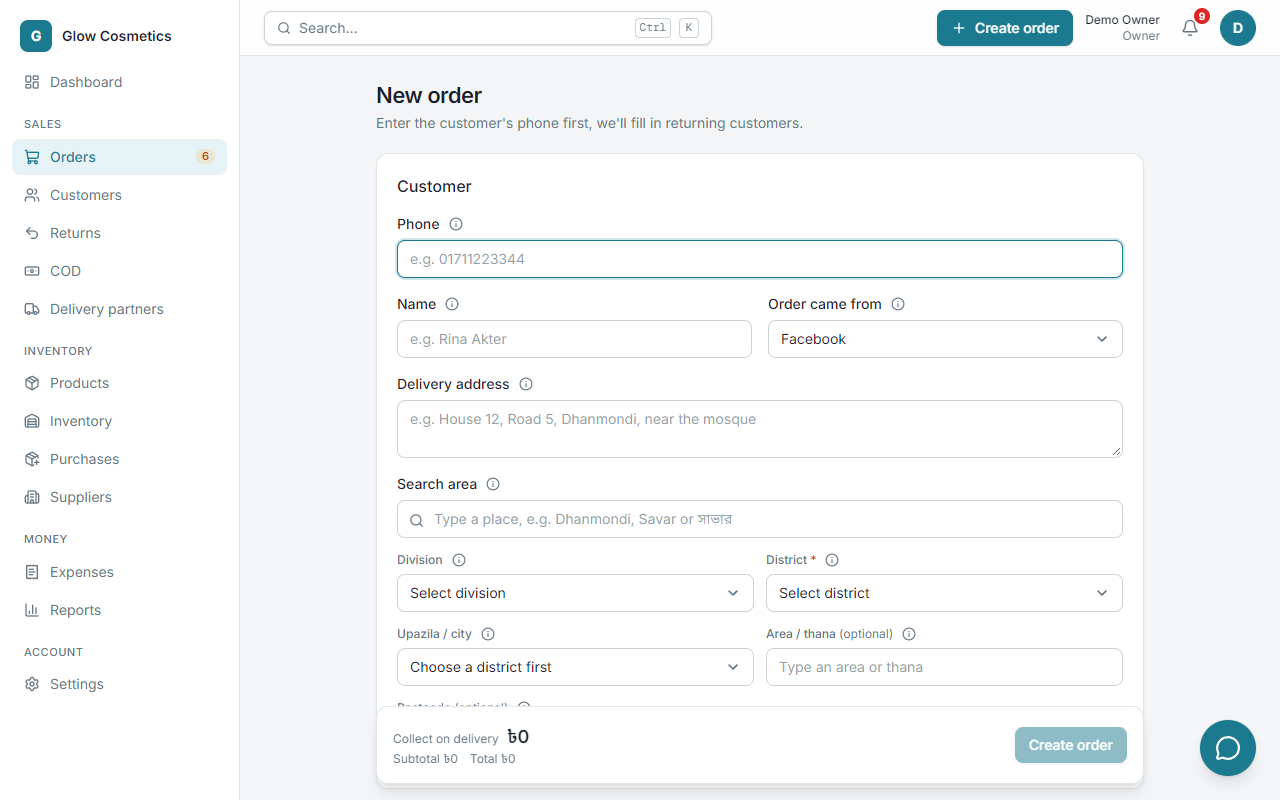
An order is taken on one form: Create order (top right of any page) or Orders → Create order. The form starts with the phone number, because that is what tells Enpod who the customer is.
Step by step#
- Phone. Type the customer's mobile number. Bangla digits are fine.
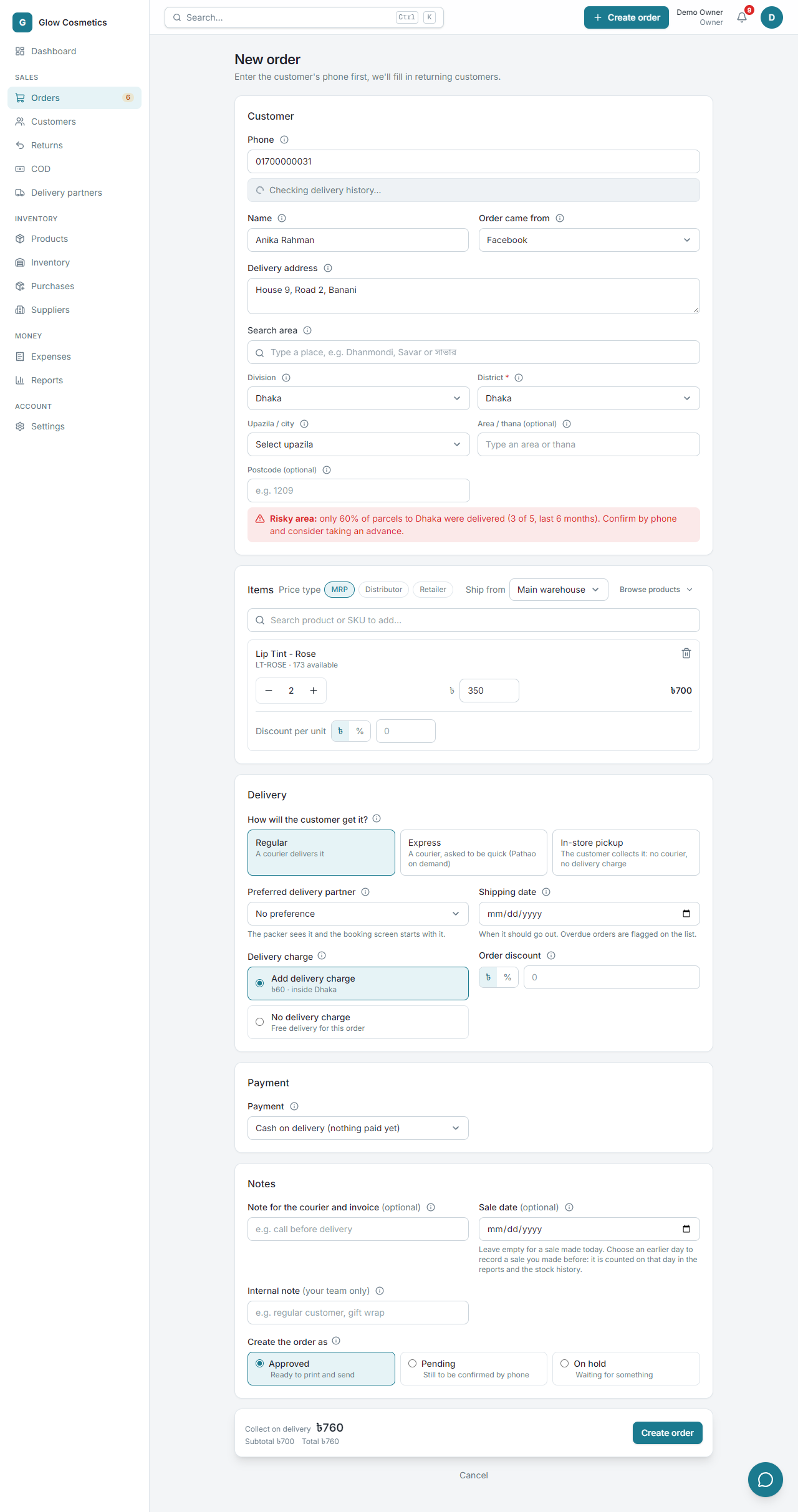
- Look at the grey box under the phone number. It tells you how that number behaved with couriers before: New to couriers, or a delivery record such as 1 of 1 parcel delivered. See Know your customer.
- Name and Order came from (Facebook, WhatsApp, phone call and so on). The last source you used is remembered.
- Delivery address. Type the house and road.
- Search area. Type the place (
Dhanmondi,Savarorসাভার) and pick it: the division, district and upazila fill in by themselves. The District is required, because the courier needs it and the delivery charge depends on it. - In Items, type a product name or SKU, or scan its barcode, and press Enter to add it. Change the quantity with − and +.
- Delivery: choose how the customer gets it (see Delivery).
- Payment: Cash on delivery or an advance (see Payment).
- Add the notes if you need them.
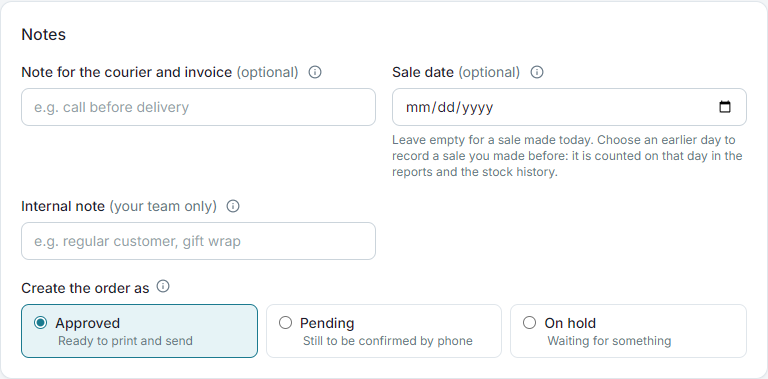
- Choose Create the order as Approved, Pending or On hold.
- Press Create order. The total and the cash to collect are always shown in the bar at the bottom.
A customer who has ordered before#
When the phone number is already known, Enpod fills in the name and offers the saved addresses.
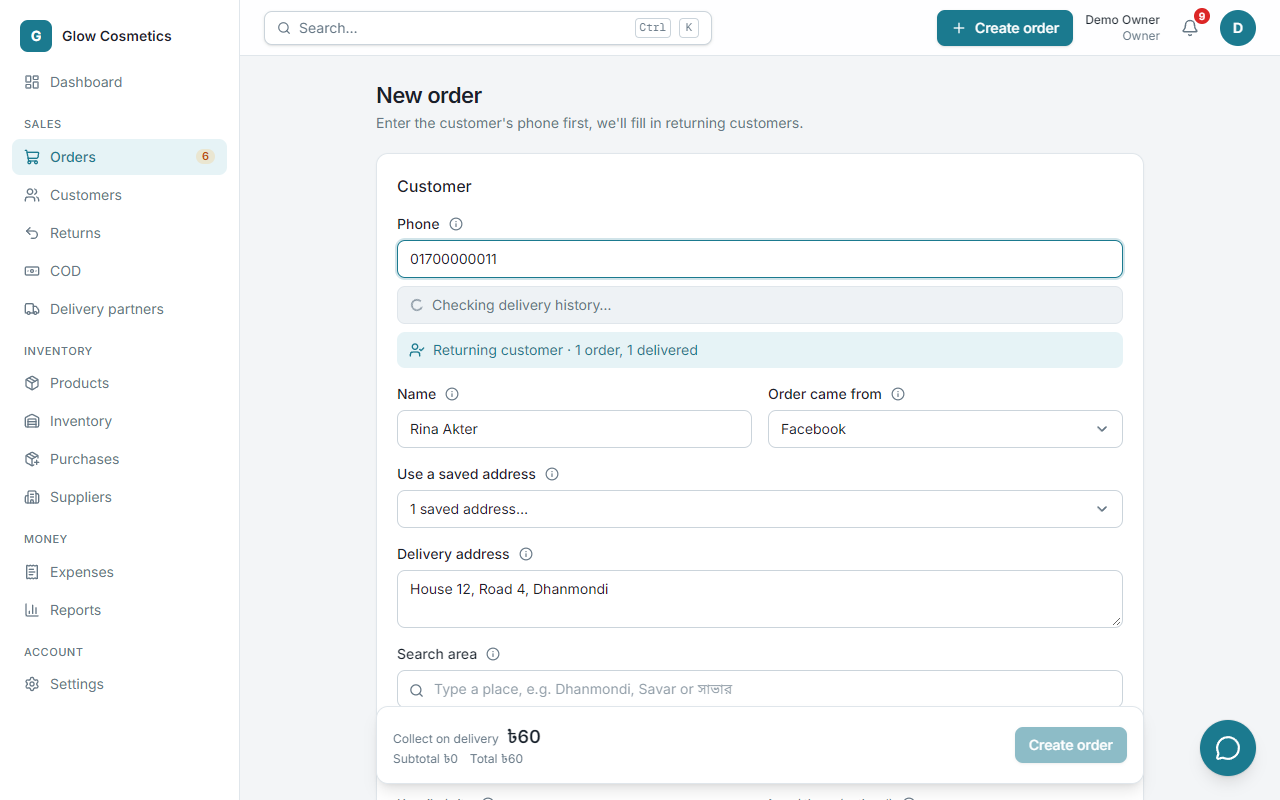
Pick Use a saved address to reuse one, or type a new one. If the same number already has an open order, you get a warning with a link so you do not create a duplicate by mistake.
Know your customer#
Under the phone number you see a short verdict about the customer's past parcels, and two buttons:
- Check courier history asks the connected courier for this number's record (delivered and returned parcels).
- Flag this customer lets you mark a number that cheated you, so you and your team are warned next time.
A line like Risky area: only 60% of parcels to Dhaka were delivered appears when the district has a poor record over the last six months. Confirm by phone, and think about asking for an advance.
Items#
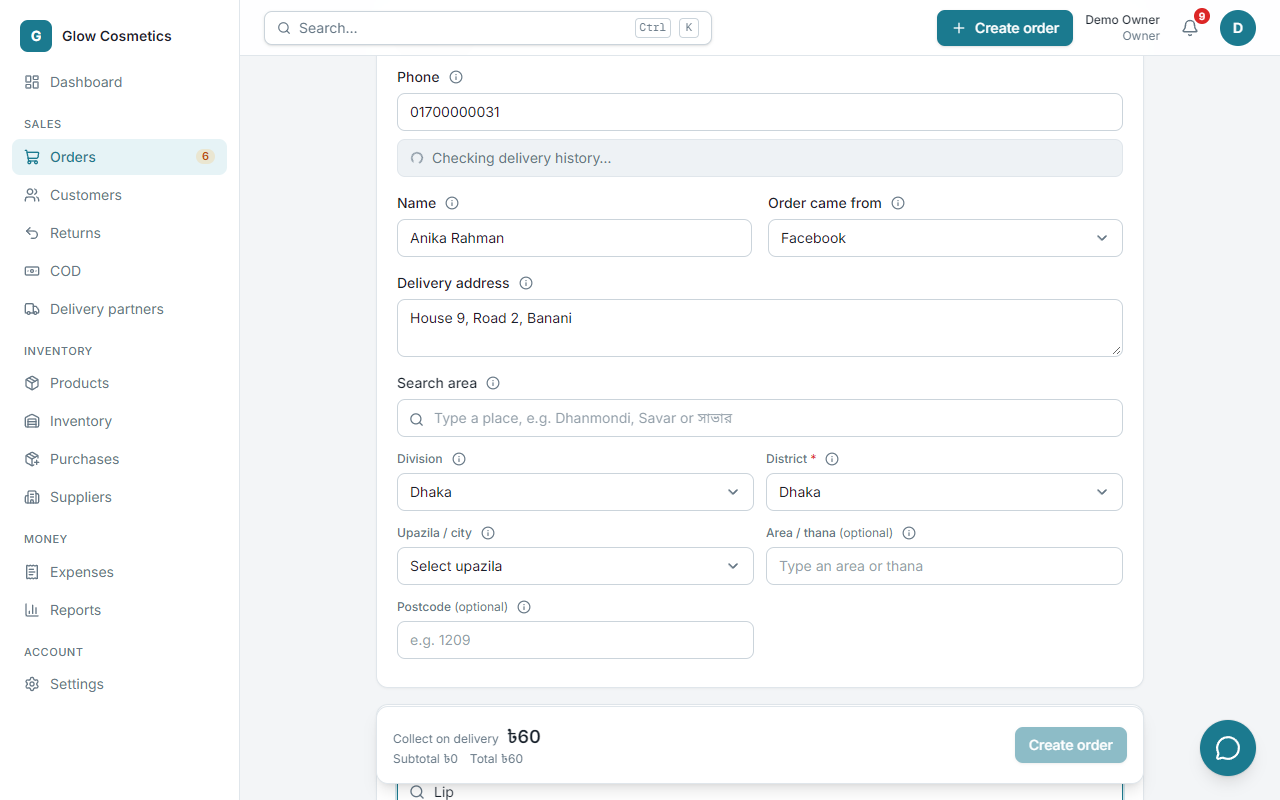
- Search product or SKU to add finds by name, SKU or barcode, in English or Bangla.
- Browse products opens the list with category chips and the stock of each.
- Ship from appears when you have more than one warehouse. Stock is taken from the one you choose.
- A line shows how many are available. You cannot sell more than that, unless the owner allowed selling at zero stock in Settings.
- Discount per unit: in ৳ or %. You need the Give discounts permission. A discounted line shows the price the customer pays; the list price stays on the order and is struck through on the invoice.
- Order discount (in the Delivery section): in ৳ or % off all the products together. It can never be more than the products cost, and it is worked out before tax. Delivery is not discounted.
- Free delivery (Settings → Business) is judged on what the customer pays for the products, after item and order discounts: with free delivery from ৳2,000, ৳2,100 of products with ৳300 off is ৳1,800, so delivery is charged.
- The price can be changed on the line if you have the Change selling prices permission.
Price type#
If any of the products has a distributor or retailer price, a Price type choice appears above the items: MRP, Distributor or Retailer.
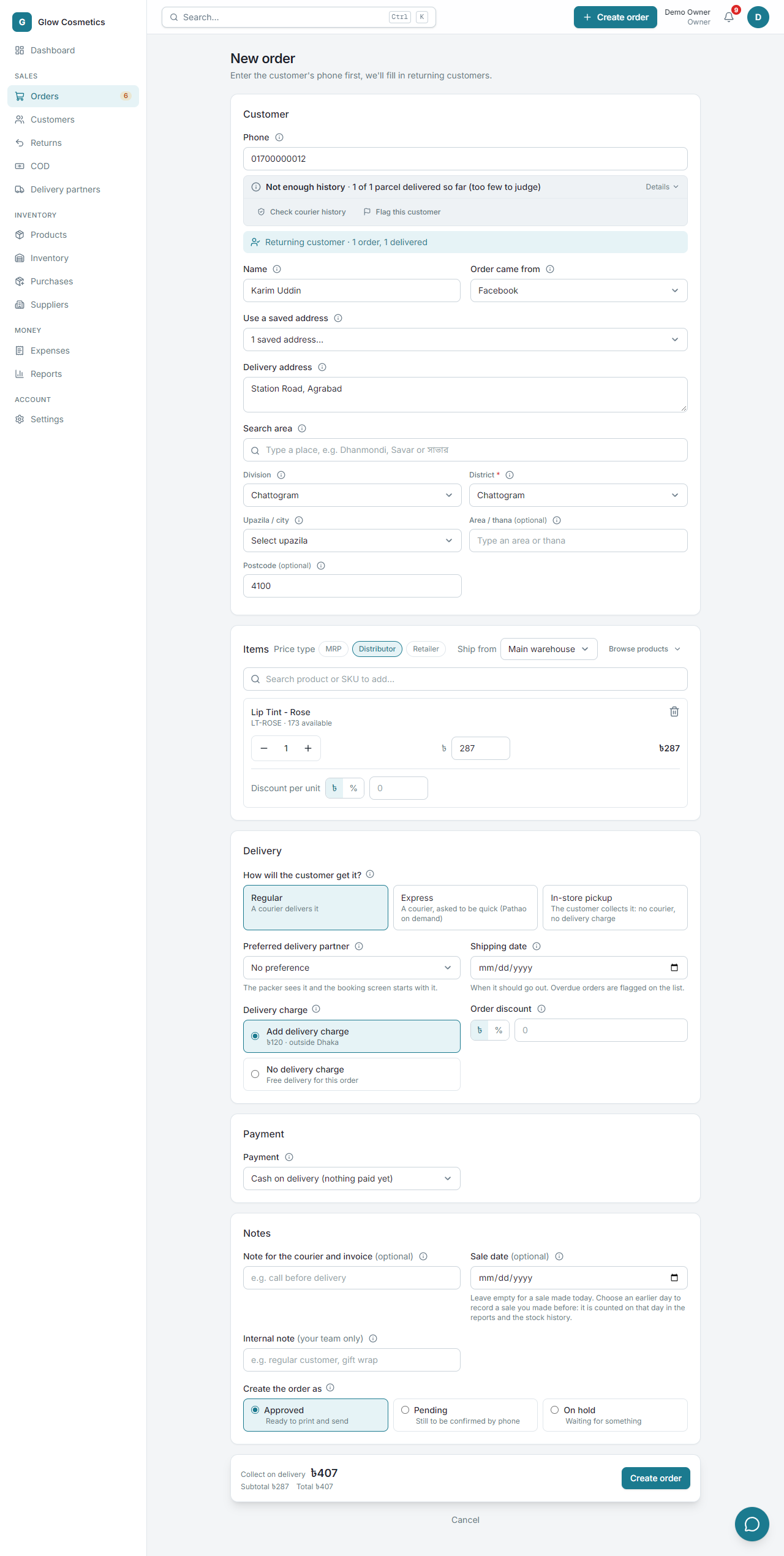
- Choose one and every item takes its price for that type. A product with no price for that type keeps its MRP price.
- If the customer has a usual price type (set on their customer page), the form starts with it as soon as you type their phone number. You can still change it for this order.
- You can still type a different price for a single item. That is a discount (or a raise) against the type's price and follows the same permissions as before.
- The type is saved on the order and shown on the order page. Edit order can move an order to another price type: the prices are recalculated.
Delivery#
- Regular: a courier delivers it.
- Express: a courier asked to be quick (Pathao on demand).
- In-store pickup: the customer collects it, with no courier and no delivery charge.
- Preferred delivery partner: the courier you want. The booking screen starts with it.
- Shipping date: when the parcel should go. Overdue orders are flagged on the list.
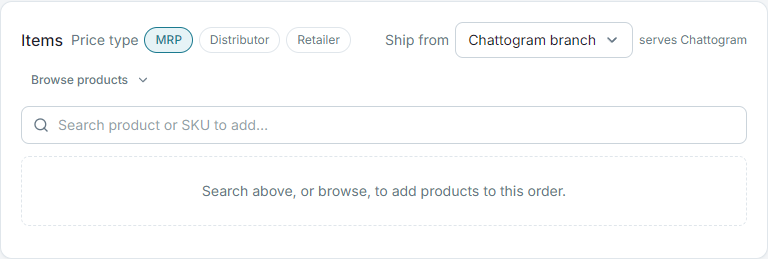
- Ship from (only when you have more than one warehouse): starts with the warehouse that serves the customer's district (see Warehouses) and says so, for example serves Chattogram. Choose another if you like; a choice you make stays.
- Delivery charge: choose Add delivery charge or No delivery charge. The amount is set once in Settings (inside Dhaka, outside Dhaka, and optionally free above some amount). You do not type it each time.
Payment#
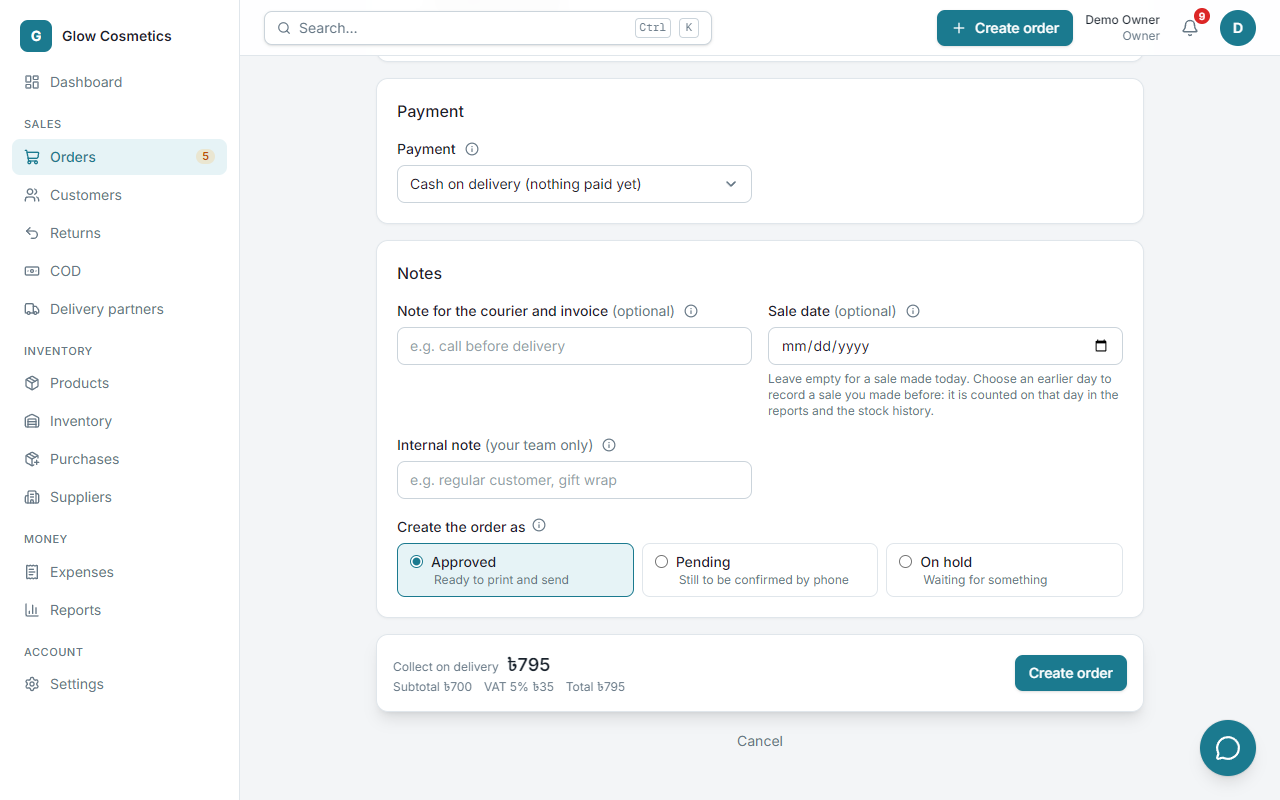
- Cash on delivery (nothing paid yet) is the usual choice: the courier collects the total.
- Choose bKash, Nagad, Rocket, Upay, bank, card or cash when the customer already paid, fully or in part. Type the advance in ৳ or %, and the transaction ID.
- The Collect on delivery amount at the bottom is the total minus the advance. This is the amount given to the courier.
- If your business adds tax and rounding, the bar at the bottom shows each as its own line (for example VAT 5% ৳75 and Rounding +৳2.5) and the total includes them.
Notes#
- Note for the courier and invoice is printed on the invoice and sent to the courier (for example call before delivery).
- Internal note is for your team only.
- Sale date (owners and admins only): leave it empty for a sale made today. Choose an earlier day to write down a sale you made before, from a notebook for example. The order, its first status steps and its stock movement are dated on that day (at noon), so the reports and the stock history count it there. The order page then shows when it was really entered. You cannot choose a future day or one more than two years back.
Create the order as#
| Choice | Use it when |
|---|---|
| Approved | The customer has confirmed. It is ready to print and send. |
| Pending | You still need to confirm it by phone. |
| On hold | You are waiting for something. You give a reason and a follow-up date. |
After you press Create order#
A banner tells you which order was made (for example GC-0017) and offers View, Print invoice, Print slip and Create another.
Many orders at once#
Have a spreadsheet? See Upload orders from a file. Orders from your website arrive by themselves: see Online stores.