
Inventory and stock
See what you have, adjust and count stock, move it between warehouses, and know what to restock.
Inventory shows how much of everything you have and where it is.
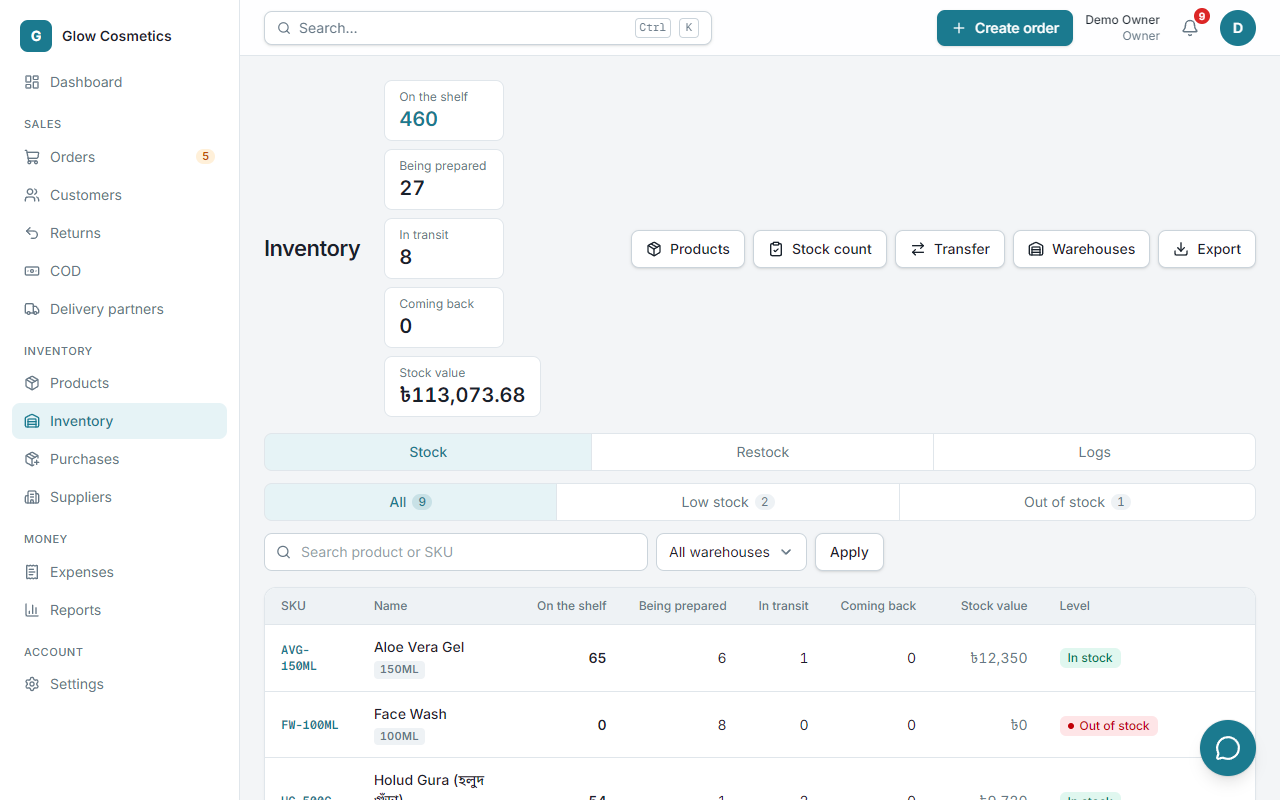
The cards#
| Card | Meaning |
|---|---|
| On the shelf | Units you can sell now. |
| Being prepared | Units in orders that are approved or processing. |
| In transit | Units with couriers. |
| Coming back | Units in parcels returning to you. |
| Stock value | What the stock on the shelf cost you. |
The tabs#
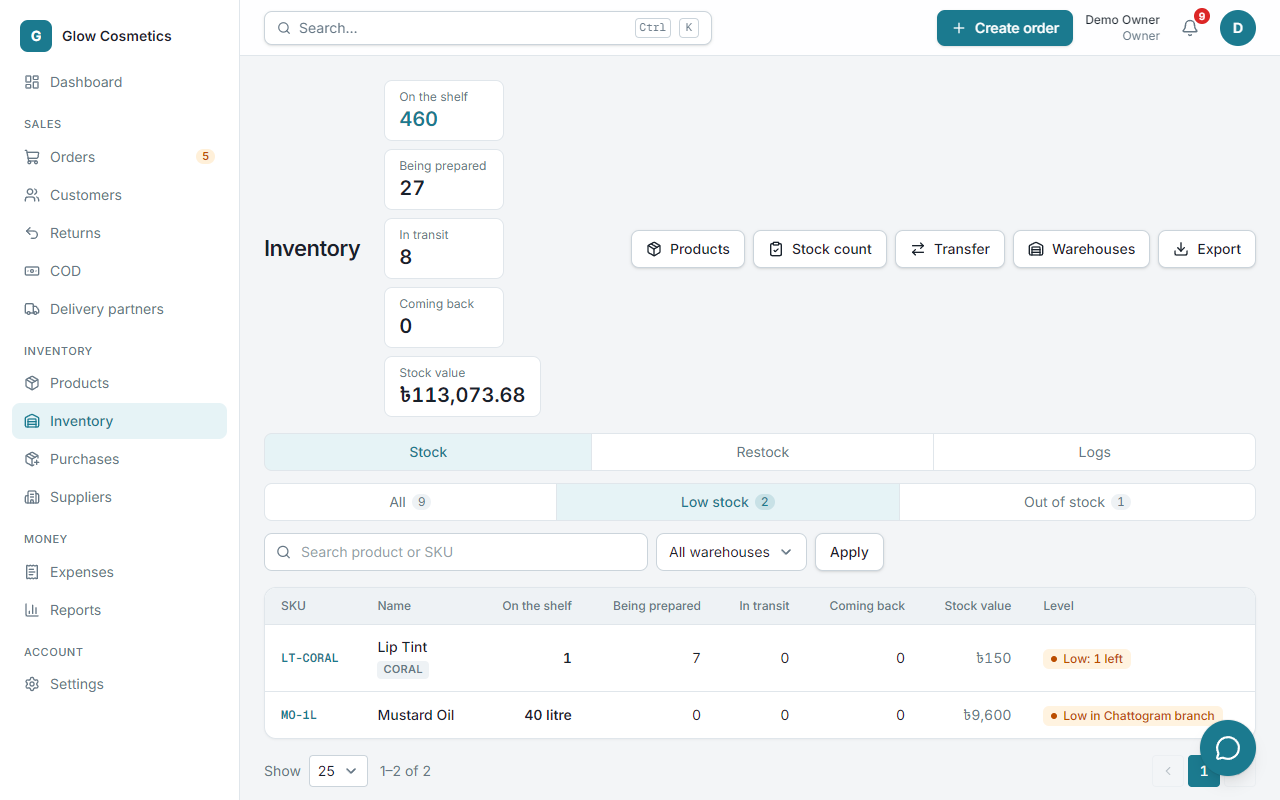
- Stock: every SKU with its quantities (with the unit, like 12 litre), value and a Level (In stock, Low stock, Out of stock). Filter by All, Low stock or Out of stock, and by warehouse. A product that is low in only one warehouse shows Low in Chattogram (set the level in Alert level by warehouse).
- Restock: what to buy next.
- Logs: every stock movement with the reason and who did it.
Adjust stock#
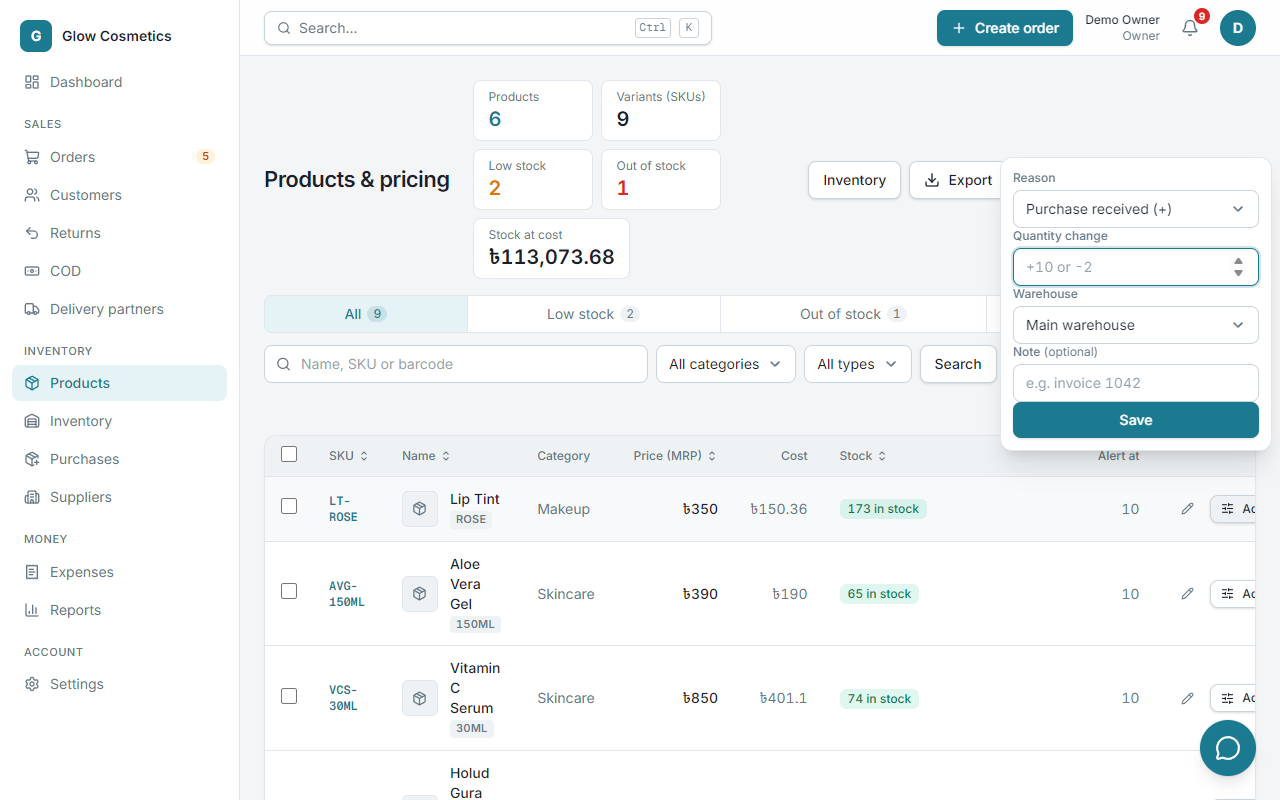
Use this when you receive, lose or correct stock by hand.
- Open Products and press Adjust stock next to the item.
- Choose the reason: Purchase, Correction, Damaged / wasted, Expired or Opening stock.
- Type the quantity and an optional note, and choose the warehouse.
- Save.
Damaged and Expired take units away (you type how many were lost). Lost units show in a Written off column.
Stock count#
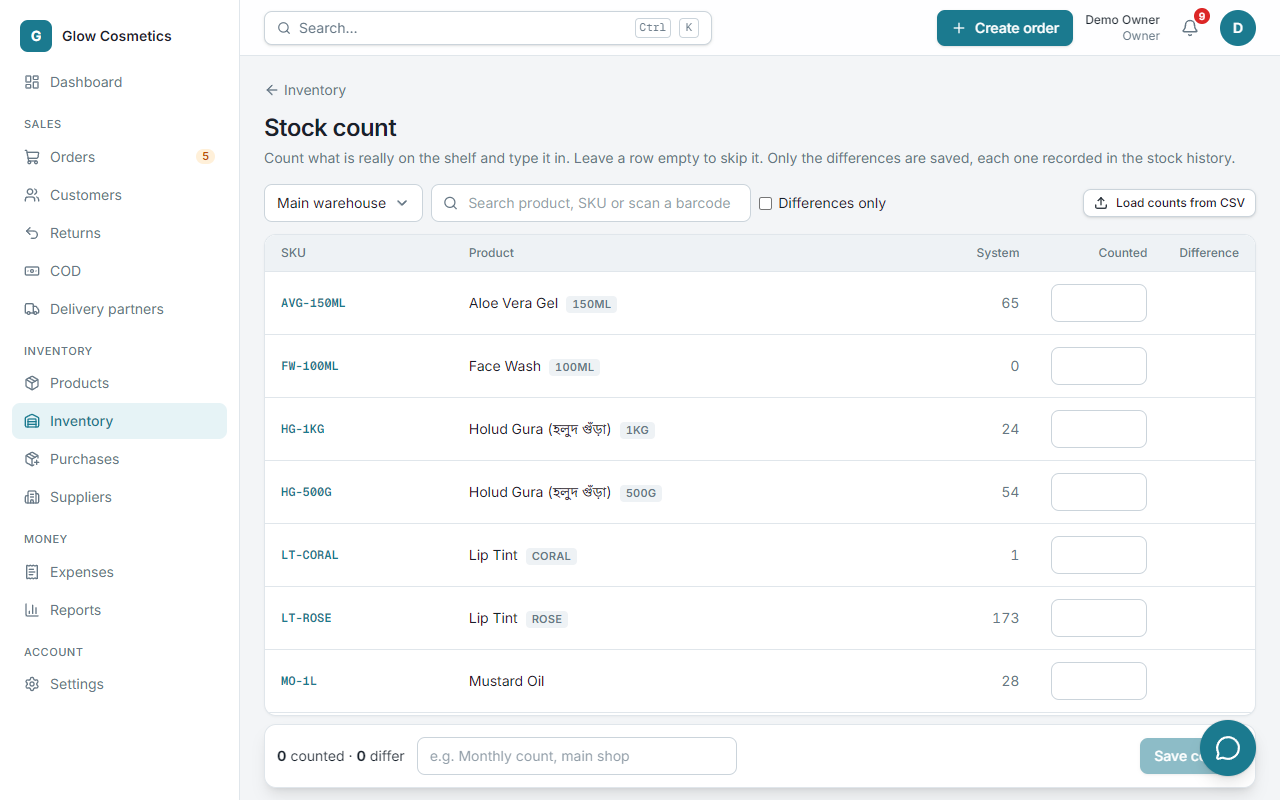
A stock count compares the shelf with the system.
- Press Stock count.
- Type what you really counted for each product. Leave a row empty to skip it. You can search, scan a barcode, show only differences, or load the counts from a file (
sku,counted). - Press save. You are told how many go up and how many go down, and only the differences are saved, each recorded as a Stock count movement.
Warehouses#
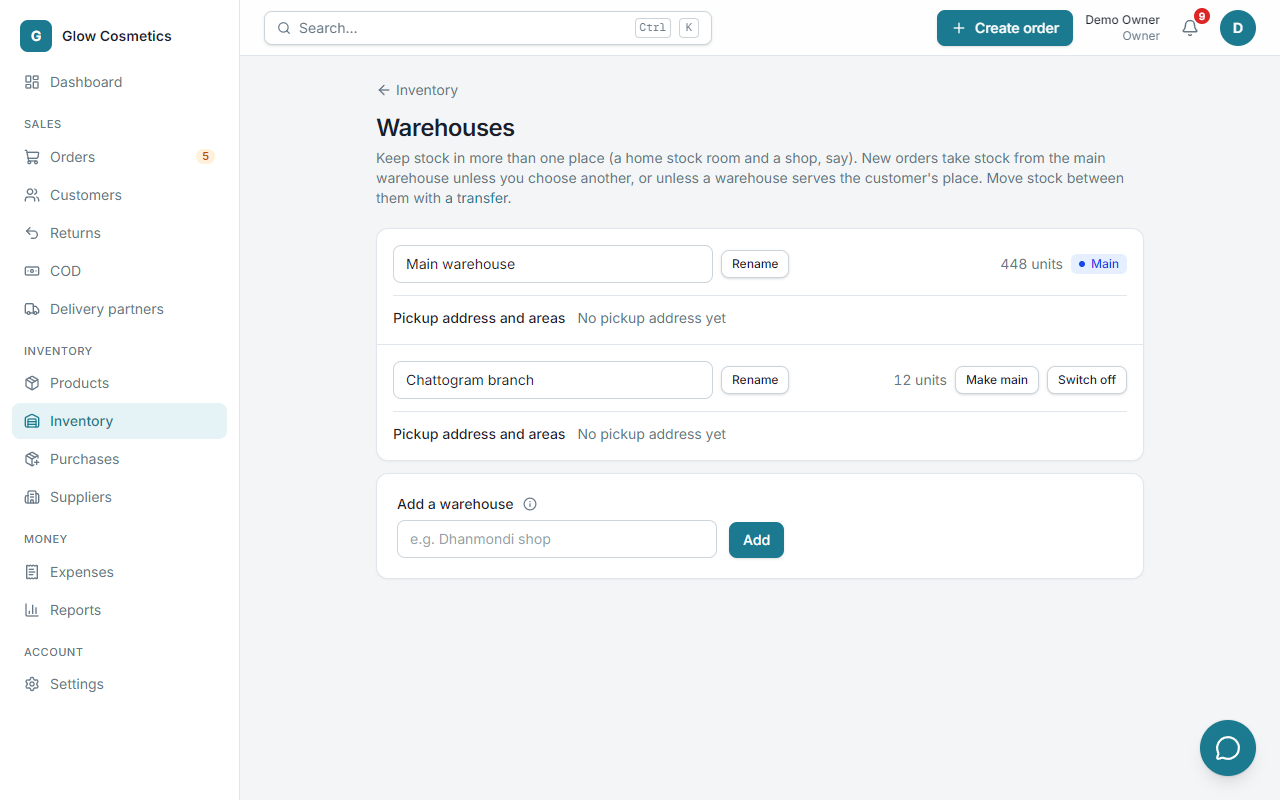
If you keep stock in more than one place (a shop, a godown), add each as a warehouse.
- Press Warehouses.
- Add a warehouse. One is the main one. You can rename or switch off a warehouse, but not the main one and not one that still holds stock.
- The Stock tab, the dashboard, and the order form's Ship from can now use a warehouse.
Pickup address and the places a warehouse serves#
Open Pickup address and areas under a warehouse.
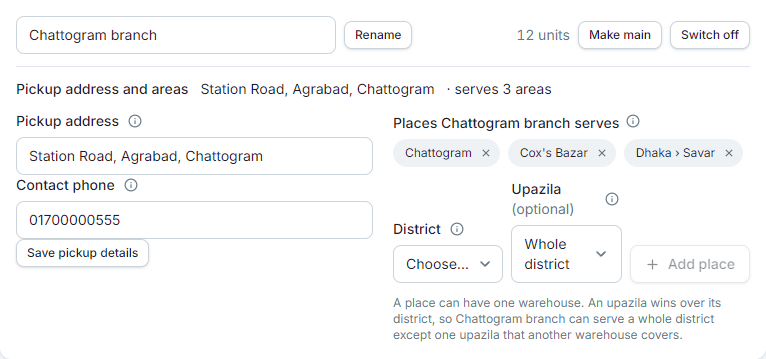
- Pickup address and Contact phone: where a courier collects parcels from this warehouse. Press Save pickup details.
- Places this warehouse serves: choose a District (and an Upazila if you want just one) and press Add place. A new order for that place takes its stock from this warehouse, and the order form says so. Orders from a CSV upload follow the same rule.
- A place can have only one warehouse, so there is never a tie. An upazila wins over its district: one warehouse can serve a whole district except an upazila another warehouse covers. If you choose a place that already belongs to another warehouse, you are told which one.
- A warehouse with no places is only used when you choose it. A warehouse you switch off is skipped.
A courier can also collect from a different pickup store for each warehouse: see Pathao and RedX stores.
Move stock between warehouses#
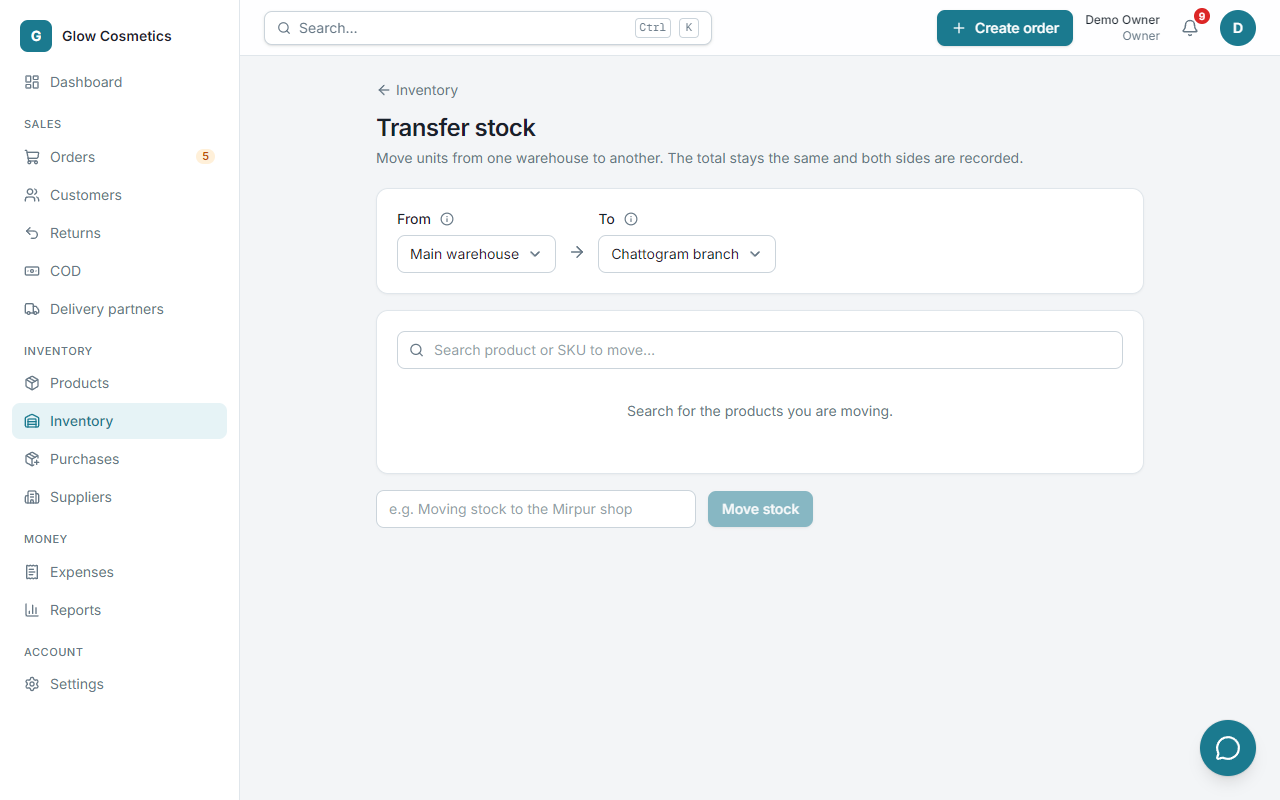
Press Transfer, choose the from and to warehouses, the products and quantities, and confirm. The total stays the same and you can never move more than the source holds.
Restock#
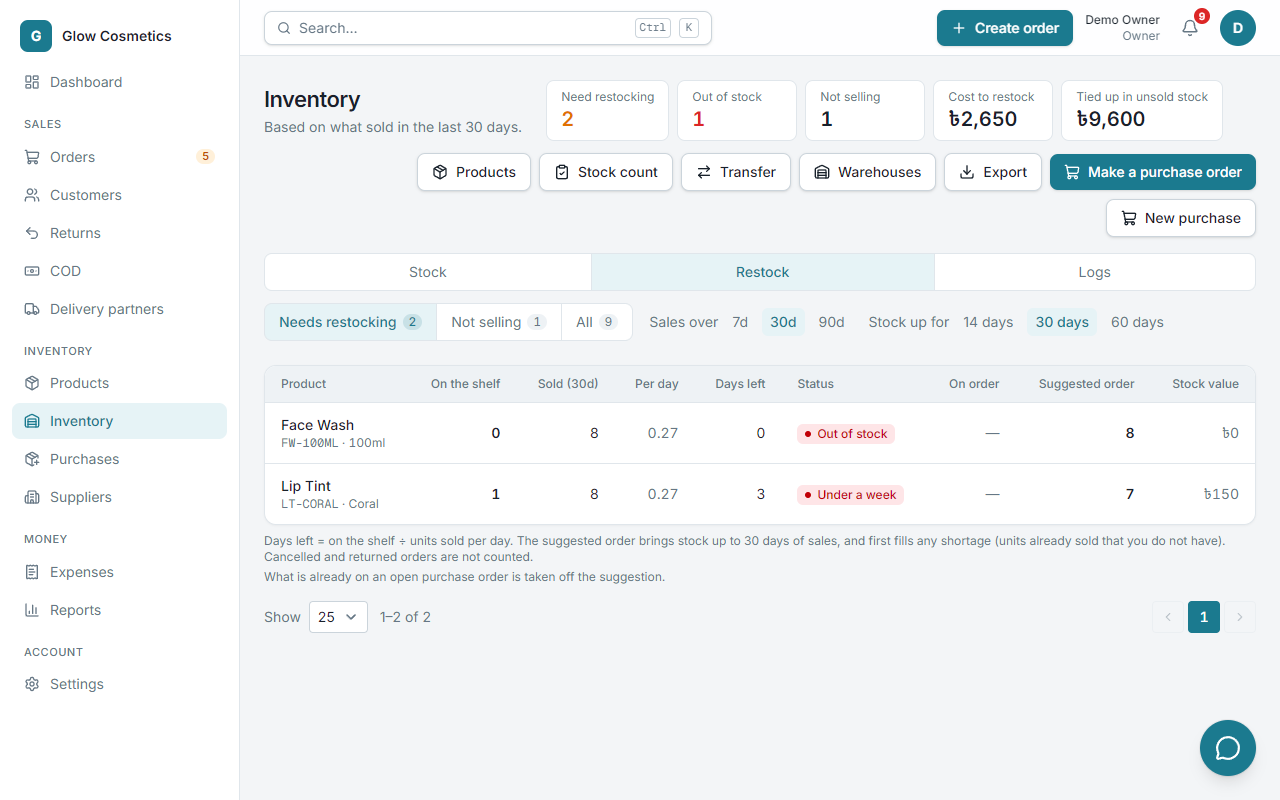
Restock tells you what to buy.
- Needs restocking: out of stock, less than a week of cover, or under the alert level.
- Not selling: stock that has not sold in the period, and the money tied up in it.
- All.
For each product it shows what is on the shelf, units sold in the last 7, 30 and 90 days, the days left, and a suggested order that brings stock up to 14, 30 or 60 days of sales. Cancelled and returned orders are not counted. Press Make a purchase order to turn the list into an order for a supplier, already filled in: see Purchase orders. Once something is on an open order, an On order column shows it and the suggestion only asks for what is still missing.
Export#
Export downloads the stock table as a spreadsheet (by warehouse, with the sales of the last 30 days).