
The Orders list
Find, filter and work through many orders at once: tabs, search, filters, bulk actions, quick view, upload.
On this page
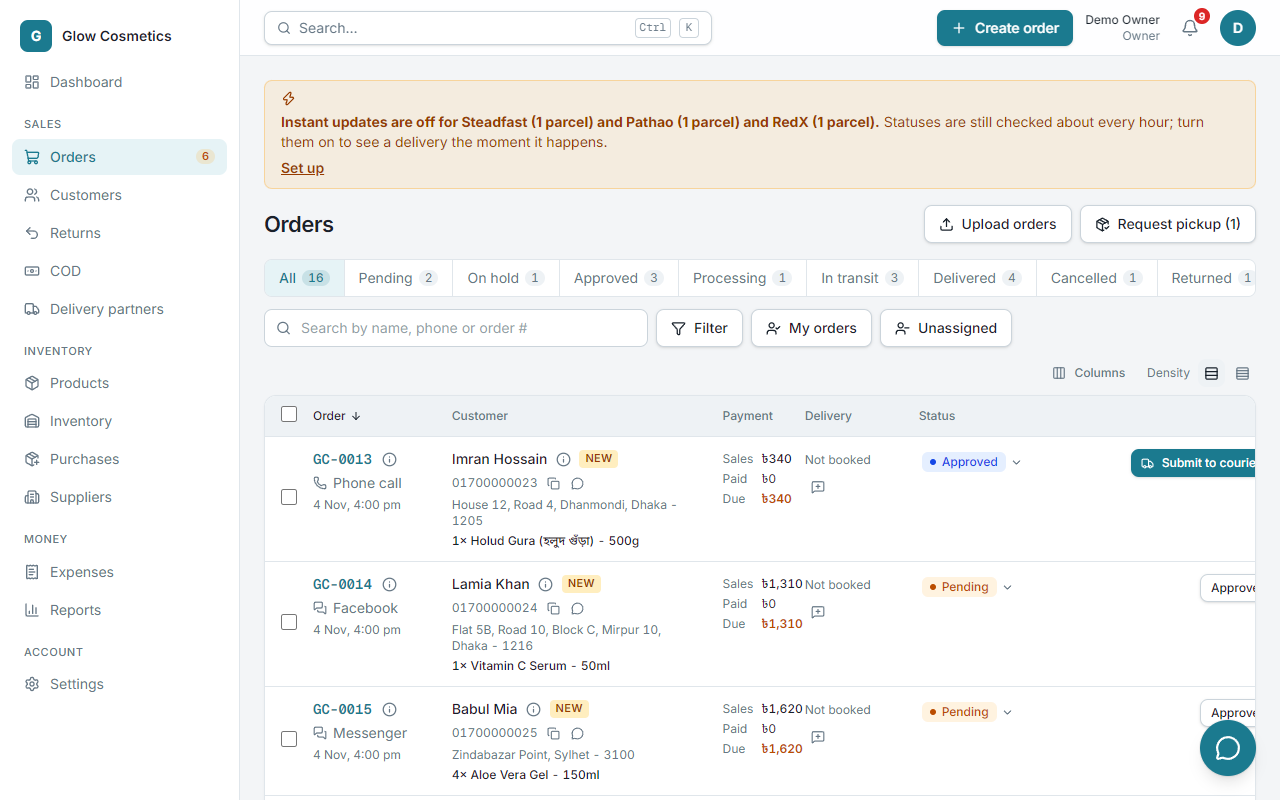
Orders is where you work through the day. Every order is a row, grouped by its stage in the tabs at the top.
The order journey#
Pending → Approved → Processing → In transit → Delivered (or Returned)
| Stage | Meaning |
|---|---|
| Pending | Taken, but not yet confirmed with the customer. |
| On hold | Waiting for something. A reason and a follow-up date are saved. |
| Approved | Confirmed. Ready to send. |
| Processing | The invoice has been printed. Optional: you can send an Approved order without it. |
| In transit | Booked with a courier. From now on you see the courier's own words for its status. |
| Delivered | The courier says it was delivered. |
| Returned | The parcel came back to you. Stock goes back. |
| Cancelled | Cancelled before it shipped. Stock goes back. |
The words Delivered and Returned are set by the courier's final answer, so you do not set them by hand for parcels a courier carries. Parcels with your own riders are marked by hand: see Couriers and delivery.
Tabs, counts and search#
- The tabs show how many orders each stage has: All, Pending, On hold, Approved, Processing, In transit, Delivered, Cancelled, Returned.
- Search by name, phone or order # works in Bangla and English.
- My orders shows what is assigned to you. Unassigned shows orders nobody owns yet.
- Needs attention (N) appears when a parcel needs a person, and shows only those orders, each with the reason: a booking that never got an answer, a parcel on hold for more than 2 days, on the road or coming back for more than 7 days, a status we could not read, checks that keep failing, or a courier review (see Couriers). Owners and admins also get a yellow note at the top when a courier with parcels on the road has no instant updates.
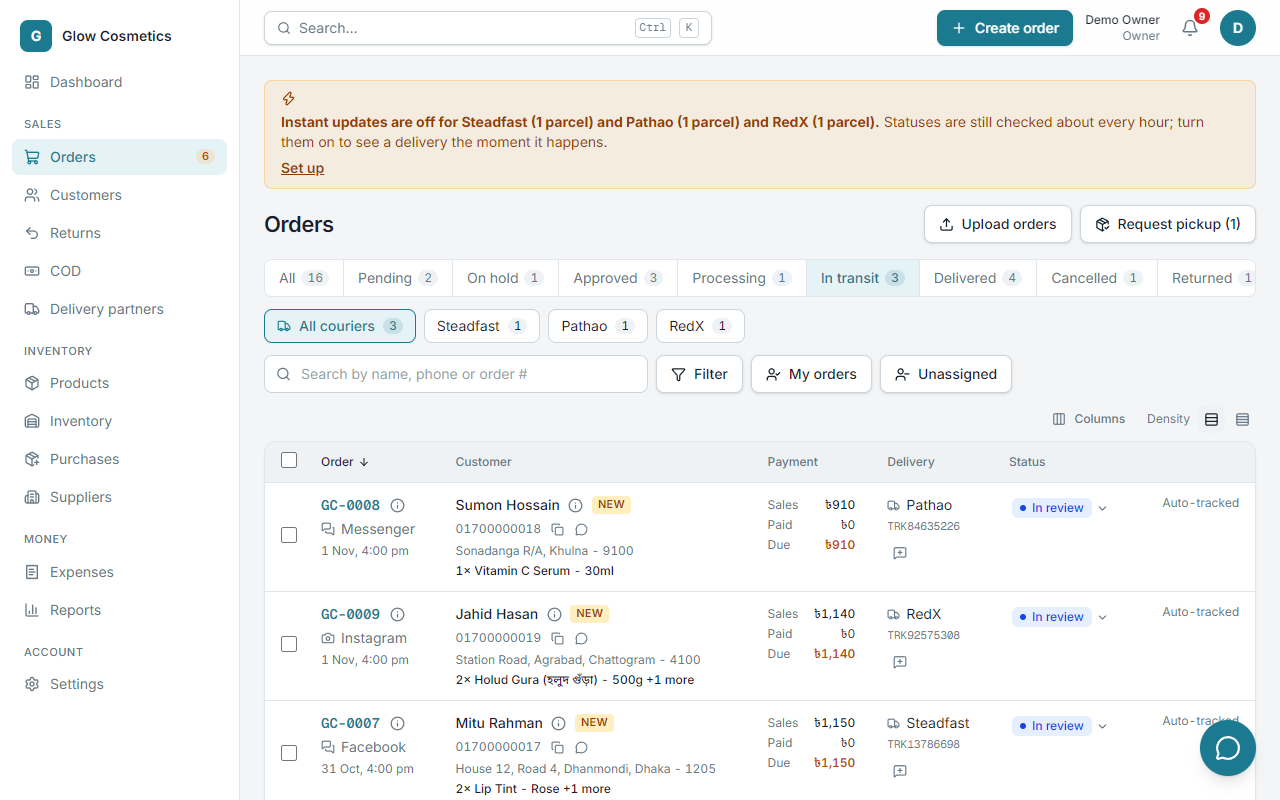
On the In transit tab there are chips for each courier, On hold at the courier and Status unclear, to jump to the parcels that need a look.
Filter#
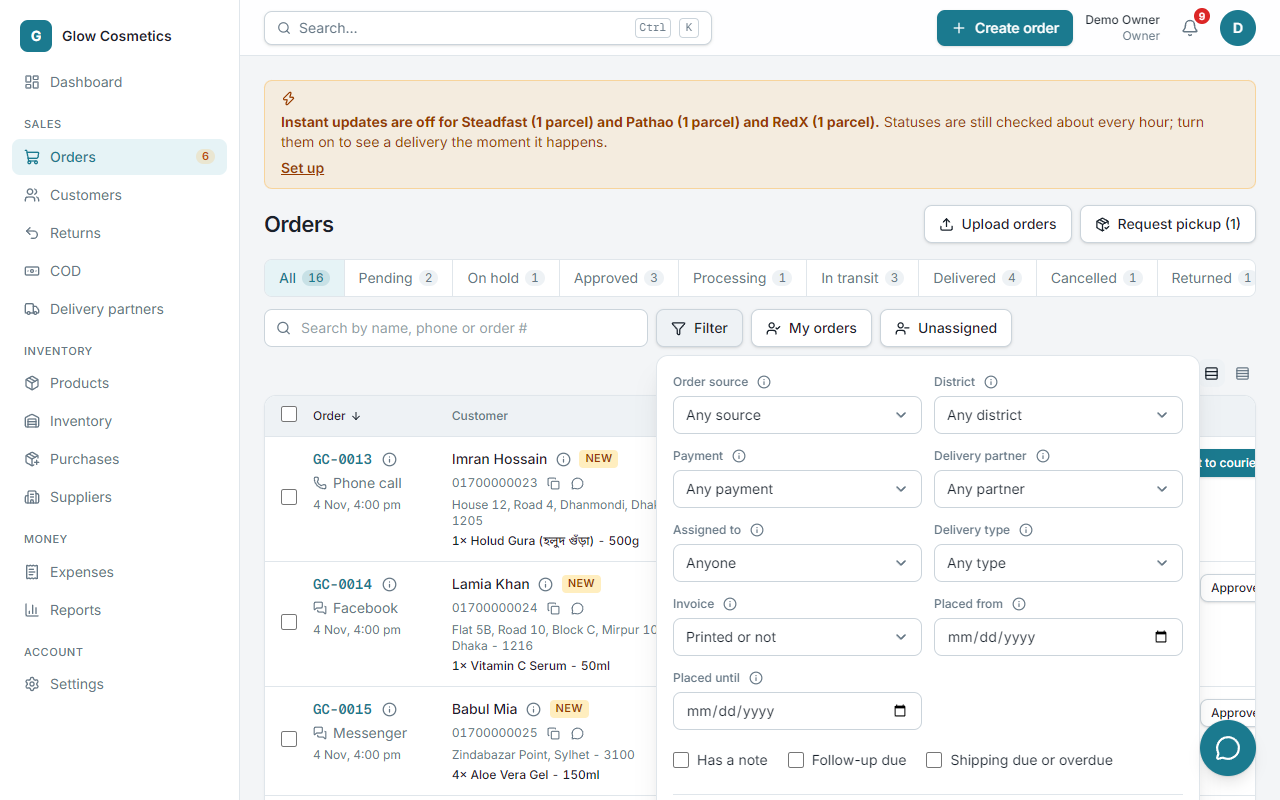
Press Filter to narrow the list. Everything you choose becomes a link you can share.
- Press Filter.
- Choose any of: Order source, District, Payment, Delivery partner, Assigned to, Delivery type, Invoice (printed or not), Placed from/until, Has a note, Follow-up due, Shipping due or overdue.
- Press Apply filters. A removable chip shows each filter that is on. Reset clears them.
Choose your columns#
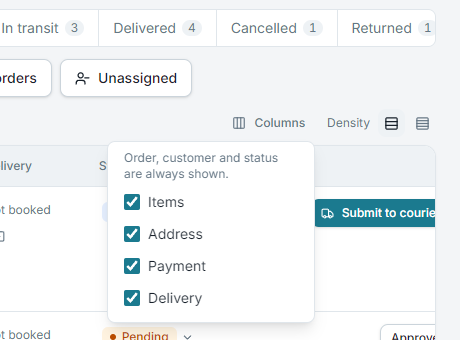
Columns (above the table, on the right) lets you hide Items, Address, Payment or Delivery. The choice is remembered on your computer. Density, next to it, makes the rows tighter or looser.
Buttons on each row#
Each row shows the next step for that stage: an Approved order shows Submit to courier, a Pending order shows Approve. The status itself is a button (it has a small arrow): press it to open Change status.
Change the status of one order#
- Press the status (for example Pending ▾) on the order.
- Pick the new status. Every status is listed.
- Press the button at the bottom. A hold or a cancel asks for a Reason first (and a follow-up date for a hold).
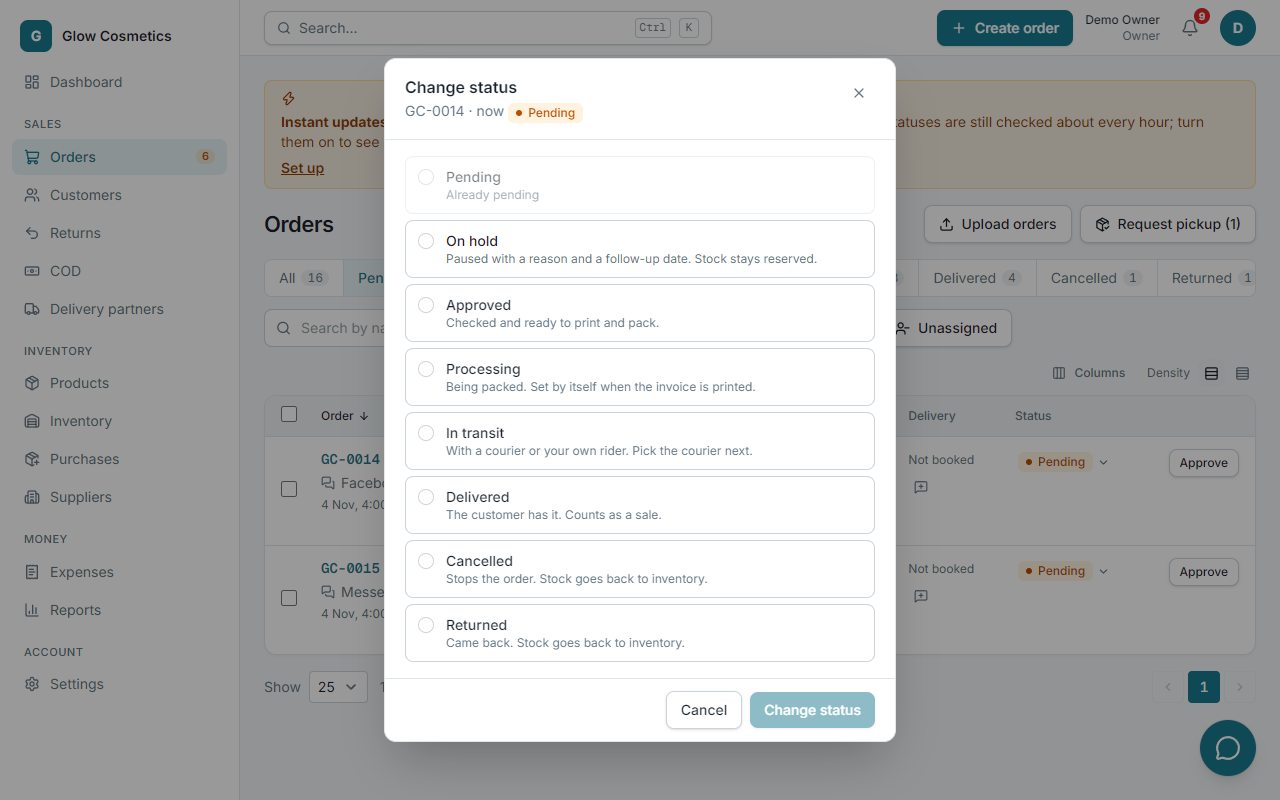
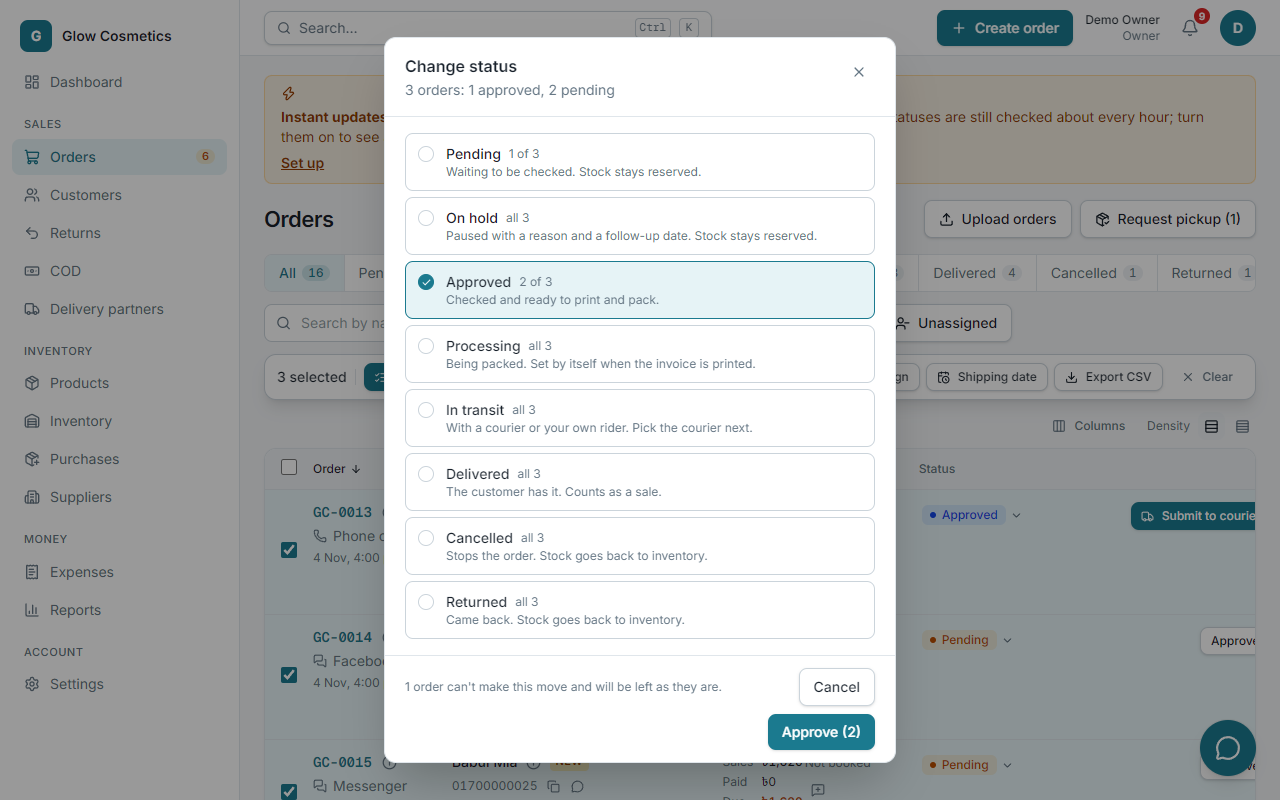
An order that has not been submitted to a courier can be put in any status you like, forward or back, in one go (for example from Pending straight to Delivered, or from Delivered back to Pending). The order keeps a record of every change: from which status, to which, who did it and when. You see it on the order page under Logs.
Stock follows the status. Cancelled and Returned have the goods back on the shelf; every other status has them out. So moving an order to Cancelled or Returned gives the goods back, and moving it out of them takes the goods again (it stops with a message if they are no longer there).
Once a courier has the parcel, the courier's own status decides, and the window says so: Delivered and Returned come from the courier, and the order cannot be taken back a step until the booking is cancelled. A Cancelled order also shows Reopen order in the same window. In transit opens the courier choice; Without a courier only records it as in transit by hand.
The same Change status button is on the order page.
Put an order on hold#
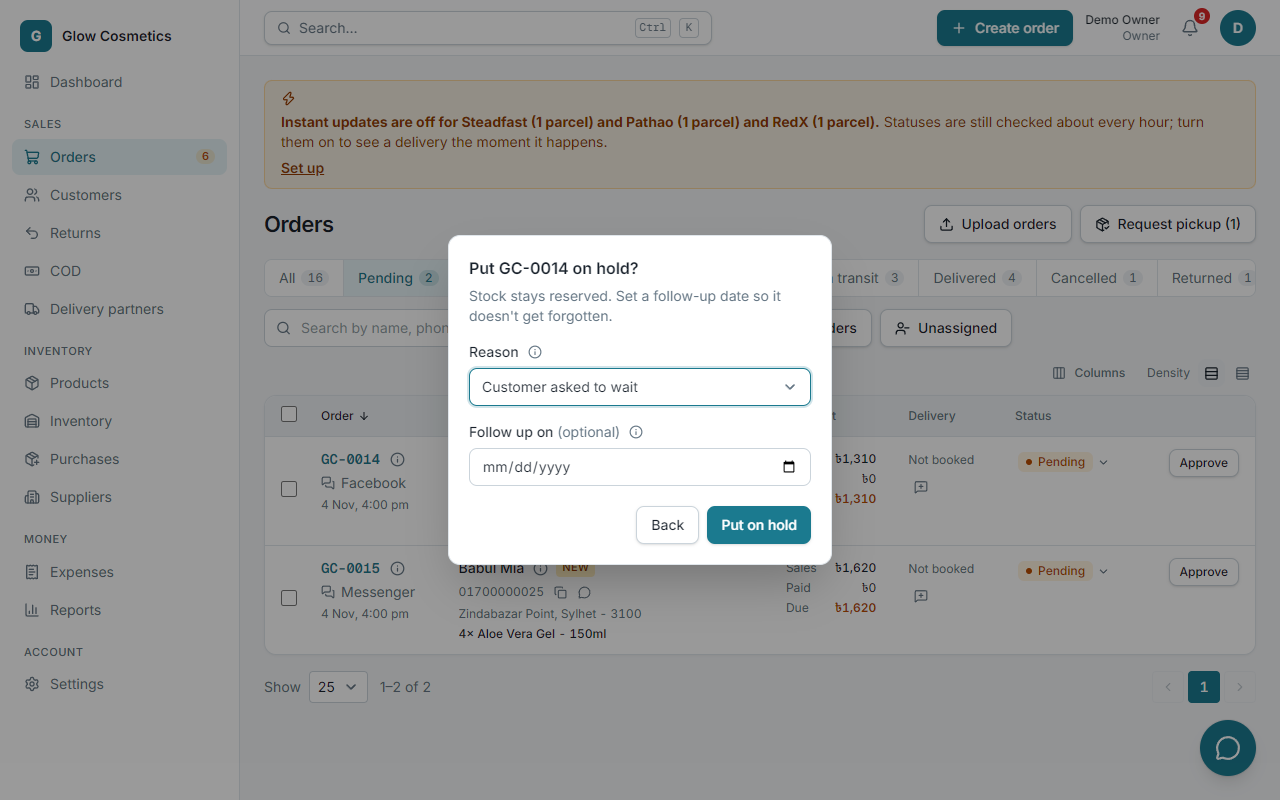
- Press the status of the order and choose On hold.
- Choose a Reason, and a follow-up date if you want one.
- Confirm. The order shows in the On hold tab, and in the dashboard's Needs attention when the follow-up is due.
Quick view#
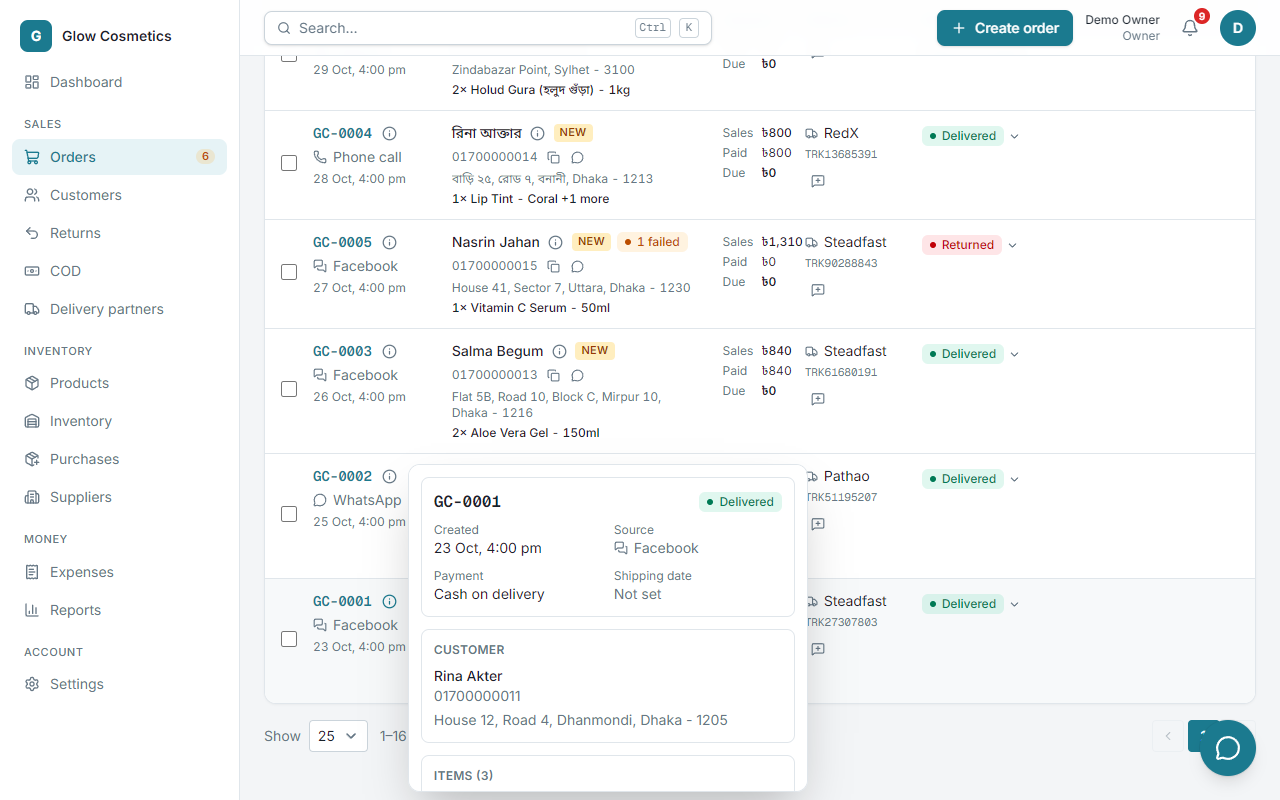
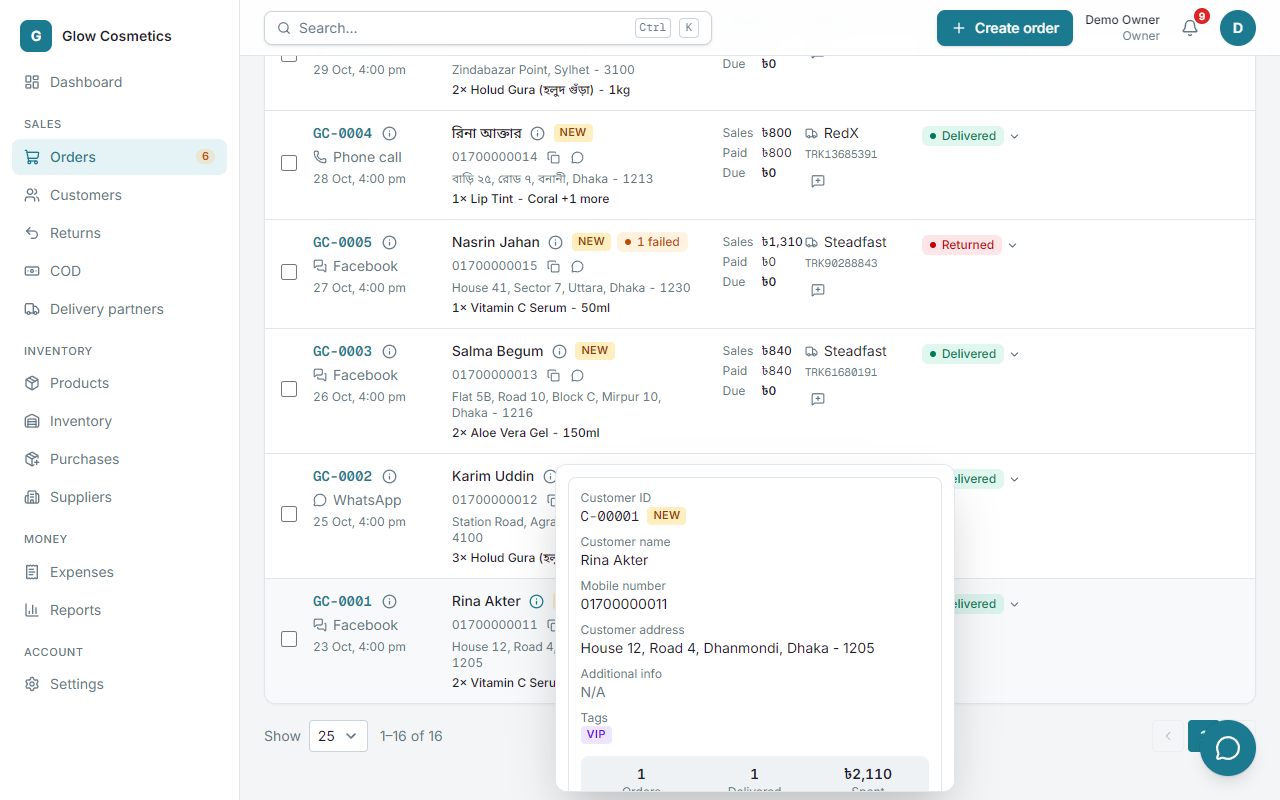
The small (i) next to an order number or a customer name shows a summary without leaving the list. Hover over it, or click it on a phone.
Work on many orders at once#
Tick the box at the left of two or more orders (or the box in the header to tick all). A bar appears.
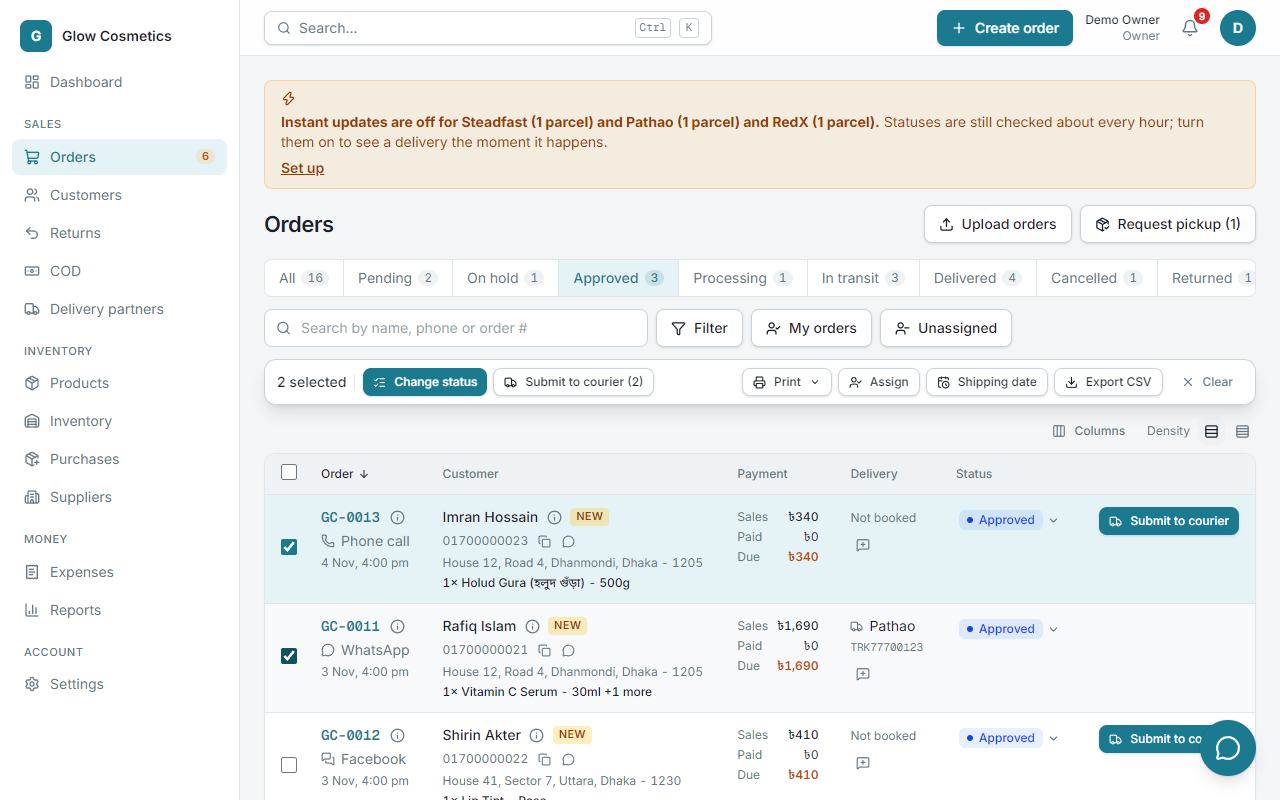
| Button | What it does |
|---|---|
| Change status | Opens the same window as for one order. It says how many of the selected orders can make each move (for example 3 of 4) and leaves the others as they are (picture below). |
| Approve | A shortcut to approve every selected Pending or On hold order. |
| Submit to courier (N) | Sends all the ready orders to a courier in one go. |
| Pick list (one list of everything you must take from the shelf, see Printing), Slips or Invoices for all selected orders. | |
| Assign | Gives the orders to a teammate. |
| Shipping date | Sets one shipping date for all. |
| Export CSV | Downloads the selected orders as a spreadsheet. |
| Clear | Unticks everything. |
Assign orders to a teammate#
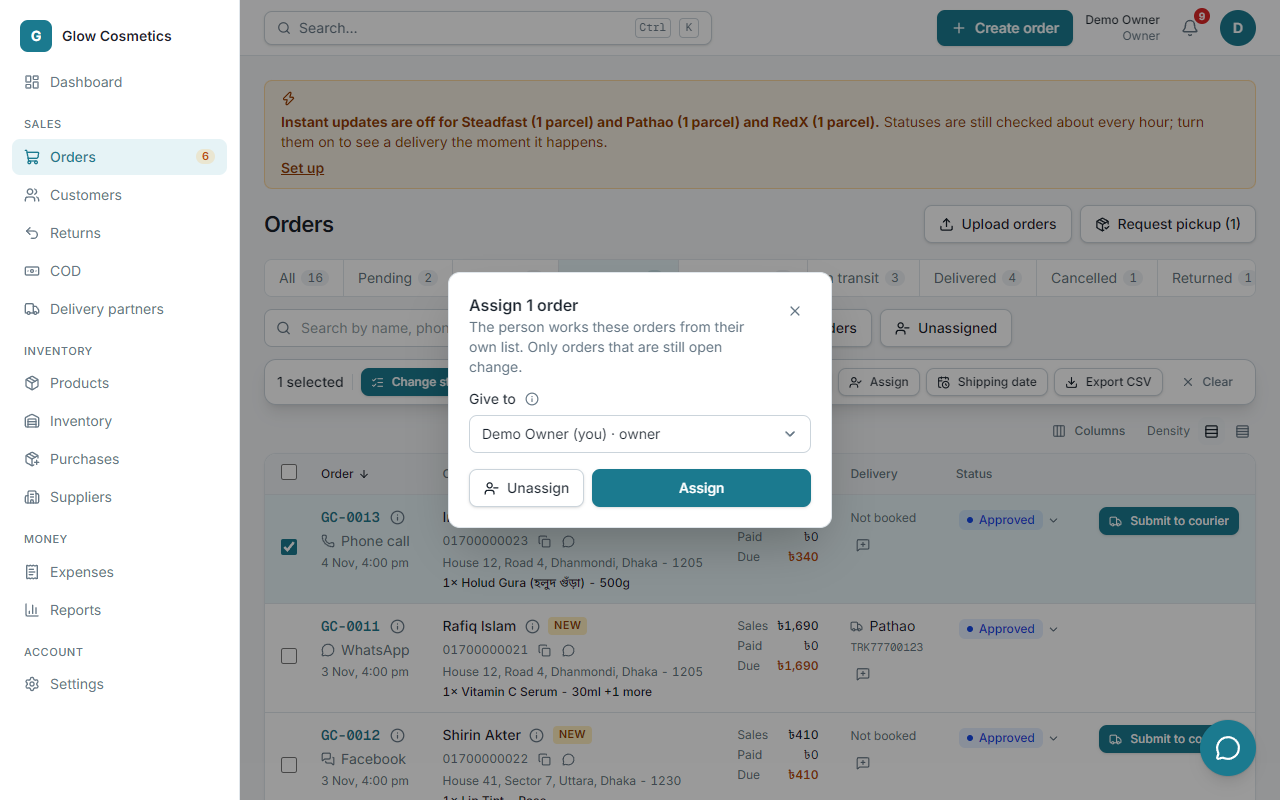
- Tick the orders and press Assign.
- Choose the person.
- Confirm. The orders appear under My orders for that person.
Upload orders from a file#
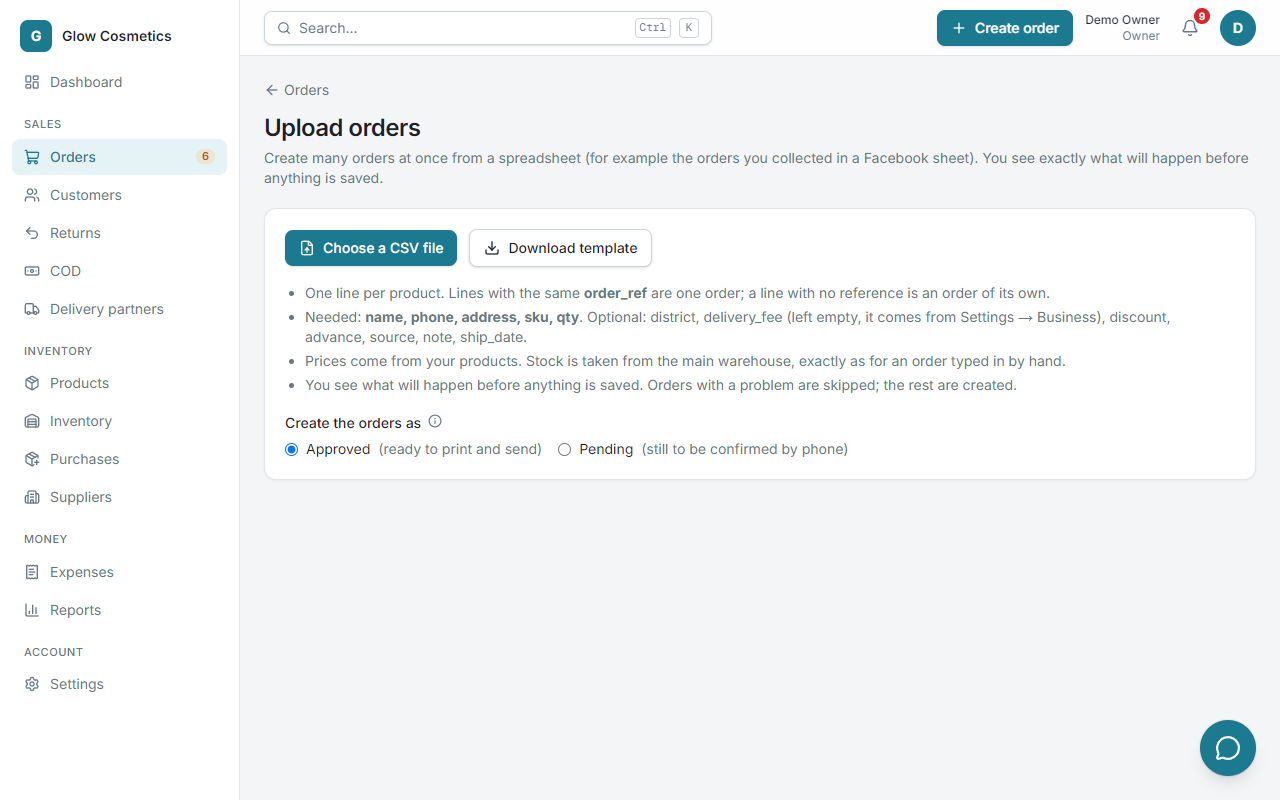
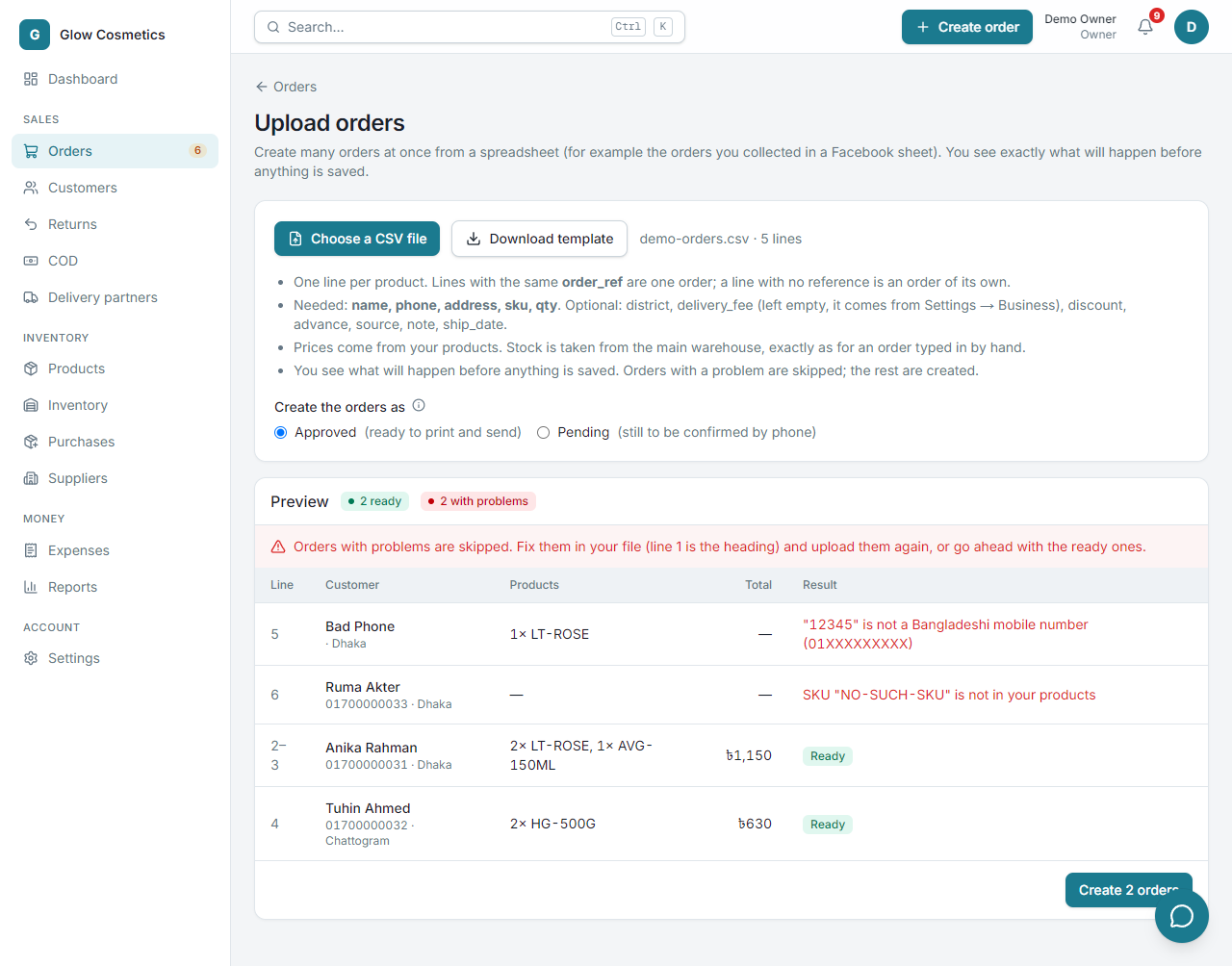
Have orders in a spreadsheet, for example from a Facebook page's messages? Upload them.
- Press Upload orders (top right of the list).
- Download the template, or use your own file. Needed columns:
name,phone,address,sku,qty. Optional:district,delivery_fee,discount,advance,source,note,ship_date. - Use one line per product. Lines with the same
order_refbelong to one order. - Choose the file. You see a preview of every order with its total, and a plain sentence for any problem. Nothing is saved yet.
- Press Create N orders. They are placed in small batches with a progress bar.
- Orders with problems are skipped. Download only those lines, fix them and upload again.
Request a pickup#
If you use Steadfast, Request pickup asks the courier to send a rider for the parcels you have booked. Set it up once in Couriers and delivery.