
Online stores (WooCommerce and Shopify)
Let orders from your website arrive in Enpod by themselves.
If you also sell on a WooCommerce or Shopify website, you can have each website order appear in your Orders list a few seconds after the customer places it.
- The order arrives as Pending, with the source Website, and its stock is taken like any other order.
- It is matched to your products by SKU, so the SKU on your website must be the same as in Enpod.
- Nothing is sent back to the store (stock and status are not synced).
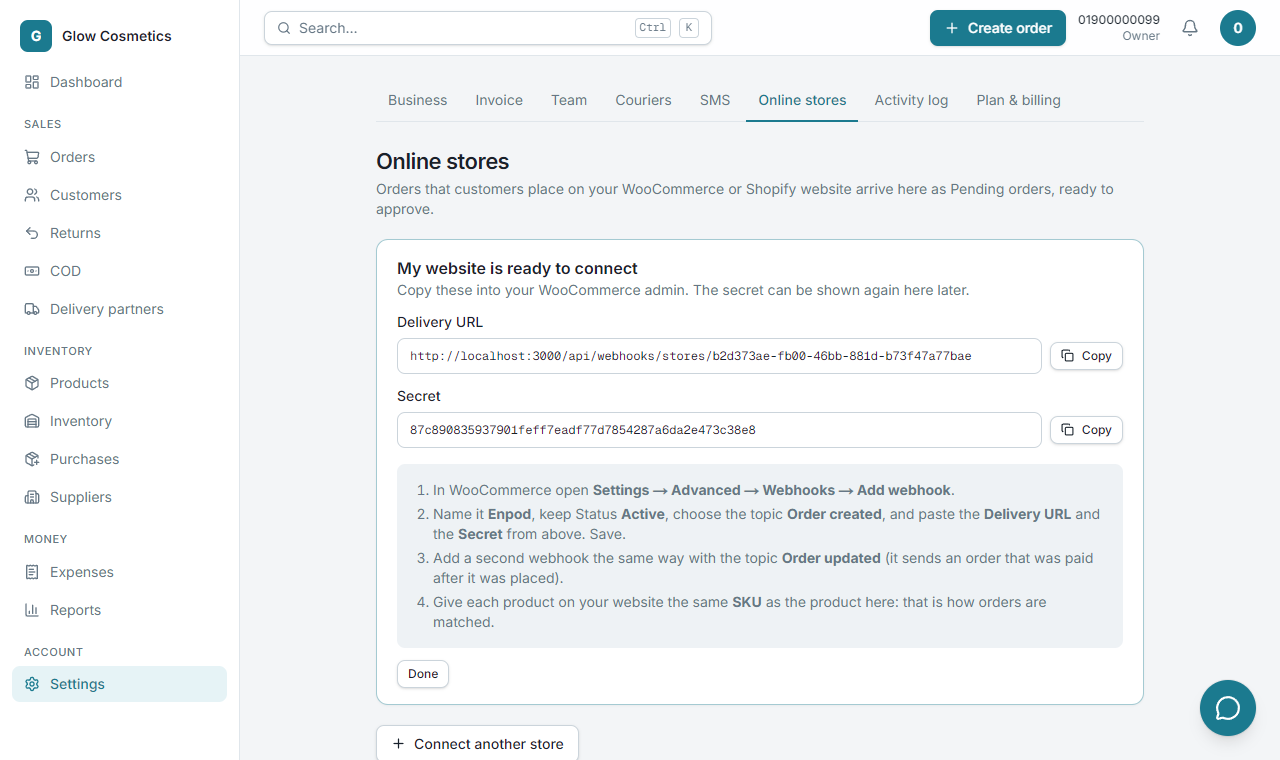
Connect a store#
- Go to Settings → Online stores and press Connect a store.
- Choose the platform and give it a name.
- You get a webhook address and a secret. The page shows the exact steps for your platform.
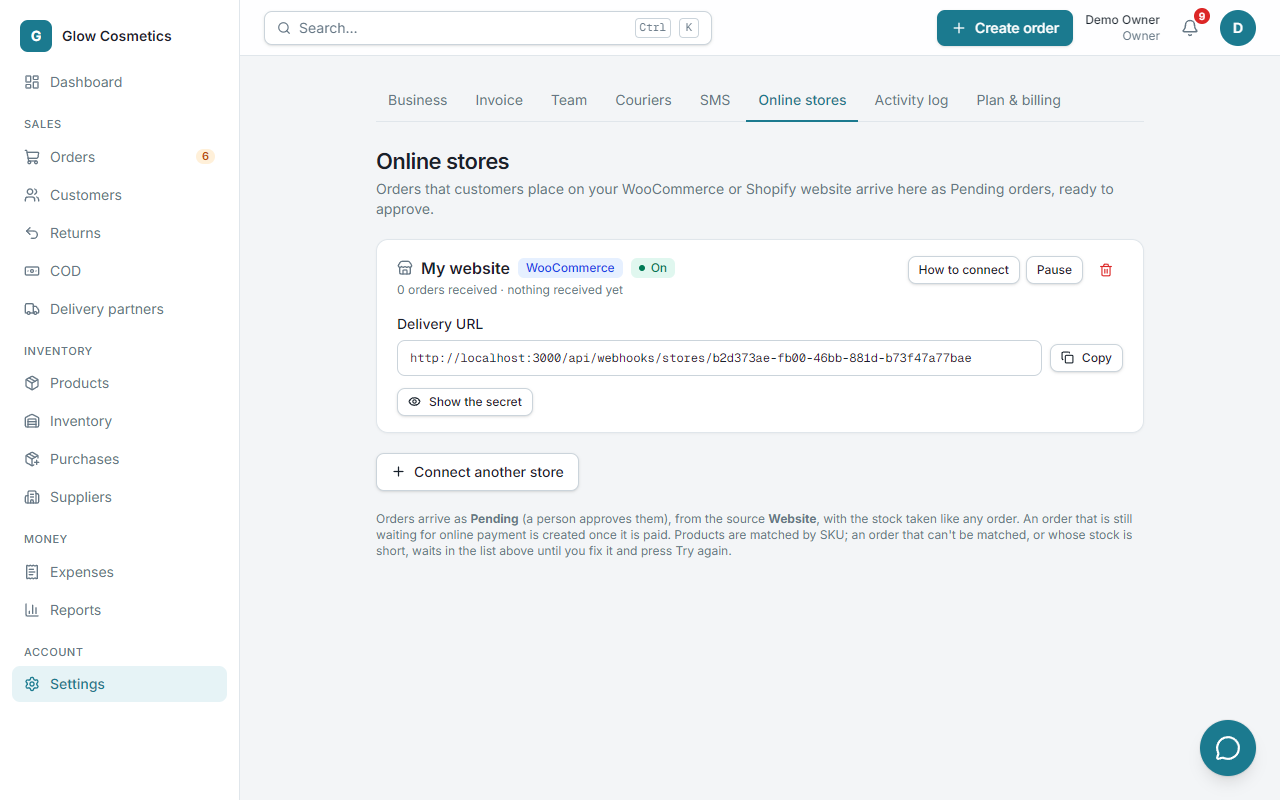
WooCommerce#
In your WordPress admin: WooCommerce → Settings → Advanced → Webhooks. Add two webhooks with the same address and secret: topic Order created and topic Order updated (the second catches an order that is paid after it was placed). The secret is made for you.
Shopify#
In your Shopify admin: Settings → Notifications → Webhooks, create a webhook for Order creation (JSON) with the address. Shopify makes its own signing secret (shown at the bottom of that page): paste it into Enpod, because Shopify signs with it.
How orders are received#
- Every call is signed, and the signature is checked, so nobody can send you a fake order.
- The price is what the customer paid for each unit, the delivery fee is the store's shipping, and a paid order is recorded as paid so nothing is left to collect. Everything else is cash on delivery.
- The customer's note goes on the order, and the order's Logs say where it came from.
- Orders that are not yet paid or are cancelled on the website are ignored until they are ready. The same order sent twice never makes two orders.
- If the website cancels an order, your order gets a note (check it before sending). It is never cancelled automatically.
When an order cannot be created#
An unknown SKU, not enough stock, a phone number that is not a Bangladeshi mobile, a blacklisted customer or the plan's order limit stops the order. It is kept, and listed at the top of Settings → Online stores with the customer, the items and the reason.
- Fix the cause (add the product, add stock and so on).
- Press Try again. Or press Dismiss if you do not want it.
Nothing a customer ordered is lost.