
One order in detail
Everything on an order's own page: edit, payments, notes, attachments, logs, cancel and reopen.
On this page
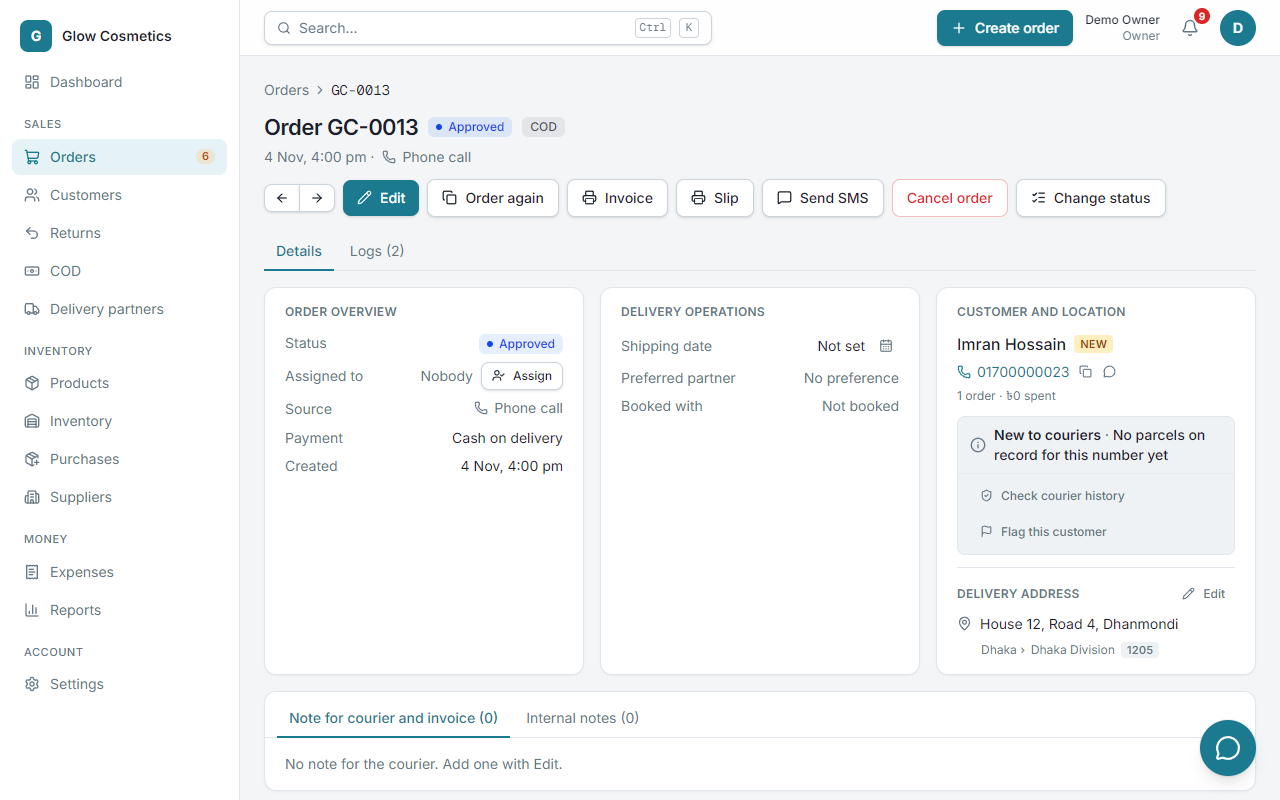
Click an order number to open its page.
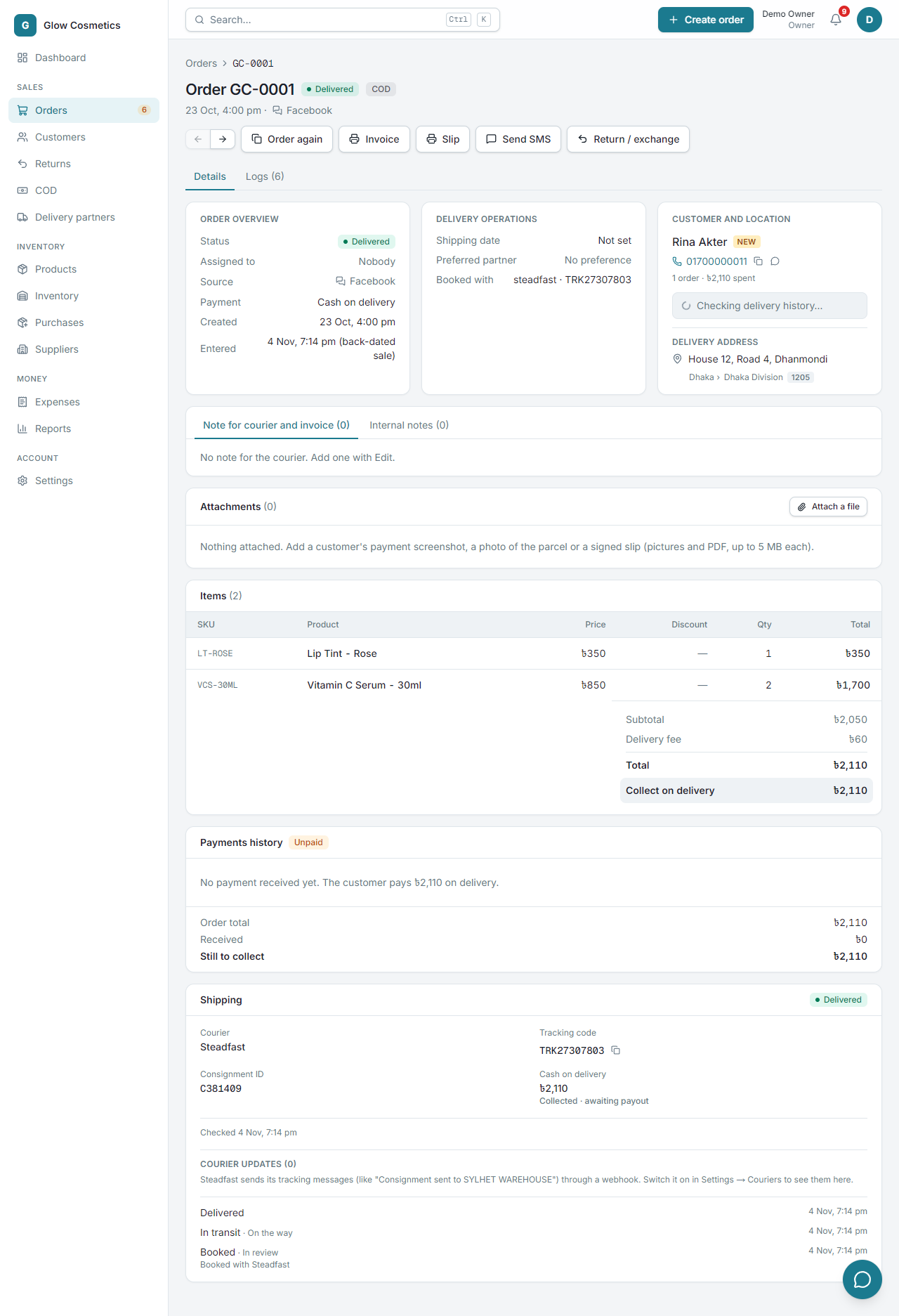
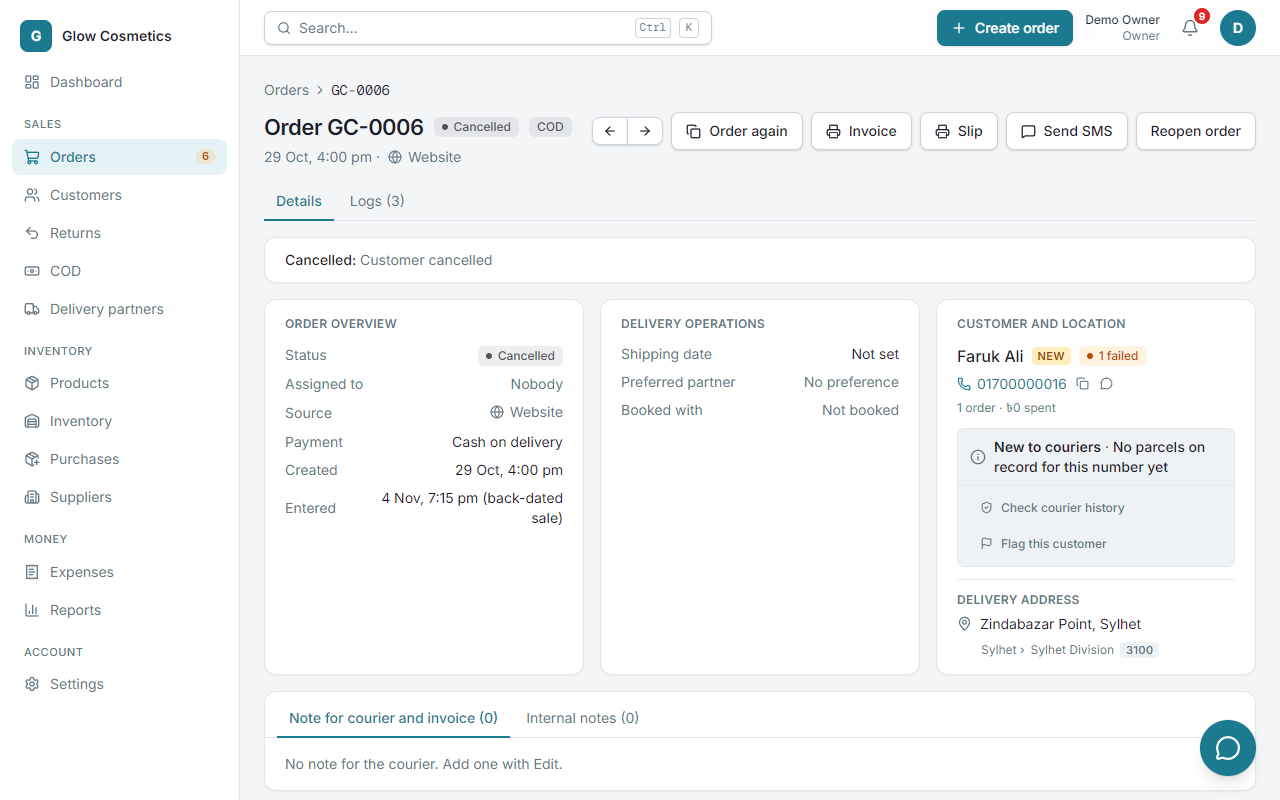
At the top you see the order number, its status and COD (or paid) tag, the date and the source. The arrows ← and → go to the previous or next order. The buttons on the right depend on the status.
The cards#
| Card | What you find |
|---|---|
| Order overview | Status, who the order is assigned to, source, payment method, creation time. |
| Delivery operations | Shipping date, preferred partner, and the courier it is booked with. |
| Customer and location | The customer, their phone (with copy and WhatsApp), their record with couriers, and the delivery address with Edit. |
| Note for courier and invoice / Internal notes | Two tabs. The first is printed and sent; the second is for your team. |
| Attachments | Files you attach: a payment screenshot, a photo of the parcel, a signed slip. |
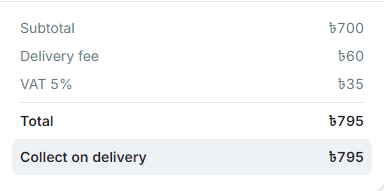
| Items | Each product with SKU, price, discount, quantity and total, then the delivery fee, any tax and rounding line (set in Settings) and Collect on delivery. A sale entered with an earlier date also shows an Entered line with when it was really written down. |
| Payments history | Every payment received, and how much is still to collect. |
| Shipping | The courier, tracking code, consignment ID, cash on delivery, and the courier's updates. |
Assign the order#
Press Assign next to Assigned to and choose a teammate. The order appears under that person's My orders.
Edit an order#
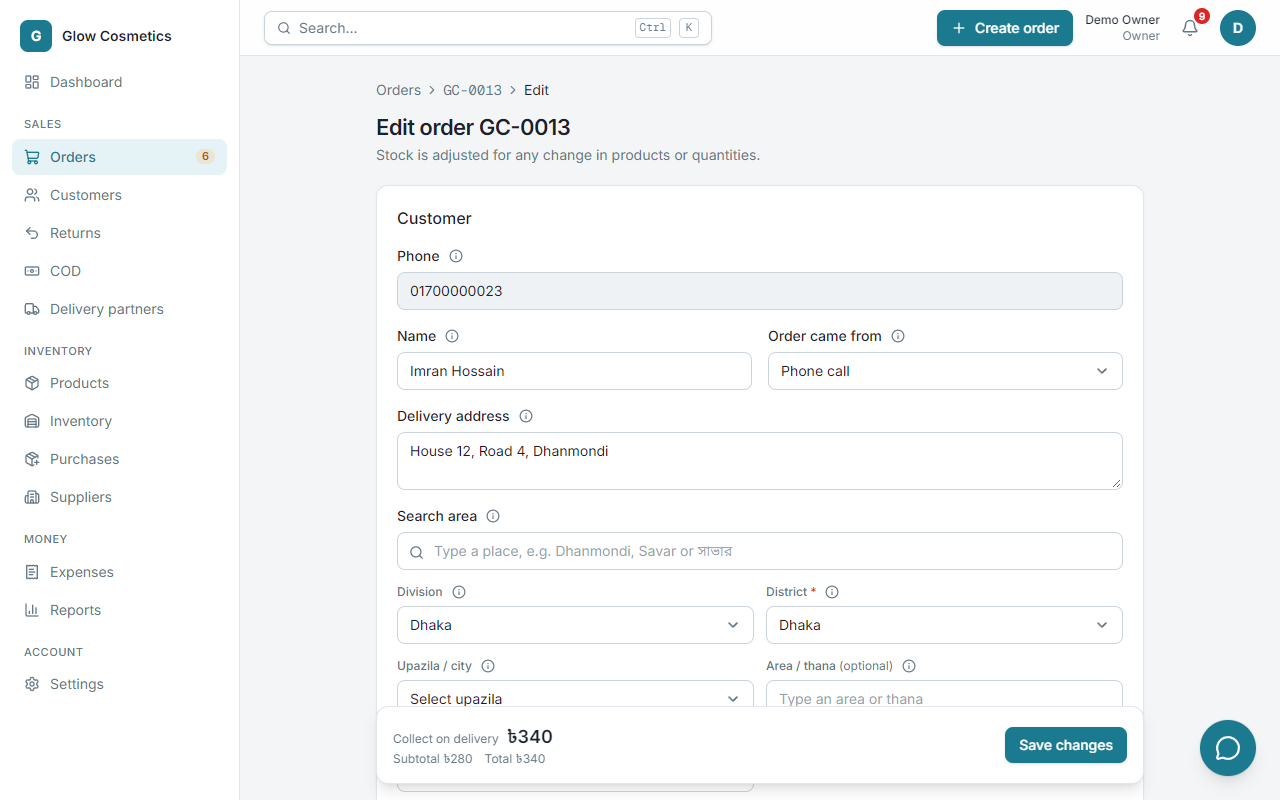
You can edit while the order is Pending, On hold, Approved or Processing, and only while no courier has it.
- Press Edit.
- Change products, quantities, prices, discount, delivery fee, notes, shipping date, preferred partner, source or the customer's name and place.
- Press Save. Stock is adjusted for every change: more is taken, or given back.
An edit can't leave the total below what the customer has already paid: the form says so and the save is refused. Cancel a payment first, or give less discount. Likewise the discount can't be more than the products.
Record a payment#
When a customer pays you (bKash, Nagad, bank, cash), record it on the order.
- In Payments history, press Add payment.
- Choose the method, type the amount and the transaction ID, and add a note if you like.
- Press Save. Paid and Due update at once.
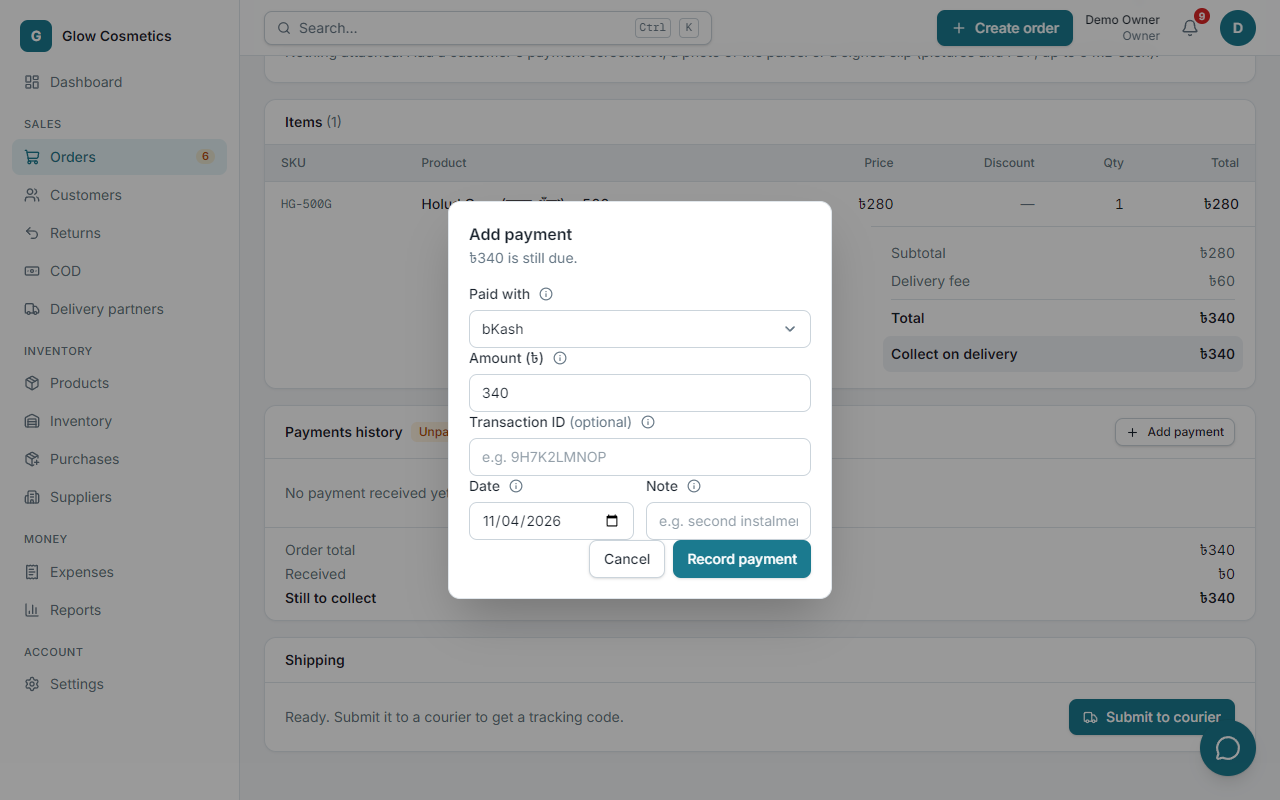
A payment can never be more than what is still due. A wrong payment can be cancelled by an owner, admin or accountant. Cash the courier collects is not entered here: it is reconciled in COD.
When a delivered order isn't fully paid#
An order that has been delivered but not fully paid for has an open balance: money the customer still owes you. It is worked out as the order total, minus what you recorded as received (the advance and any later payment), minus the cash the courier collected, minus the value of anything the customer sent back.
- The order shows an amber Open balance ৳… tag and a notice at the top; the money box says Open balance instead of Collect on delivery.
- When the customer pays, press Record payment in Payments history. You can pay all of it or part of it; the open balance goes down by that amount and the order shows Paid in full when nothing is left.
- A wrong payment can be cancelled by an owner, admin or accountant, and the amount goes back to the open balance.
- The Logs tab says when an order was delivered with money still owed, and when the balance was paid off.
- A parcel the courier delivered and collected the cash on never has an open balance: the courier's cash counts as received. Where the courier collected less than the order (a partly delivered parcel), the missing amount stays open until you record what the customer sent back in Returns.
All open balances together are in Reports → Open balances (see Reports).
Attach a file#
In Attachments press Attach a file and choose a picture or a PDF (up to 5 MB each). Good for a customer's payment screenshot or a signed slip.
The Logs tab#
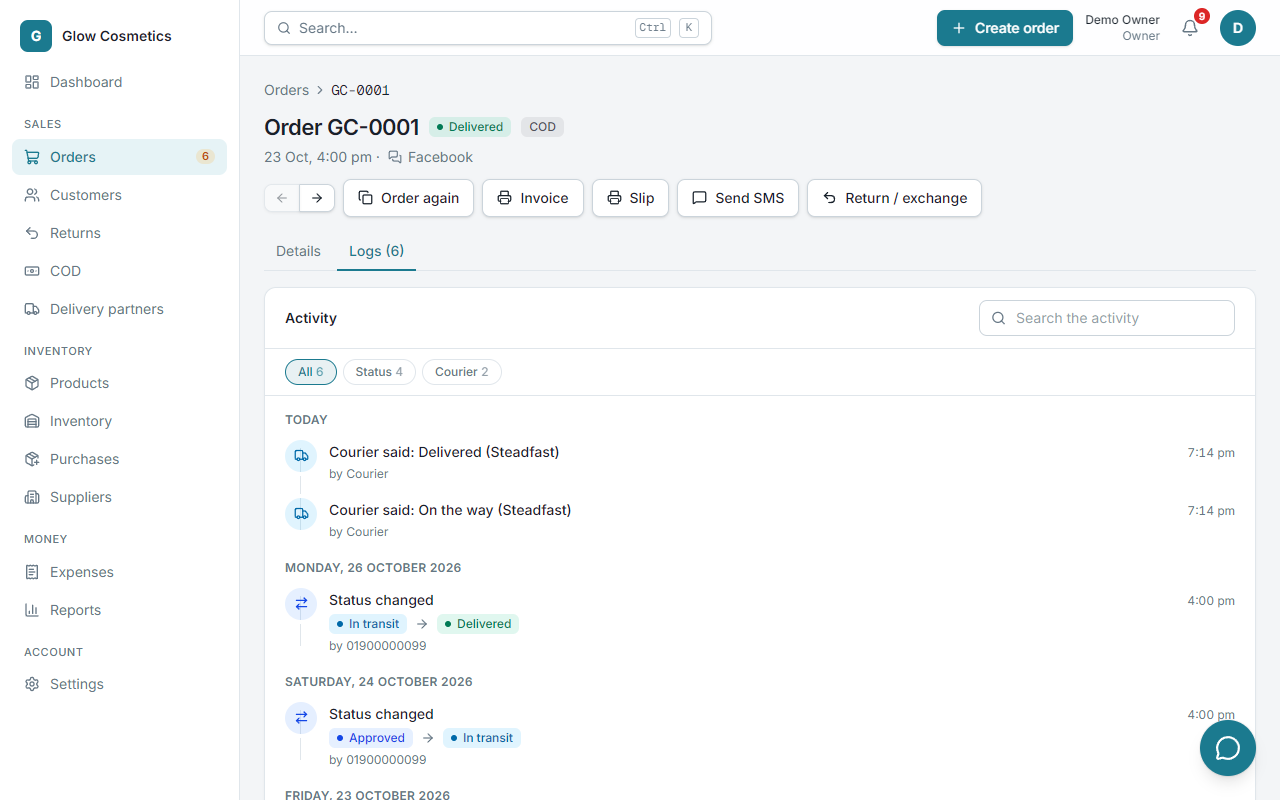
Logs is the order's diary, newest first and grouped by day (Today, Yesterday, then the date). Every line says what happened in one sentence, with a small picture for its kind, the time, and who did it:
- Status changes show the two statuses side by side, with the reason when there is one.
- Courier lines say what the courier told us ("Courier said: On hold"). The same answer repeated within the hour is folded into one line with ×3 and the time span, and the person is "Courier".
- Payments read as sentences ("Payment received: ৳500 by bKash") with the reference; a cancelled payment shows its reason.
- Notes are quoted. An edit lists each change on its own line. Address changes, assignments, shipping dates, invoice prints and attached files each have their own line.
- A line that no person did (the system, or an online store) says Automatic.
Use the buttons above the list (All, Status, Courier, Payments, Notes, Changes, Files) to see one kind only, and the search box to find a word or a person. People opening the order are kept under Views so that they never bury what was done to it.
A pending order#
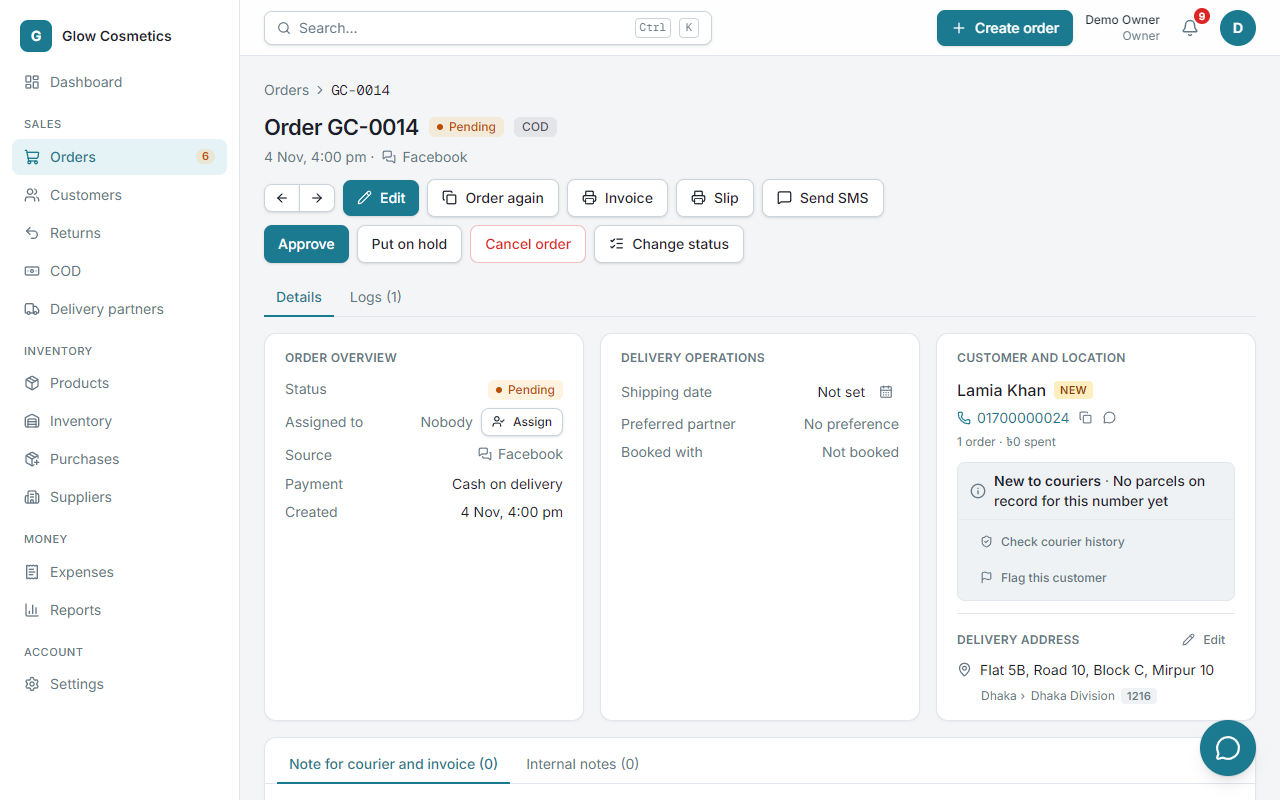
A Pending order shows Approve and Put on hold buttons. Approve it after you have confirmed with the customer.
Cancel an order#
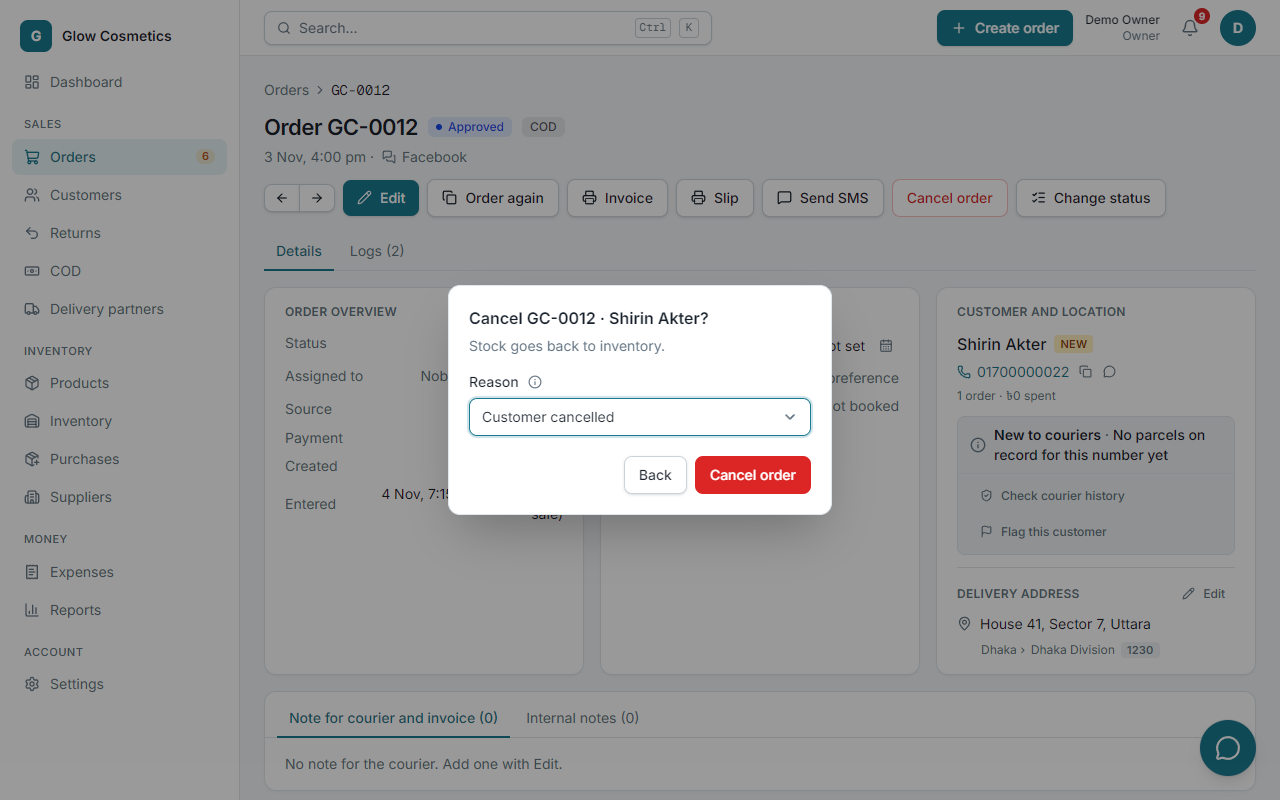
You can cancel an order until it has shipped.
- Press Cancel order.
- Choose a reason (for example Customer cancelled) and confirm.
- Stock goes back to the shelf. If the customer had paid something, the page reminds you to refund it.
Reopen a cancelled order#
Cancelled by mistake? Press Reopen order and confirm. The order goes back to Pending, and you carry on as with any new order (approve, hold, edit). Its stock is taken from the shelf again; if the goods were sold in the meantime, the reopen is refused and nothing changes. Payments, customer and address are kept, and the Logs tab shows who reopened it.
Order again#
Order again opens a new order form with the same customer, address and products, at today's prices. Only what is in stock is copied.
Send an SMS#
Send SMS lets you text this customer from the order. You need an SMS gateway: see SMS to customers.