
Print invoices, slips and the pick list
Print an invoice, a parcel slip, or one pick list for many orders, design your own invoice, and use the right paper.
On this page
Enpod prints three things. Each opens a clean page that you print with your browser (Ctrl + P).
| What it is | Where | |
|---|---|---|
| Invoice | The bill for the customer, with your name, items, discount, delivery fee and what to pay. | Order page, or Invoices in the bulk bar |
| Slip | A parcel label with the address, phone and cash to collect, to stick on the parcel. | Order page, or Slips in the bulk bar |
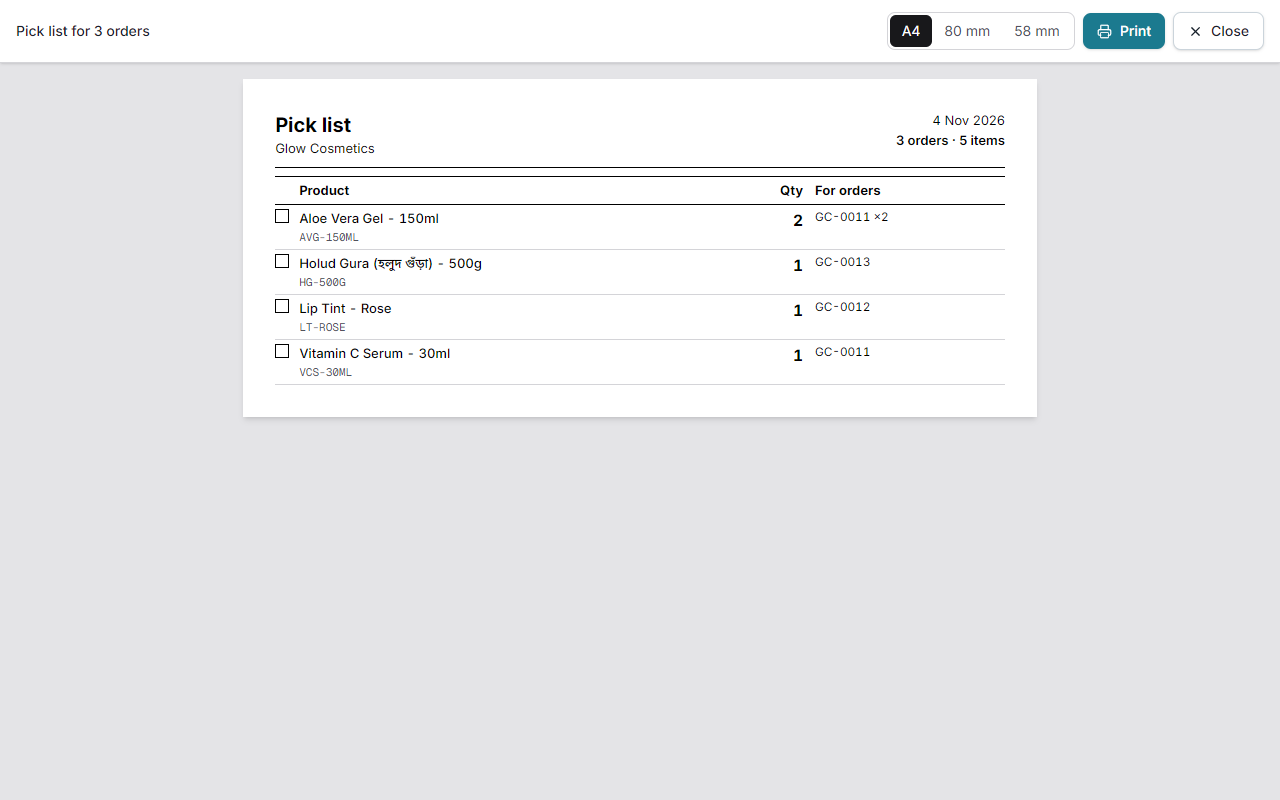
| Pick list | One list of all the products you must take from the shelf for the selected orders. | Pick list in the bulk bar |
Print one invoice or slip#
- Open the order and press Invoice or Slip.
- A print page opens. Press Print (or Ctrl + P).
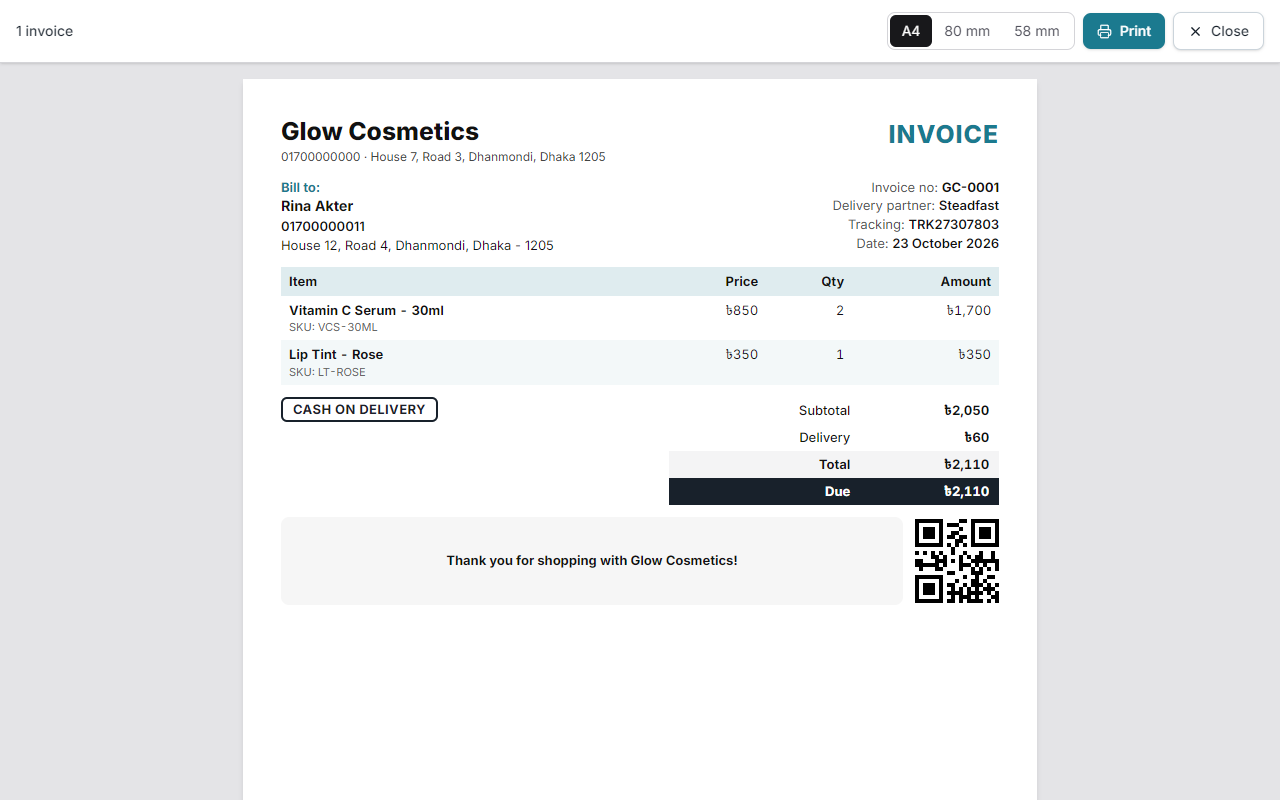
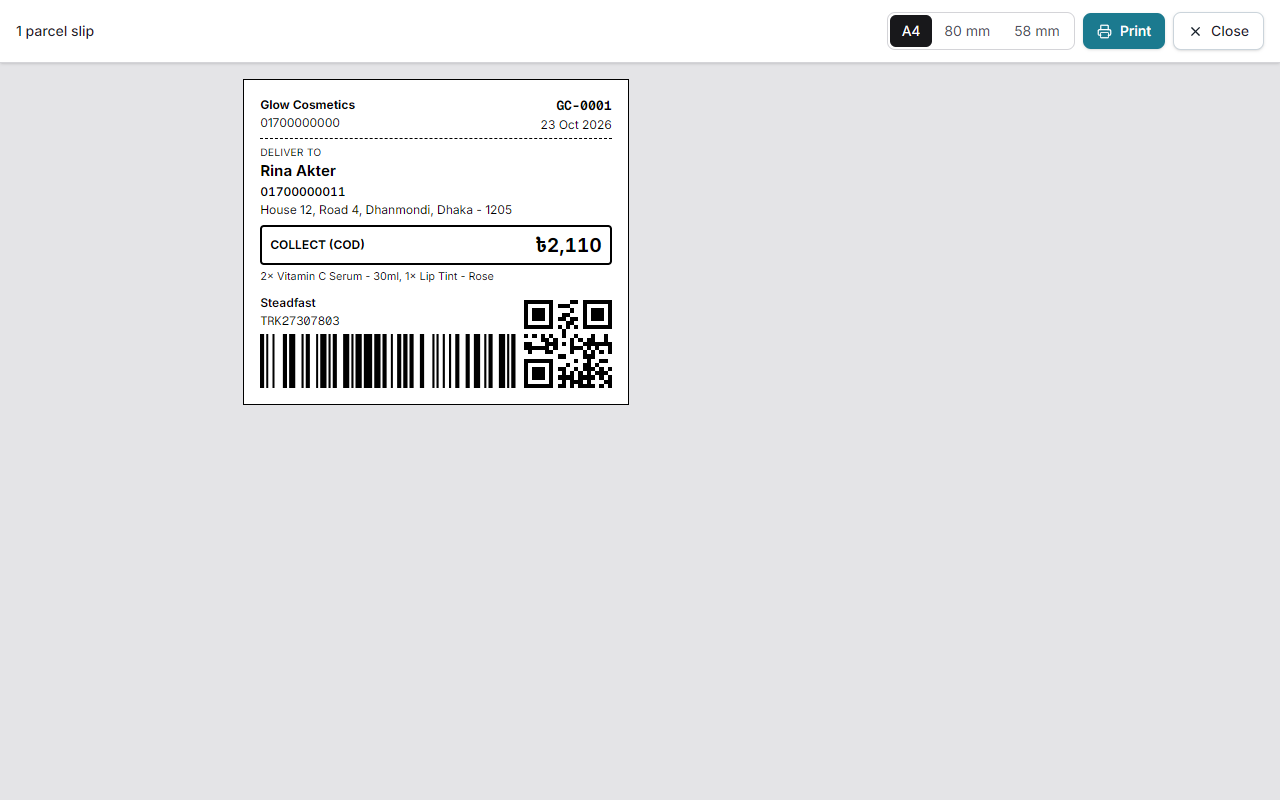
Printing the invoice moves an Approved order to Processing. This step is optional.
Design your own invoice#
The invoice is yours to shape. Go to Settings → Invoice. Until you save something there, every invoice uses the standard Enpod design, so you only change what you want to.
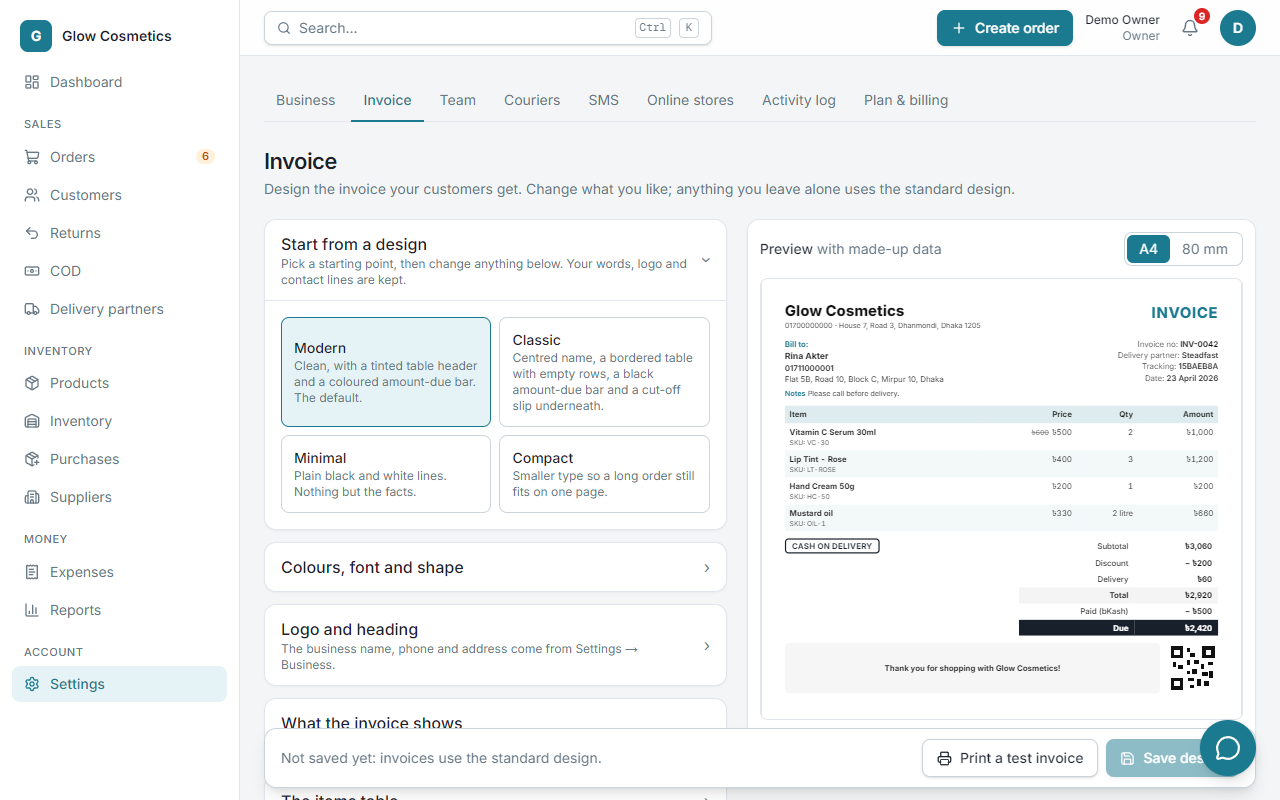
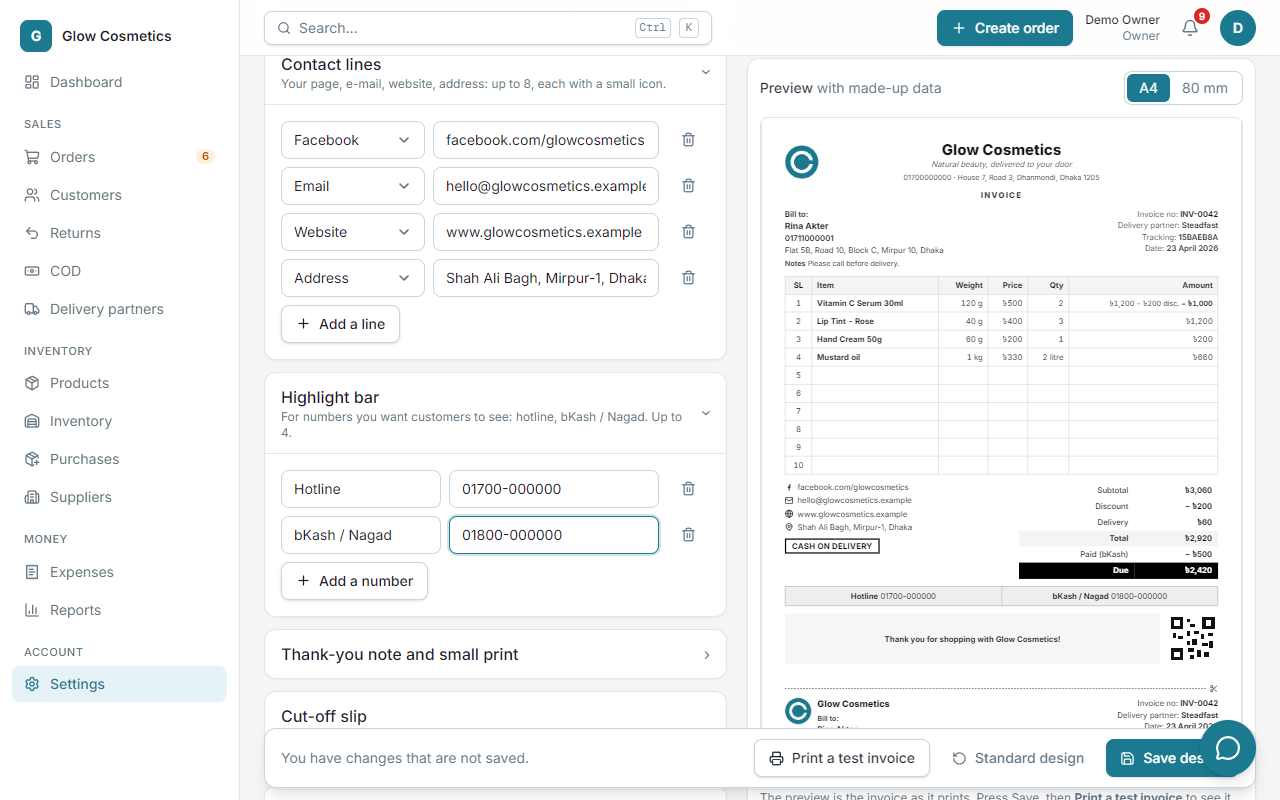
On the right you always see the invoice as it will print (with made-up data), and it changes as you type. Press Save design when you like it, then Print a test invoice to see it on paper.
Start from a design. Modern (the standard), Classic (centred name, a bordered table with empty rows, a black amount-due bar and a cut-off slip underneath), Minimal or Compact. Choosing one only fills the options; you can still change every one of them. Your own words, logo and contact lines are kept.
| Section | What you can change |
|---|---|
| Colours, font and shape | The main colour and the colour of the amount-due bar, the font, the text size, round or square corners, and whether the name is on the left or in the centre. |
| Logo and heading | Upload your logo and choose where it goes and how tall it is. Write the name that is printed (or leave it to use your business name), a tagline, and whether the phone and address show under it. |
| What the invoice shows | Switch on or off: the customer's phone and address, the order note, the delivery partner, the tracking code, the date, the payment method, the discount, delivery and paid-in-advance rows, the amount-due bar, the Cash on delivery and Paid stamps, the QR code and a signature line. |
| The items table | A tinted-and-striped, full-grid, lines-only or plain table. Columns for serial number, SKU, weight, unit price and quantity. How a discounted item looks: the old price crossed out, the sum (36,000 − 18,300 disc. = 17,700) or only the price paid. Empty rows to fill the table like a paper form. |
| Wording | Every word on the invoice can be replaced, for example by Bangla: Invoice, Bill to, Item, Qty, Subtotal, Due and so on. |
| Contact lines | Up to 8 lines with an icon: Facebook, Instagram, YouTube, WhatsApp, e-mail, website, address, phone. |
| Highlight bar | Up to 4 numbers in a bar, such as Hotline and bKash / Nagad. |
| Thank-you note and small print | A note in a box at the bottom (with your logo beside it if you like), and terms or exchange rules in small type. |
| Cut-off slip | A small copy under the invoice, after a dashed line with scissors, for the parcel or your records. |
| Numbers and money | Write money as ৳1,250, BDT 1,250, Tk 1,250 or 1,250; show paisa; use Bangla digits (১,২৫০) for all numbers and dates. |
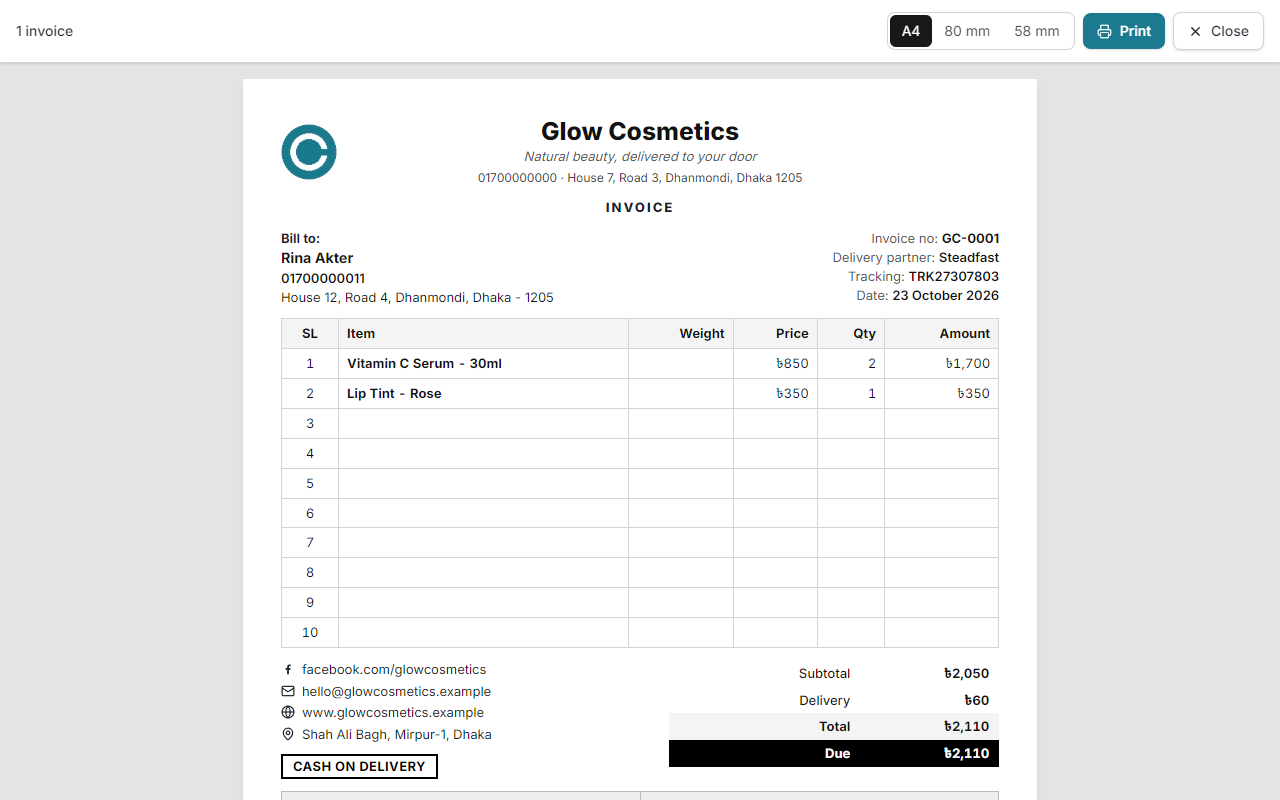
- 80 mm and 58 mm thermal paper use the same design in a compact form: logo, name, items, totals, the highlight numbers, your thank-you note and contact lines. The slip under the invoice is only for A4.
- Standard design (at the bottom of the page) removes your design after you confirm, and invoices go back to the standard look. Your business details stay.
- Only owners and admins can change the design, and every change is written in the activity log. Everyone on the team prints with the saved design.
- The logo is a picture of at most 512 KB. It is shrunk for you and keeps its shape; a transparent background looks best.
- The old one-line Invoice footer (Settings → Business) is used as the thank-you note until you save a design.
Print for many orders#
- On the Orders list tick the orders.
- Press Invoices, Slips or Pick list in the bar that appears.
The pick list adds the quantities up across all the orders, so a packer walks the shelf once.
Paper size#
In Settings → Business choose the Default paper: A4 (normal printer), 80 mm thermal printer or 58 mm thermal printer. You can also set the Invoice footer (for example Thank you for shopping with Glow Cosmetics!).
Order number#
The number on the invoice is the order number (for example GC-0012), made from your business initials. You can change the prefix in Settings; only orders created afterwards use the new one.