Customers
Your customer list, each customer's history and delivery record, tags, blacklist and uploading a list.
On this page
A customer is created automatically the first time you take an order from a phone number. The next order from the same number is attached to the same customer.
The list#
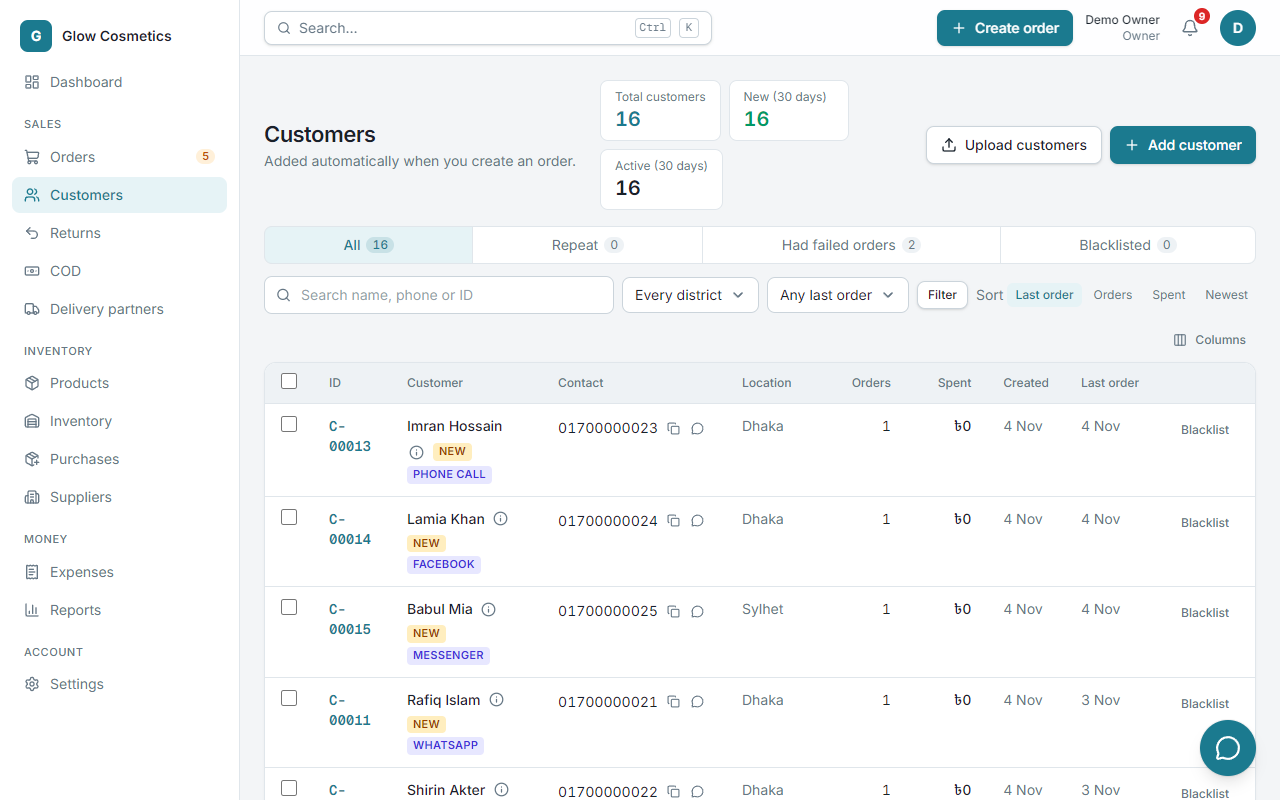
- The cards at the top show Total customers, New (30 days) and Active (30 days).
- The tabs are All, Repeat (ordered more than once), Had failed orders and Blacklisted.
- Search by name, phone or ID, in Bangla or English.
- Sort by Last order, Orders, Spent or Newest.
- Columns lets you show or hide columns.
Find customers to win back#
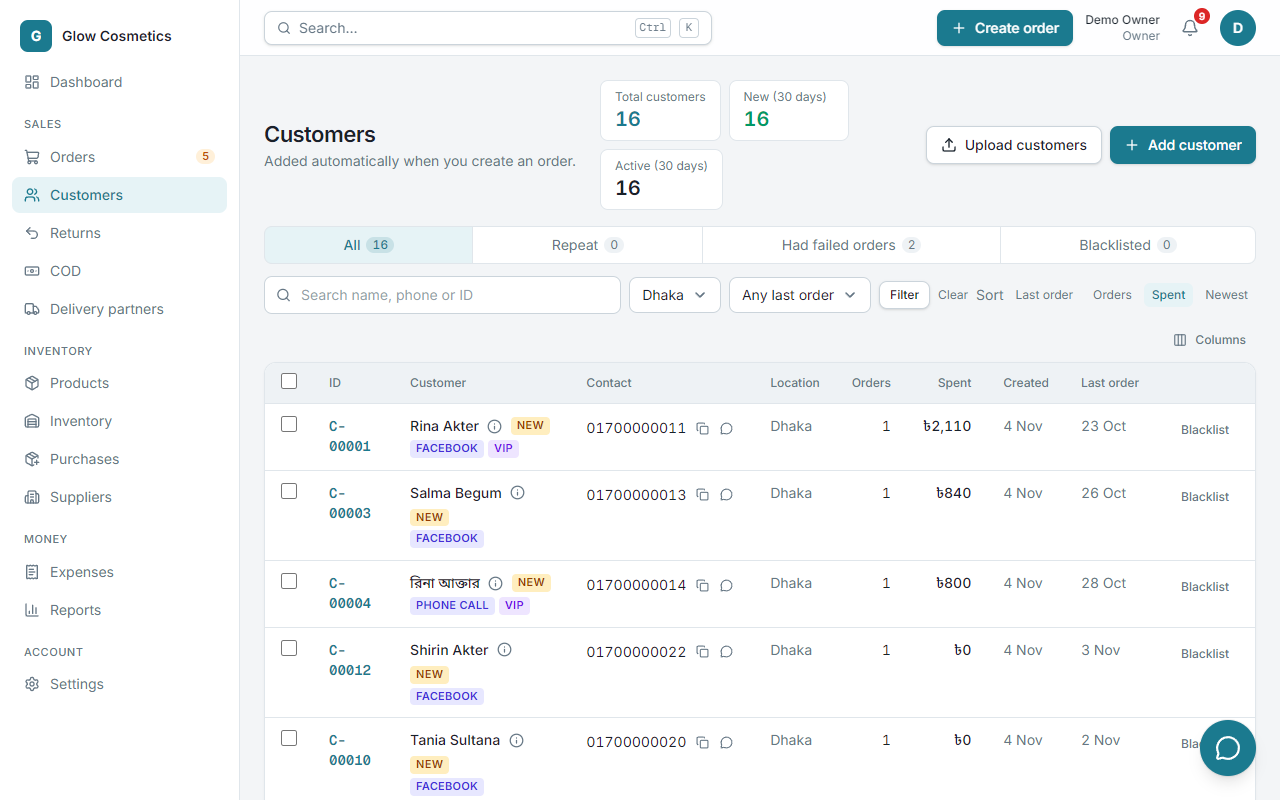
Use the filters, then press Filter:
- Choose a district, and/or No order for 30+ days (or 60, 90, 180).
- Press Filter. You get the customers who ordered before but not lately: the list to message with an offer.
Tag many customers at once#
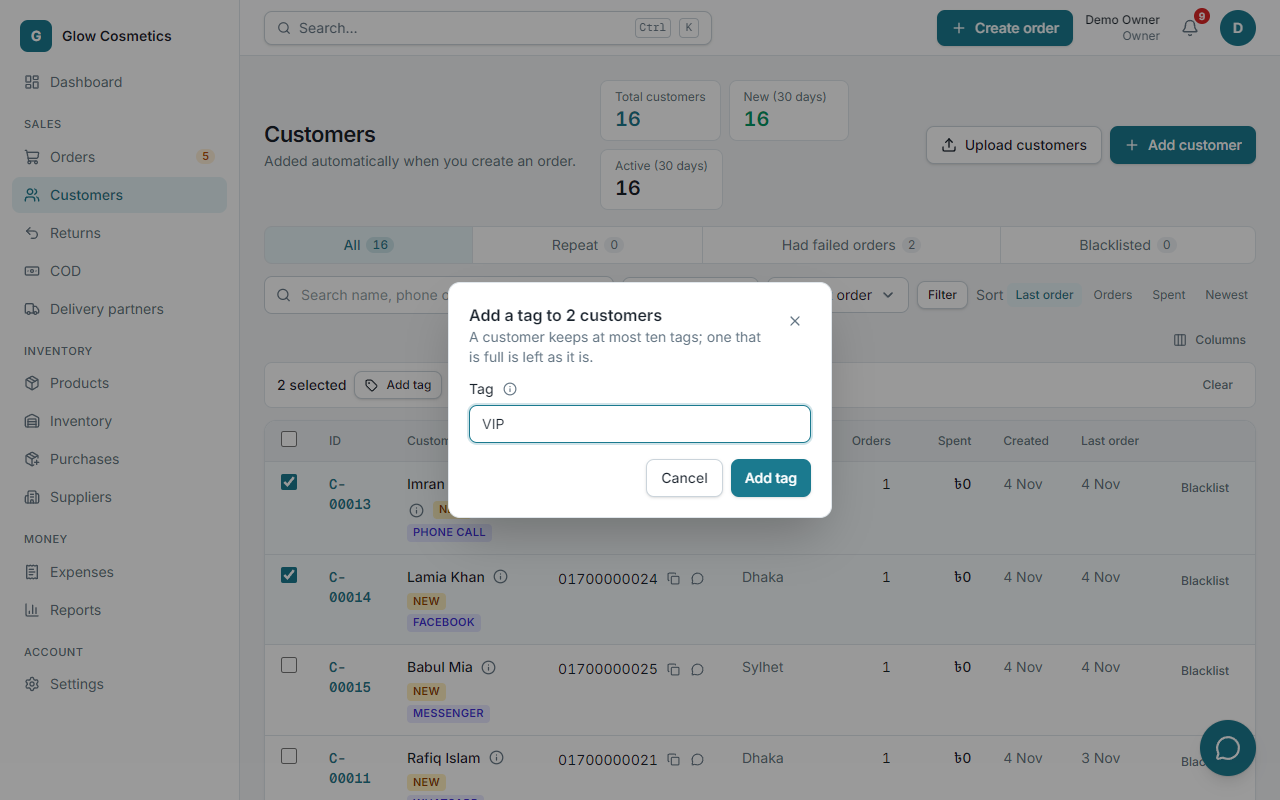
Tags are short labels such as VIP or wholesale. A customer can have up to ten.
- Tick the customers.
- Press Add tag (or Remove tag) and type the tag.
- Confirm. The message tells you how many changed.
One customer's page#
Click a customer to open them.
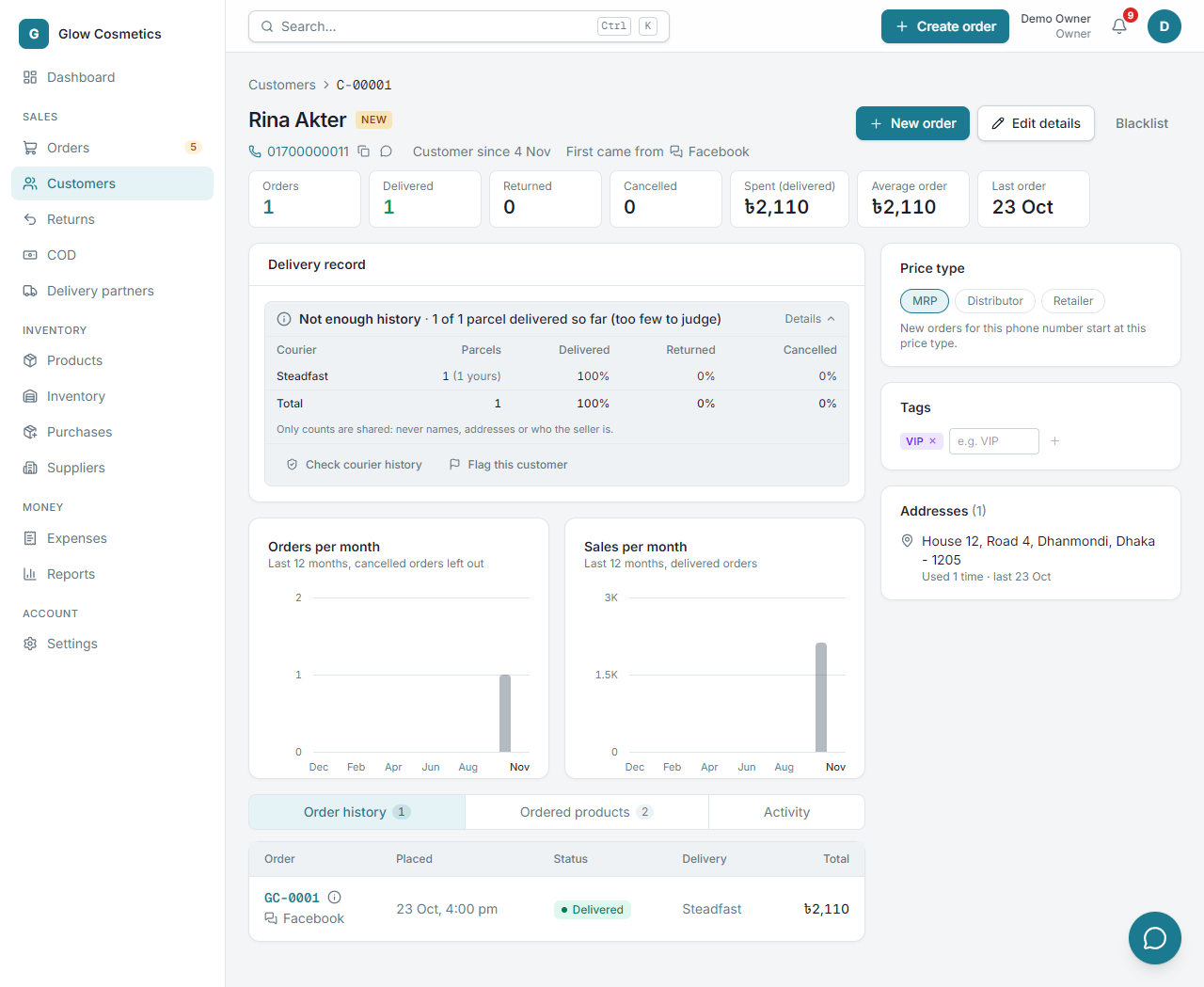
- Numbers: orders, delivered, returned, cancelled, money spent (on delivered orders), average order and the date of the last order.
- Delivery record: how this phone number has done with couriers. It shows only counts, never names or addresses of other sellers.
- Check courier history and Flag this customer work here too.
- Orders per month and Sales per month charts for the last 12 months.
- Tags, and Addresses (every address used before).
- Order history: each order with its status and total.
- New order starts an order for this customer, and Edit details changes the name, address and notes.
Price type#
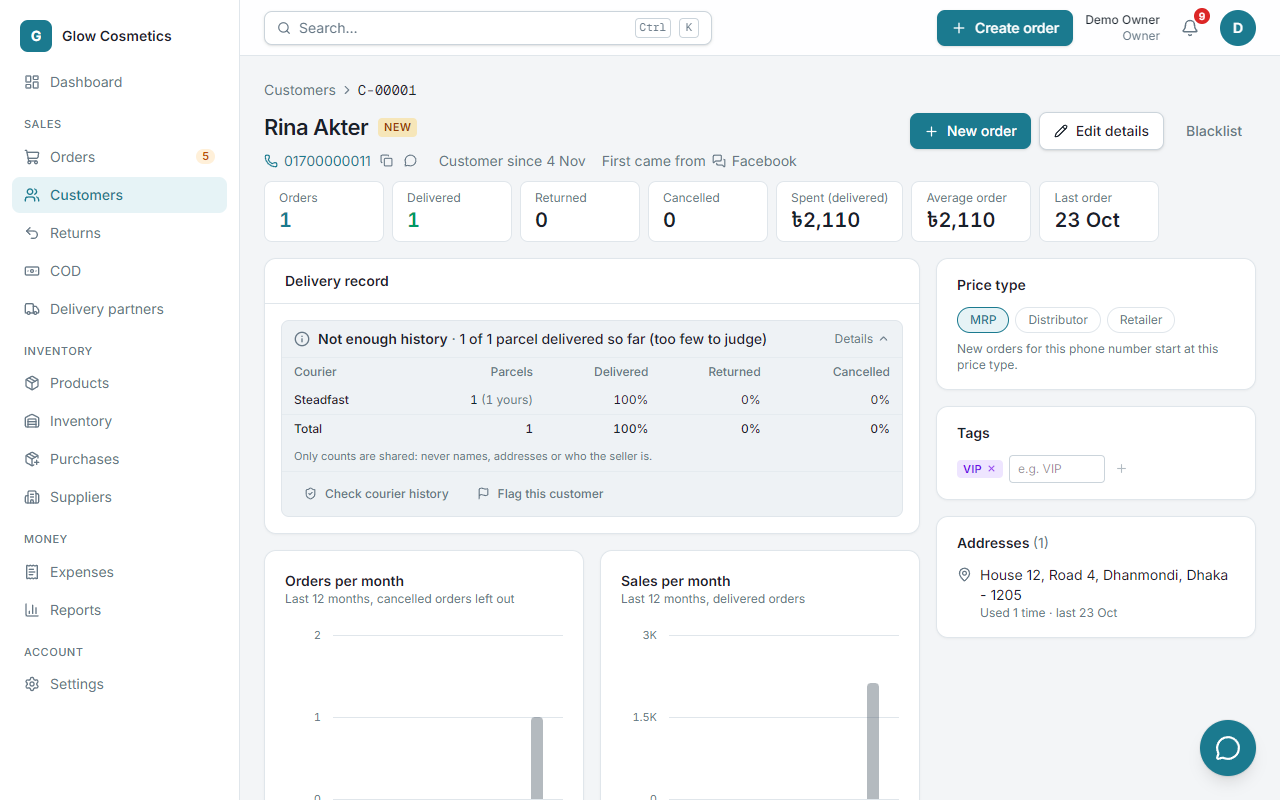
Under Price type choose MRP, Distributor or Retailer for this customer. Their new orders start with that price type (see Price type on the order form). The change is saved at once and written in the activity log. Owners, admins and agents can change it.
Ordered products#
The Ordered products tab lists everything they ever bought, with units, orders, the amount and the last date. It is a good guide for what to offer them. Cancelled and returned orders do not count.
Activity#
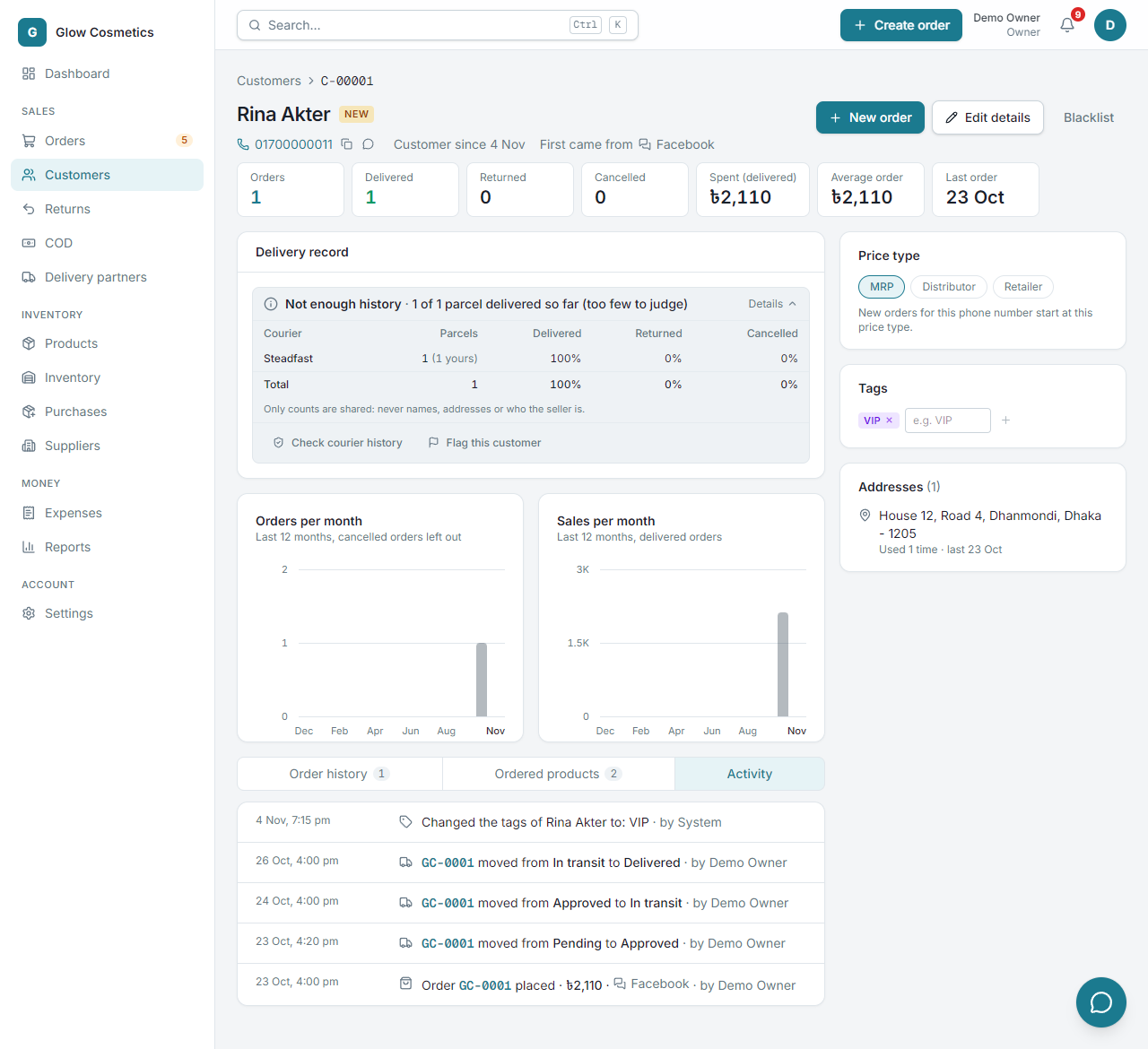
The Activity tab is everything that happened with this customer, newest first: each order being placed, every status change, notes, edits, payments and address changes on their orders, returns and exchanges, the text messages sent to them, and (for owners and admins) changes to the customer such as tags and the blacklist. Every line names its order (click it to open it) and who did it.
Blacklist a customer#
Press Blacklist on the customer (or in the list). A blacklisted customer cannot get new orders, and you and your team are warned. You can remove it again later.
Add a customer without an order#
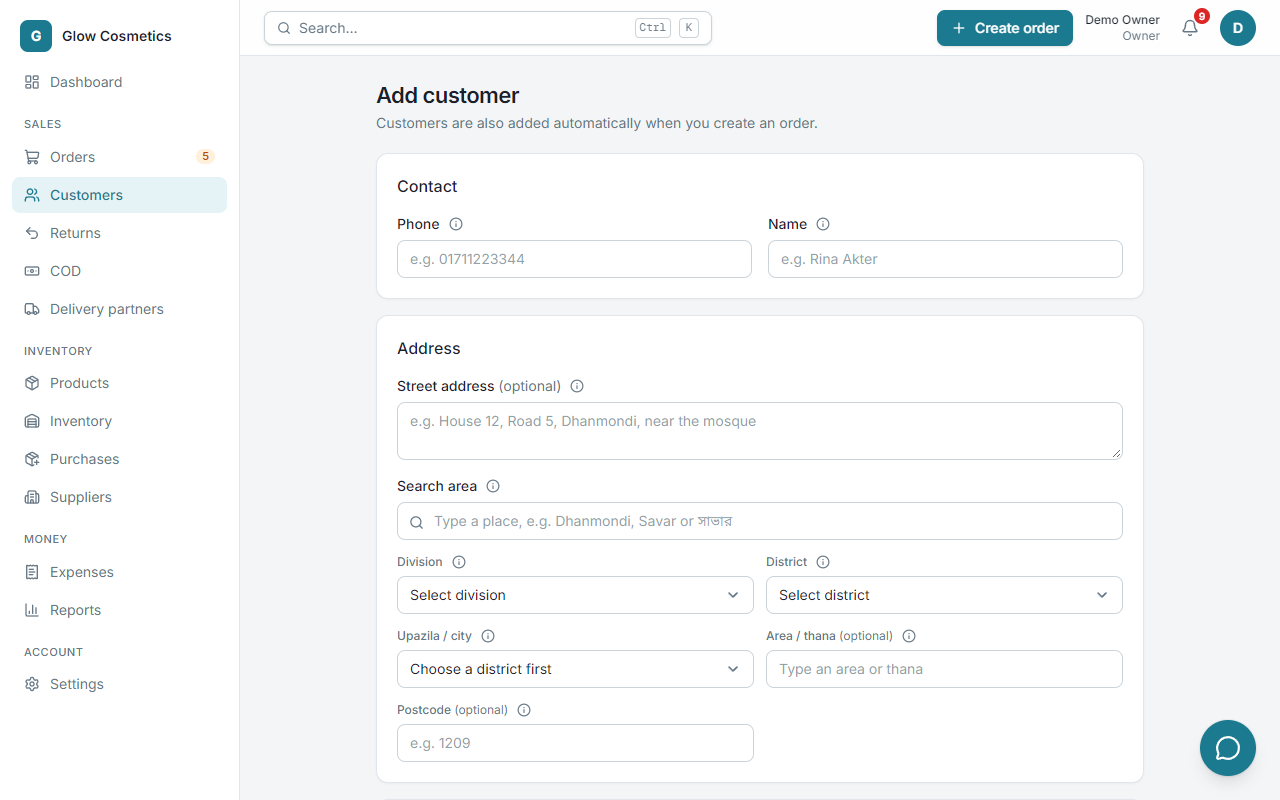
Press Add customer (top right), fill in the name and phone, and save.
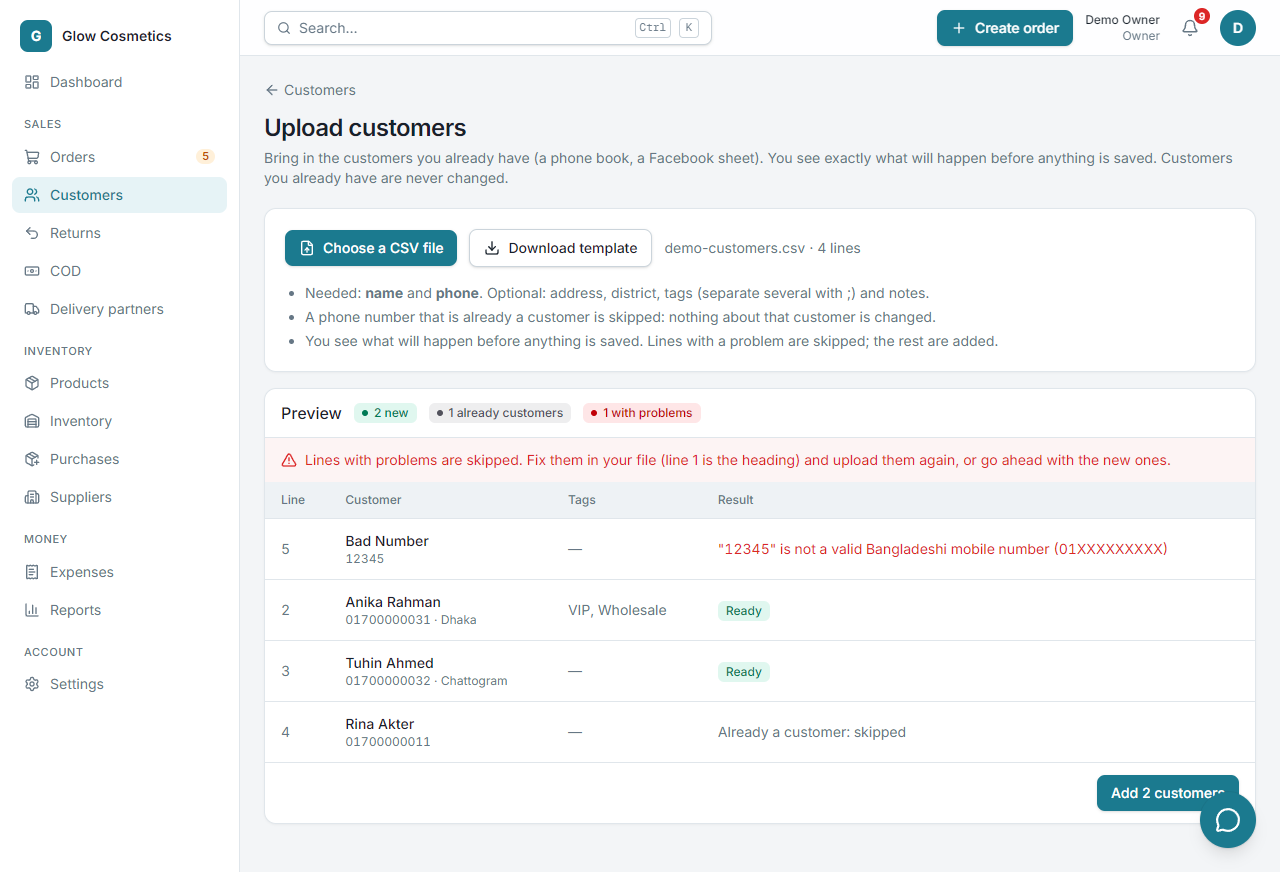
Upload a customer list#
- Press Upload customers.
- Use a file with name and phone (needed), and optionally address, district, tags (several separated with
;) and notes. Heading names are understood loosely (Mobile, Zila, Customer name). - See the preview: who is new, who already exists (skipped, nothing is changed), and any problems in plain words.
- Press the create button. Only the new, valid lines are created, with a progress bar.
- Download the lines that failed, fix them and upload again. Up to 1,000 lines at a time.