
Purchases and suppliers
Order stock from a supplier (filled in from your shortage list), record it when it arrives, pay your suppliers, and see what you owe.
On this page
When you buy stock from a supplier, record it as a purchase. Stock goes up, your product's cost price updates, and what you still owe the supplier is tracked.
Add a supplier#
- Open Suppliers.
- Under Add a supplier type the Name and Phone, and press Add supplier.
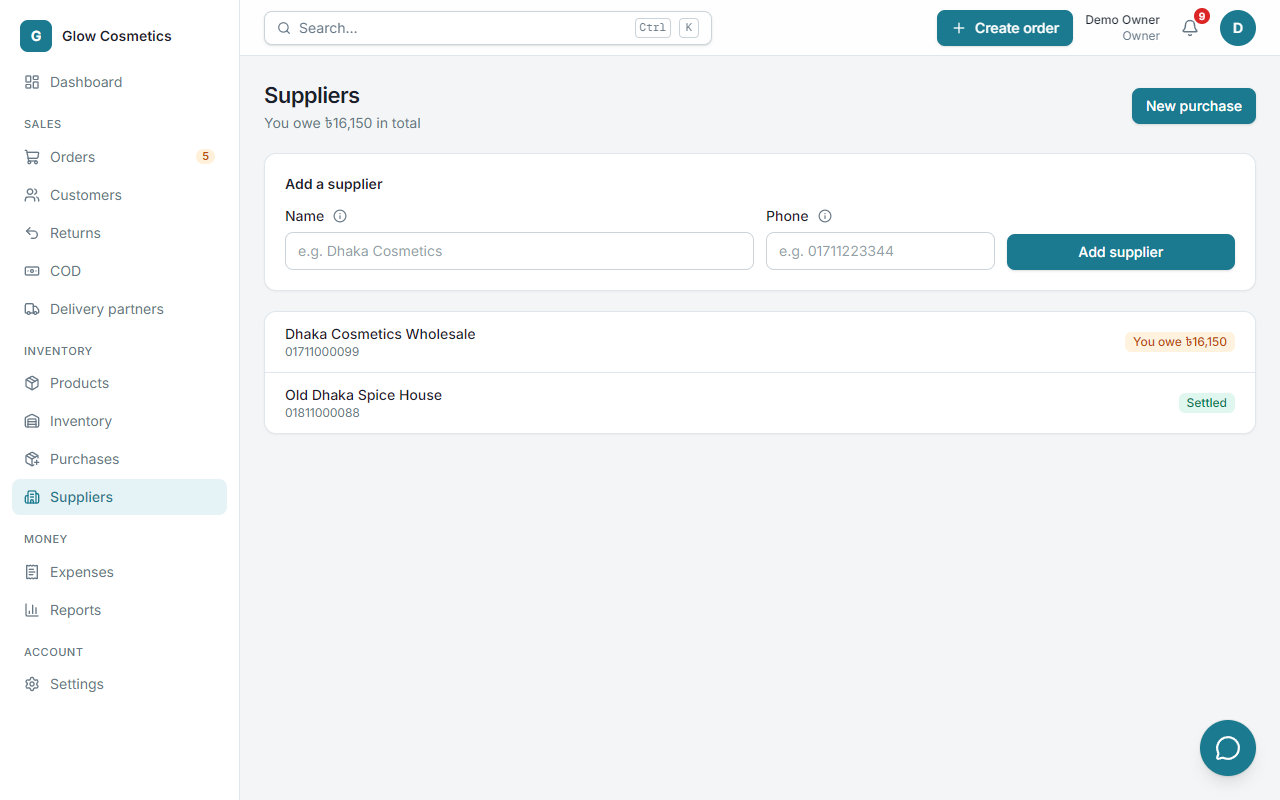
The top of the page shows how much you owe in total. Each supplier shows You owe ৳… or Settled.
Record a purchase#
- Press New purchase (on Purchases or Suppliers).
- Choose the Supplier and the Date.
- Under Items received, search for a product or SKU and add it. Type the quantity you received and the unit cost you paid.
- Fill in the amounts at the bottom if they apply:
- Shipping / import (৳): extra cost to bring the goods.
- Discount (৳): a discount the supplier gave.
- Paid now (৳) and Paid with: what you paid today and how (cash, bKash and so on).
- Note (optional).
- The bar at the bottom shows the Total and You will owe ৳…. Press Receive stock.
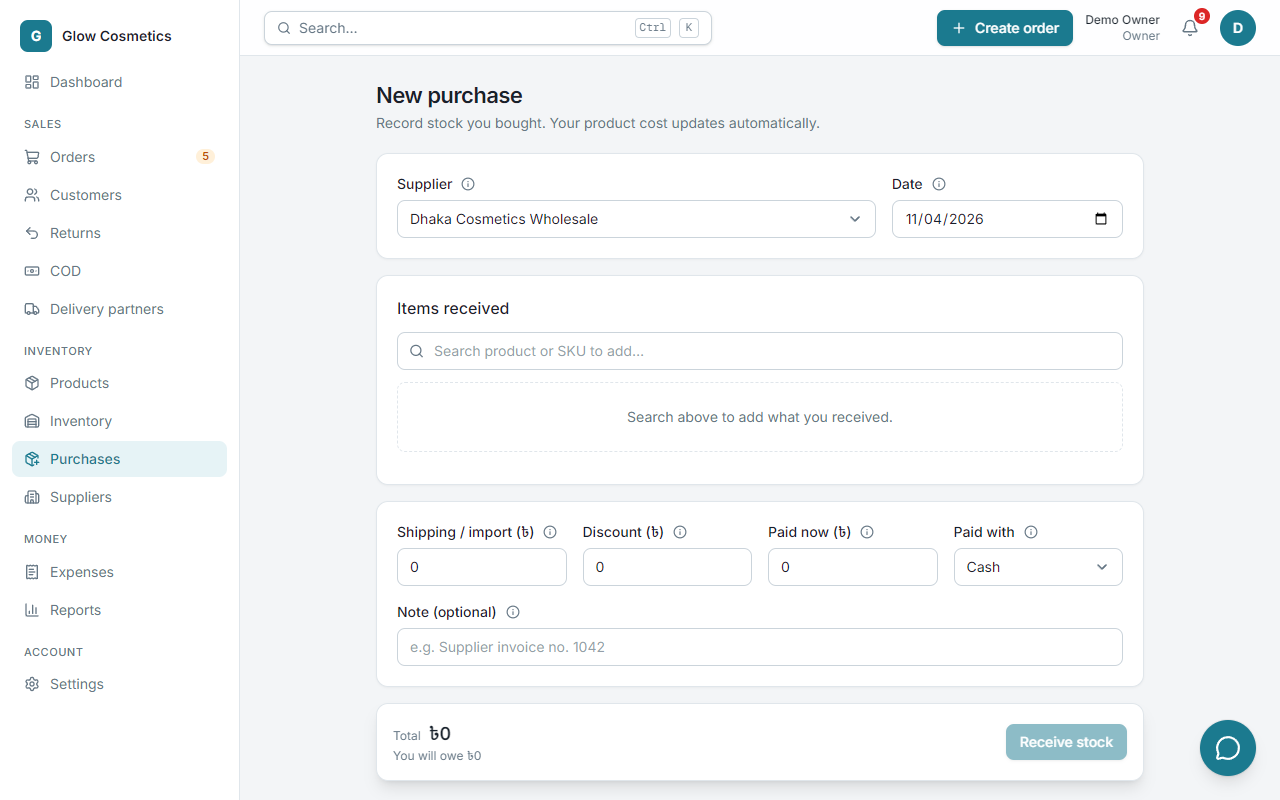
The stock is added to your main warehouse, and the product's cost is updated from what you paid, so your profit report stays right.
Purchase orders: ask before the stock arrives#
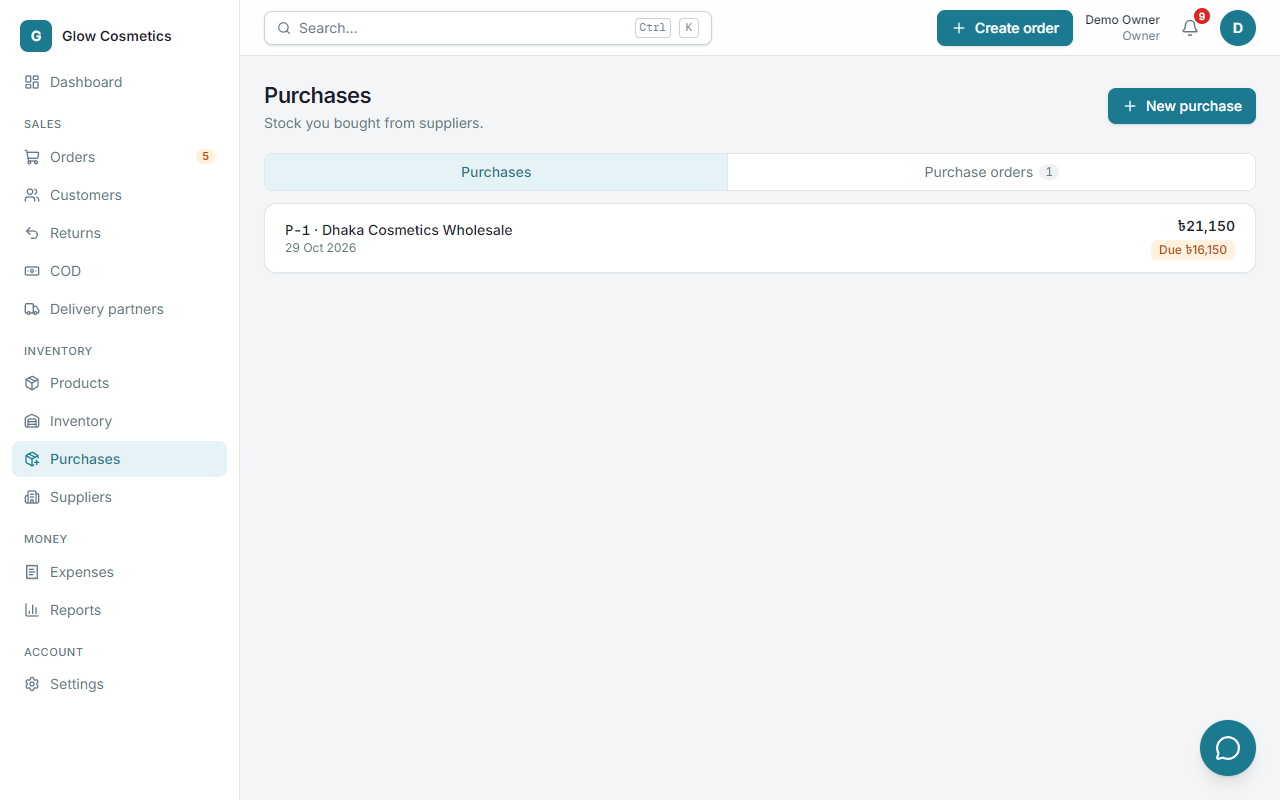
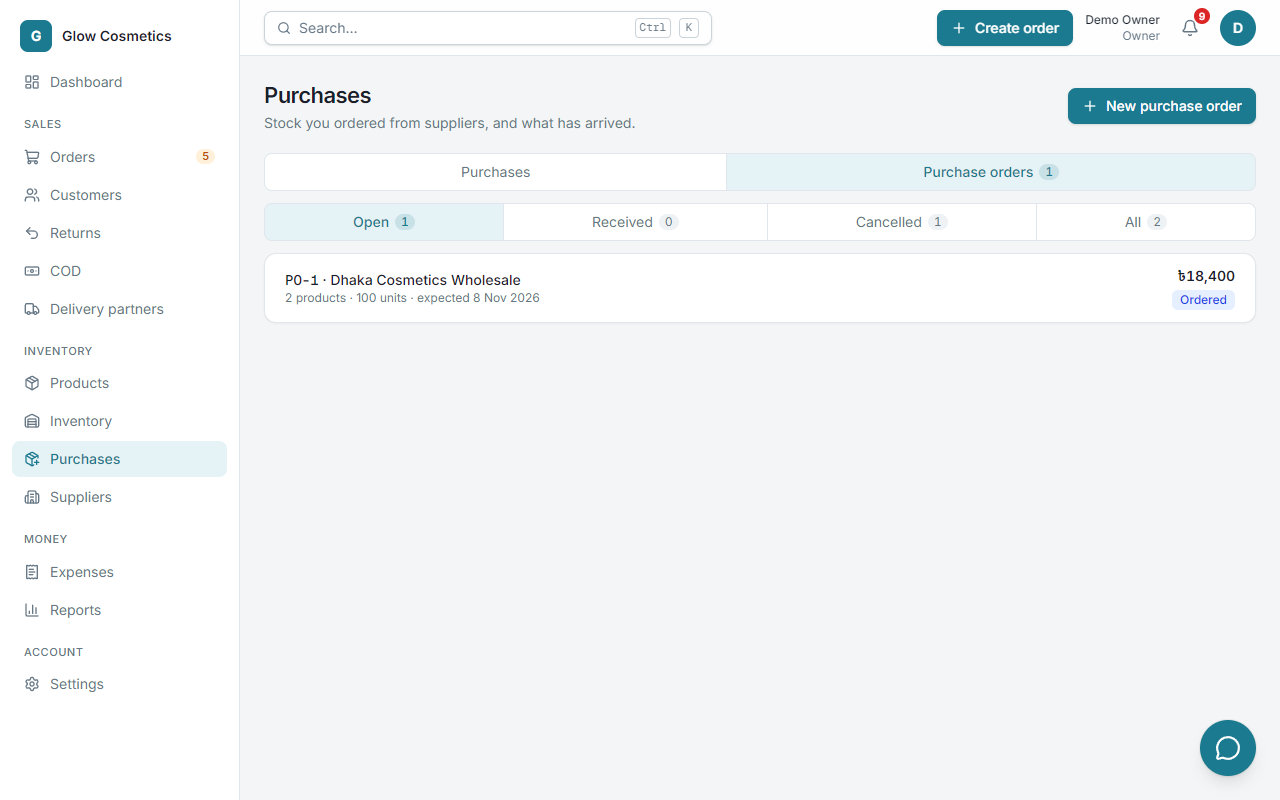
A purchase order is what you ask a supplier for before the stock arrives. It changes no stock and no money. When the goods come, you turn it into a purchase in one step. Open Purchases → Purchase orders.
Make one from your shortage list#
You do not have to work out what to buy:
- On the Dashboard, the shortage alert lists what is short (sold, but not in stock), out of stock or running low. Press Make a purchase order.
- Or open Inventory → Restock and press Make a purchase order.
The order opens already filled in with the products that need buying and how many, enough for the next 30 days of sales (change the days on the Restock tab first if you like). What is already on another open order is taken off, so you never order the same stock twice.
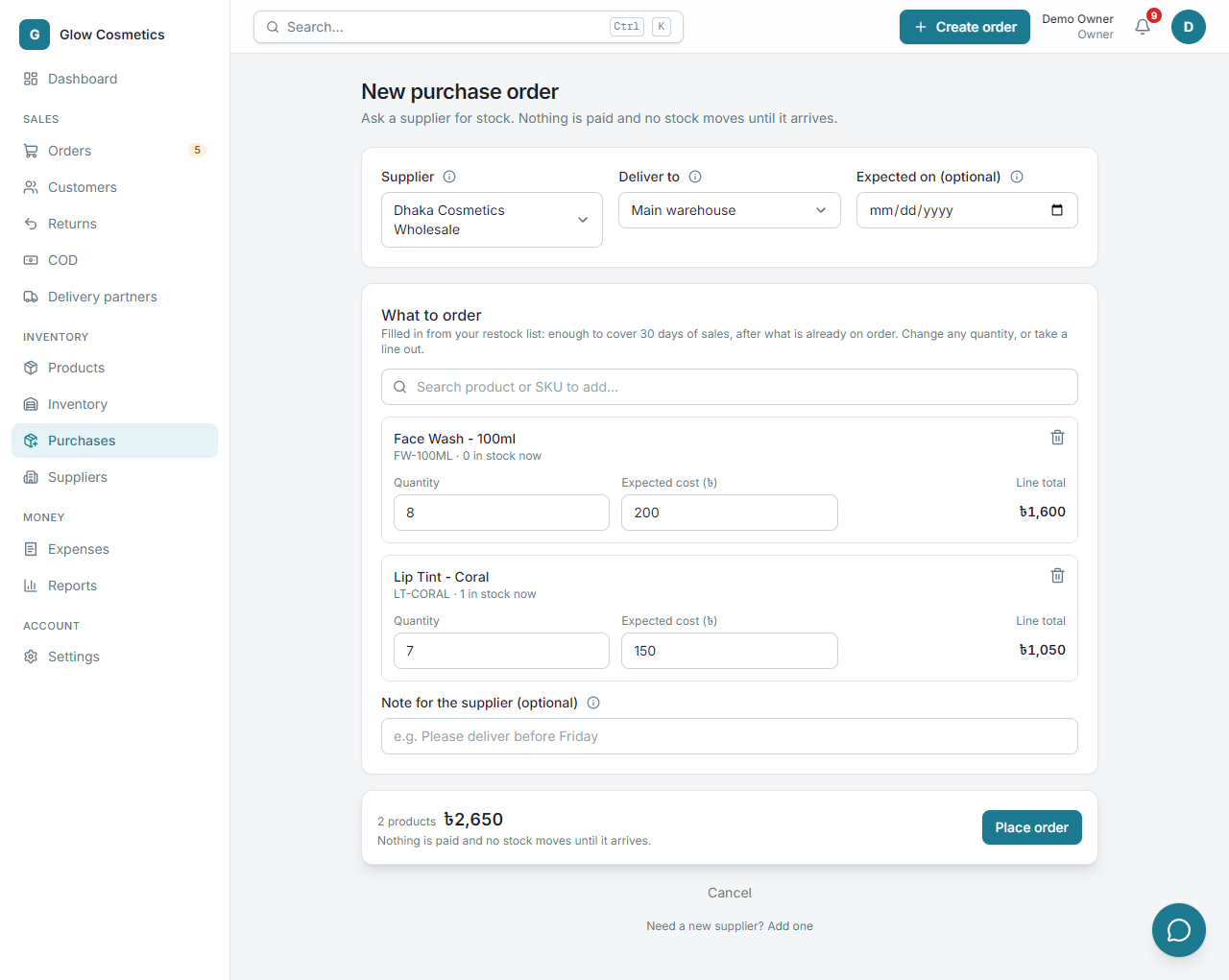
- Choose the Supplier. If you have more than one warehouse, choose Deliver to, and add the date you Expect it.
- Change any Quantity or Expected cost, take a product out with the bin, or search to add another.
- Add a Note for the supplier if you want, then press Place order.
Send it, then receive it#
The order page shows what you asked for. Copy message puts the list in your clipboard as plain text, ready to paste into WhatsApp or Messenger for the supplier.
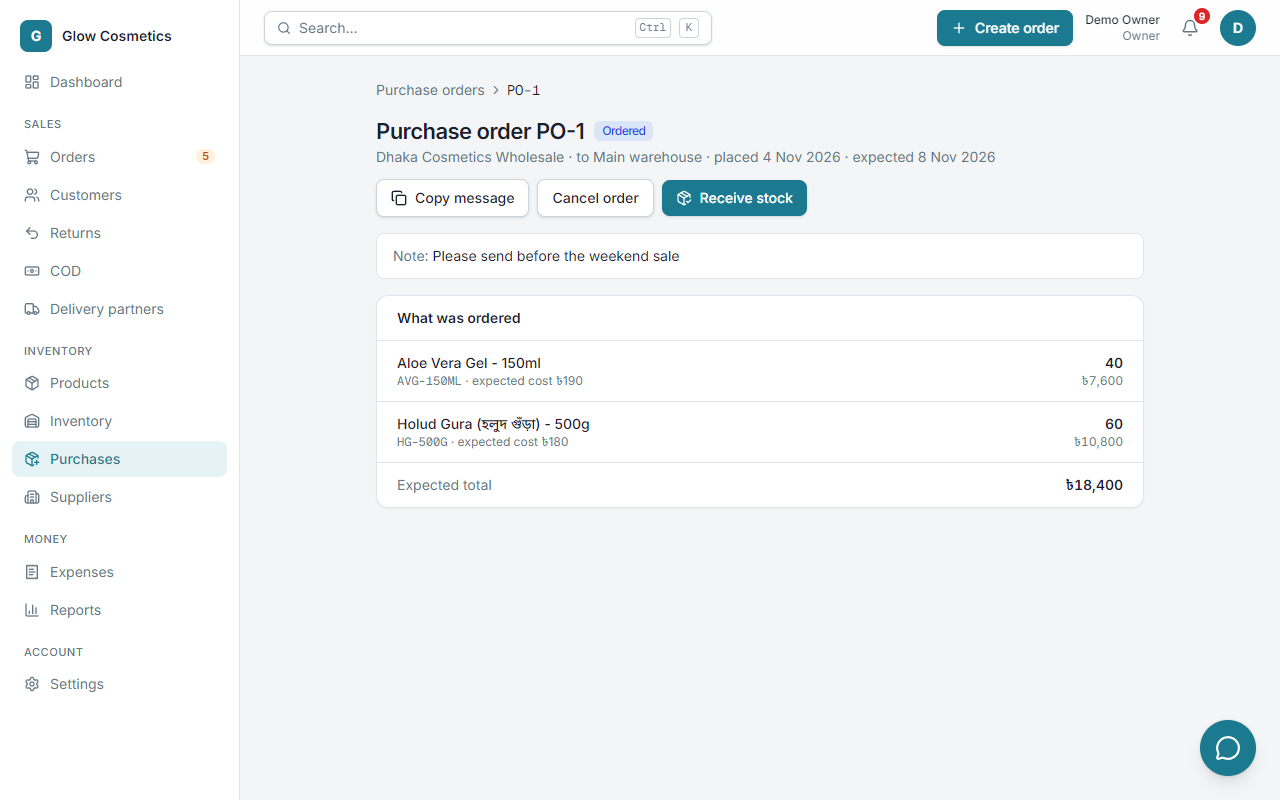
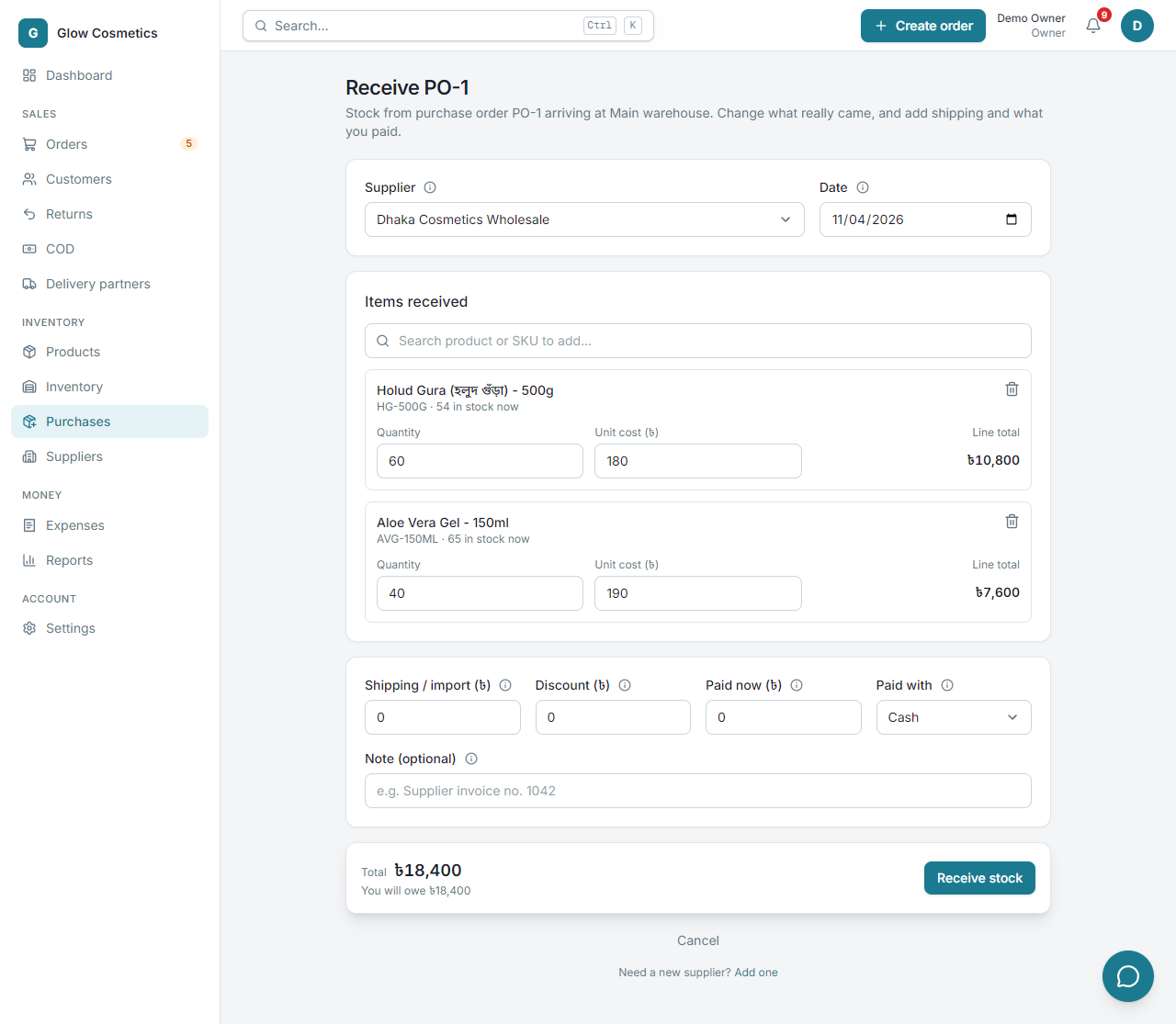
When the stock arrives, press Receive stock. The purchase form opens with the supplier and products filled in: change the quantity to what really came, add Shipping / import and what you Paid now, and press Receive stock. The stock goes into the warehouse you chose, the cost price updates, and the order is marked Received with a link to the purchase.
If you change your mind, press Cancel order. Nothing was paid and no stock moved, so nothing else changes: the order stays in the list as Cancelled. An order past its expected date shows Late.
Pay a supplier#
- Open Suppliers and click the supplier.
- Under Record a payment check the Amount (৳) (it starts at everything you owe), choose the Method and Date, and add a Note.
- Press Record payment.
The supplier's balance goes down. You can also pay when you record the purchase, with Paid now.
Wrong purchase?#
Open the purchase from the list and press Void purchase (owners and admins only). The stock it added is taken out again, which only works while that stock is still on hand.