
Couriers and delivery
Connect Steadfast, Pathao and RedX, send parcels, follow them, and handle returns and your own riders.
On this page
Enpod works with Steadfast, Pathao and RedX, and with your own riders or any local courier. You send the parcel from the order, and the courier's status comes back by itself.
Connect a courier#
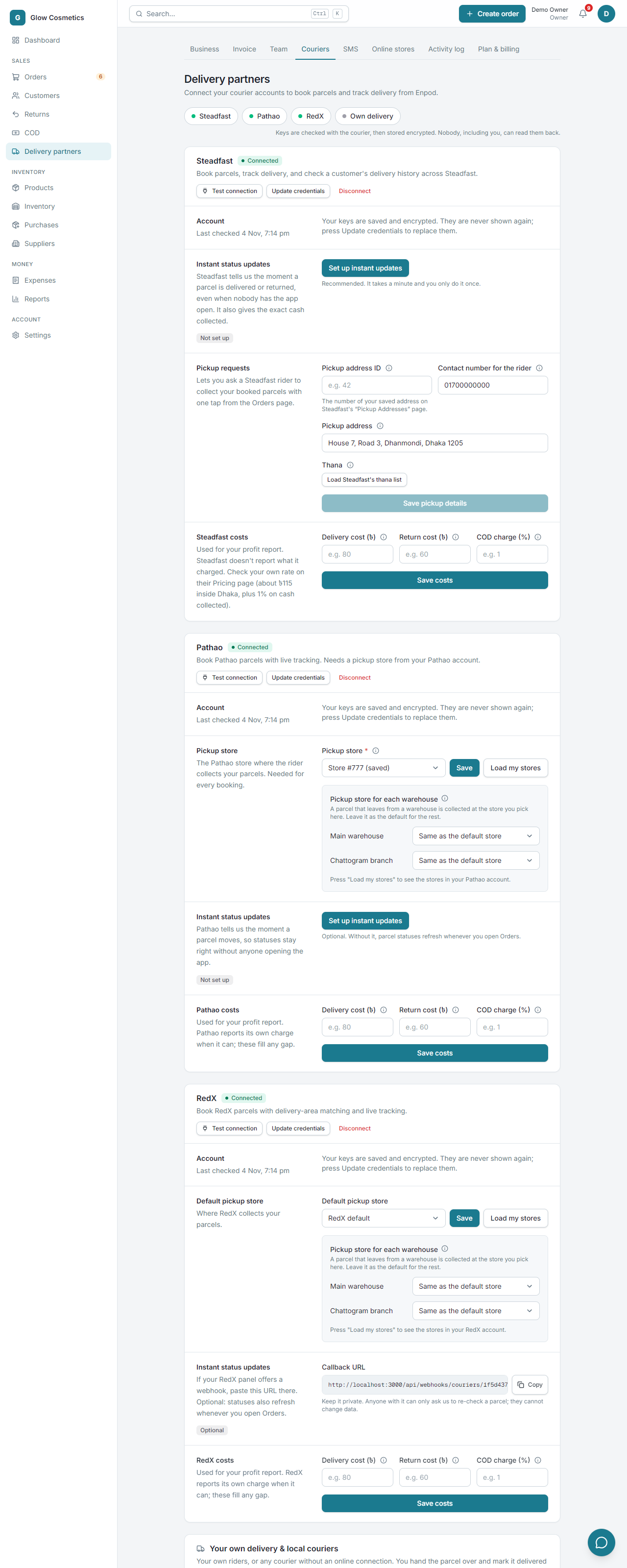
Do this once for each courier. Go to Settings → Couriers (or Delivery partners in the menu). Each courier is one card with its rows: Account, Pickup store, Instant status updates and Costs.
Steadfast#
- In your Steadfast merchant panel, open the API page and copy the API key and the Secret key.
- In Enpod paste them into API key and Secret key on the Steadfast card, and press Connect.
- The keys are checked with Steadfast before they are saved. A green Connected appears.
Pathao#
- From the developer page of your Pathao merchant account, copy the Client ID and the Client secret (the first and second boxes; press the eye to see the secret).
- On the Pathao card fill in Client ID, Client secret, Pathao merchant email and Pathao password, and press Connect.
- Press Load my stores and choose your Pickup store. Pathao needs one.
RedX#
- Copy your RedX API access token (with or without the word Bearer).
- Paste it into API access token on the RedX card and press Connect. Tick the sandbox box only if you are testing with a sandbox token: a live token works only with it unticked.
- Optionally choose a Default pickup store.
Use Test connection at any time to check a courier still works.
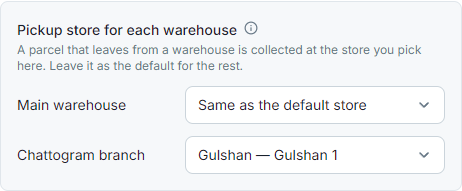
A pickup store for each warehouse#
If you have more than one warehouse, the Pathao and RedX cards show Pickup store for each warehouse. Press Load my stores, choose the store each warehouse sends from (the rest use the default store above) and press Save. A parcel booked for an order that leaves from that warehouse is collected at that store. Steadfast has no pickup stores to choose.
Send a parcel#
An order must be Approved (or Processing) before it can be sent.
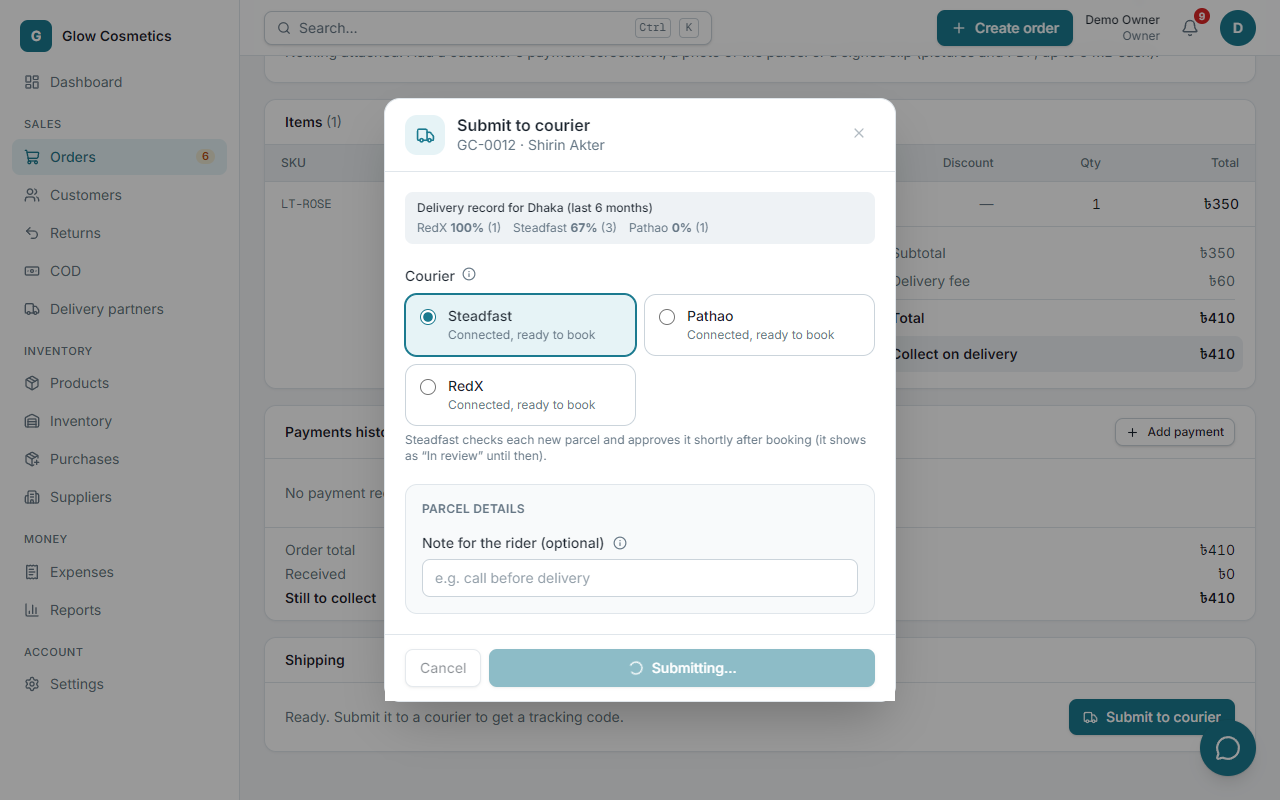
- Open the order and press Submit to courier. (For many orders, see bulk submit.)
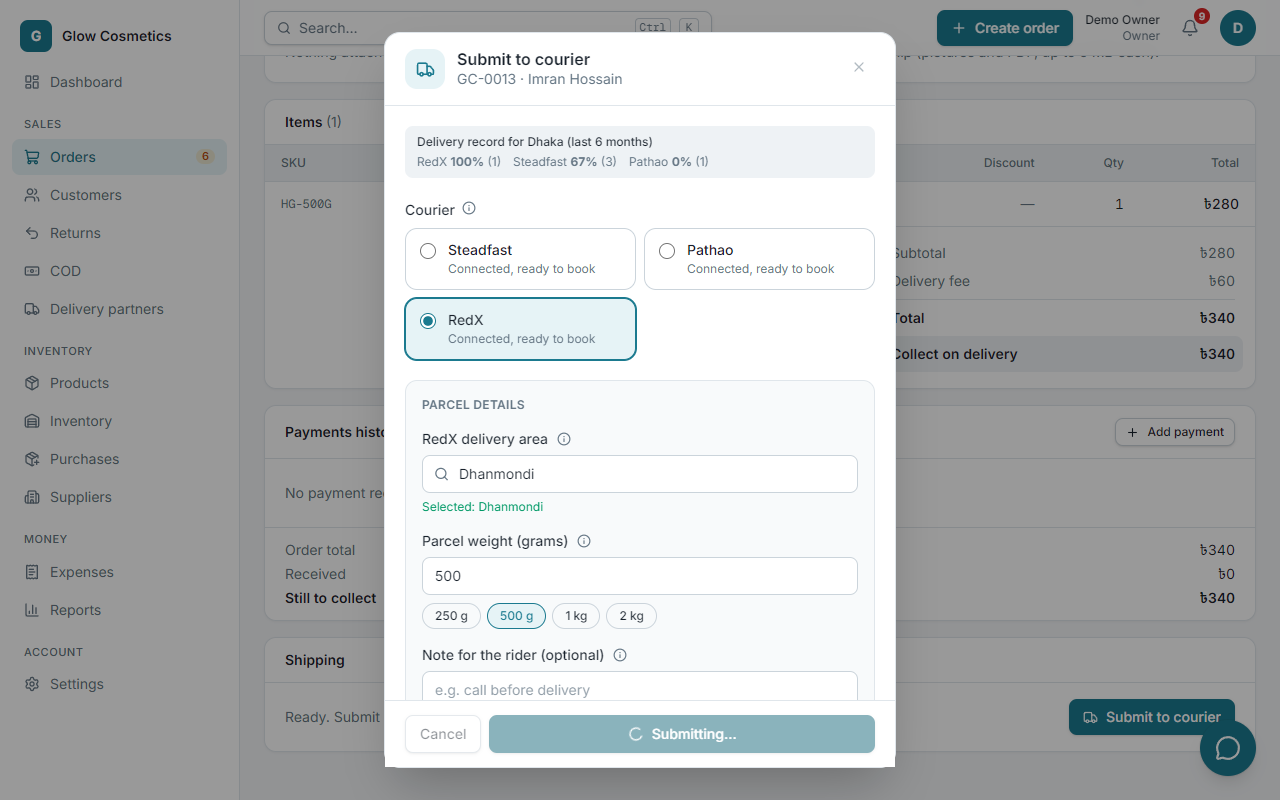
- The dialog shows the delivery record for the customer's district: for each courier, how many parcels were delivered over the last 6 months. Use it to pick the best courier for that area.
- Choose the courier. If the order has a preferred delivery partner, it is already chosen.
- Add a Note for the rider if needed, and press Submit.
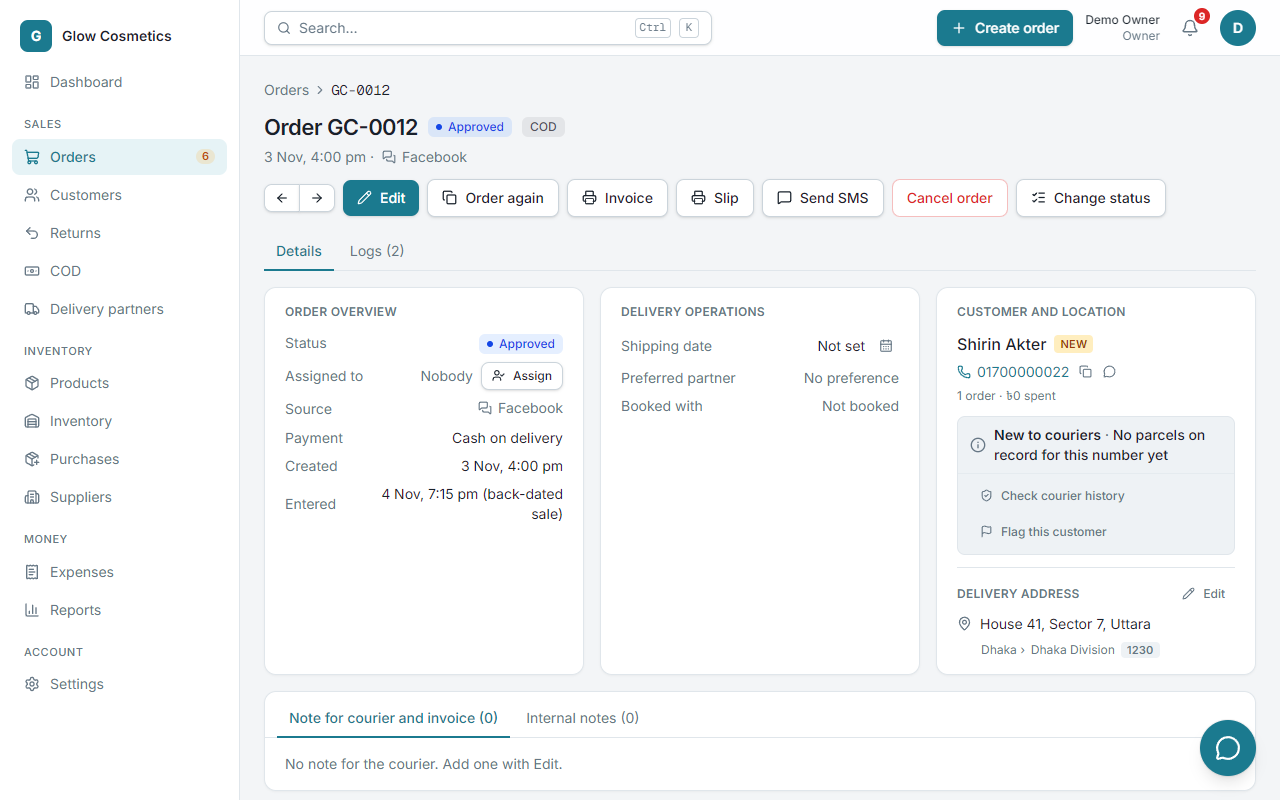
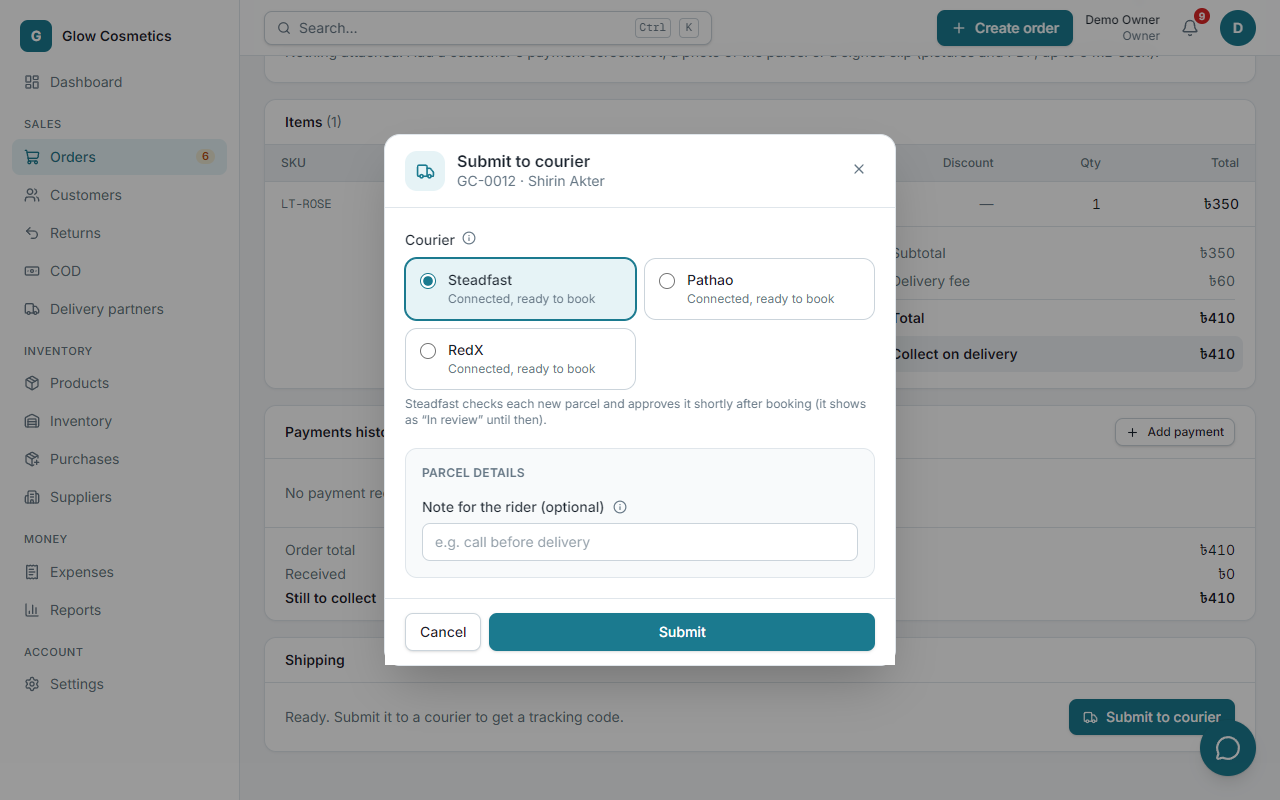
- The courier gives a tracking code. The order becomes In transit.
If the booking fails, you get a sentence saying why in plain words (for example the address is too short). Fix the order and try again.
Send many parcels at once#
On the Orders list, tick the Approved orders and press Submit to courier (N). Steadfast takes the whole batch in one go. Pathao and RedX are sent one after another.
Follow the parcel#
After booking you see the courier's own words for the status, for example In review, Pending, Pickup requested, Delivery in progress. They are shown exactly as the courier's panel shows them.
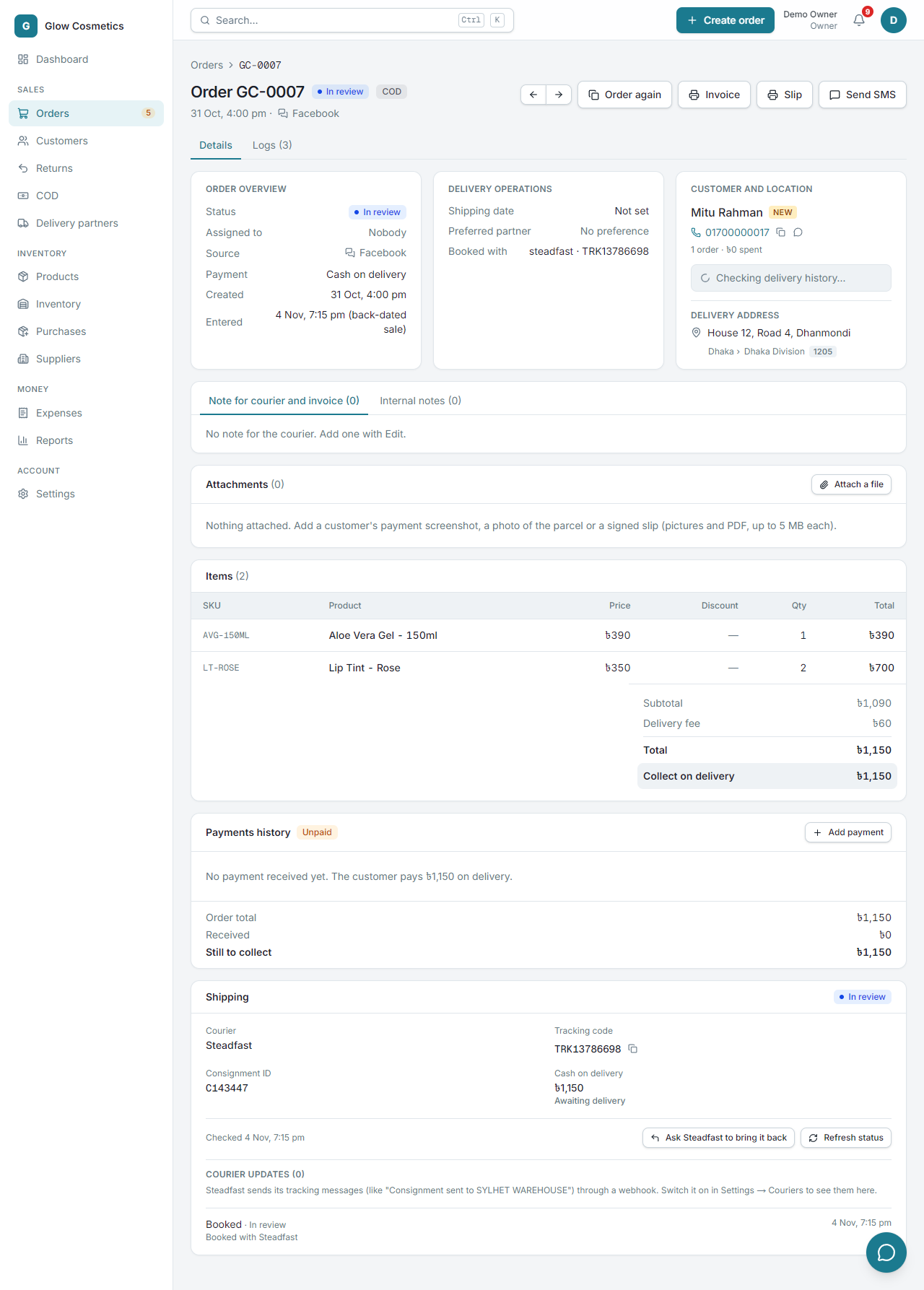
- The status refreshes whenever someone opens the order or the Orders list, and instantly if you set up instant updates.
- Delivered and Returned are set only when the courier says the status is final. You cannot (and need not) set them by hand.
- The tracking link for the customer is saved, and can go into SMS with
{tracking}. - If the courier's answer cannot be read, the parcel shows Status unclear. Press Refresh status.
When the courier cancels the pickup#
If a courier (for example Pathao) cancels the pickup because nobody collected the parcel, the order goes back to Approved. It does not stay In transit. Nothing is restocked, and an amber notice on the order says submit the order to a courier again.
Cancel a parcel, or ask for it back#
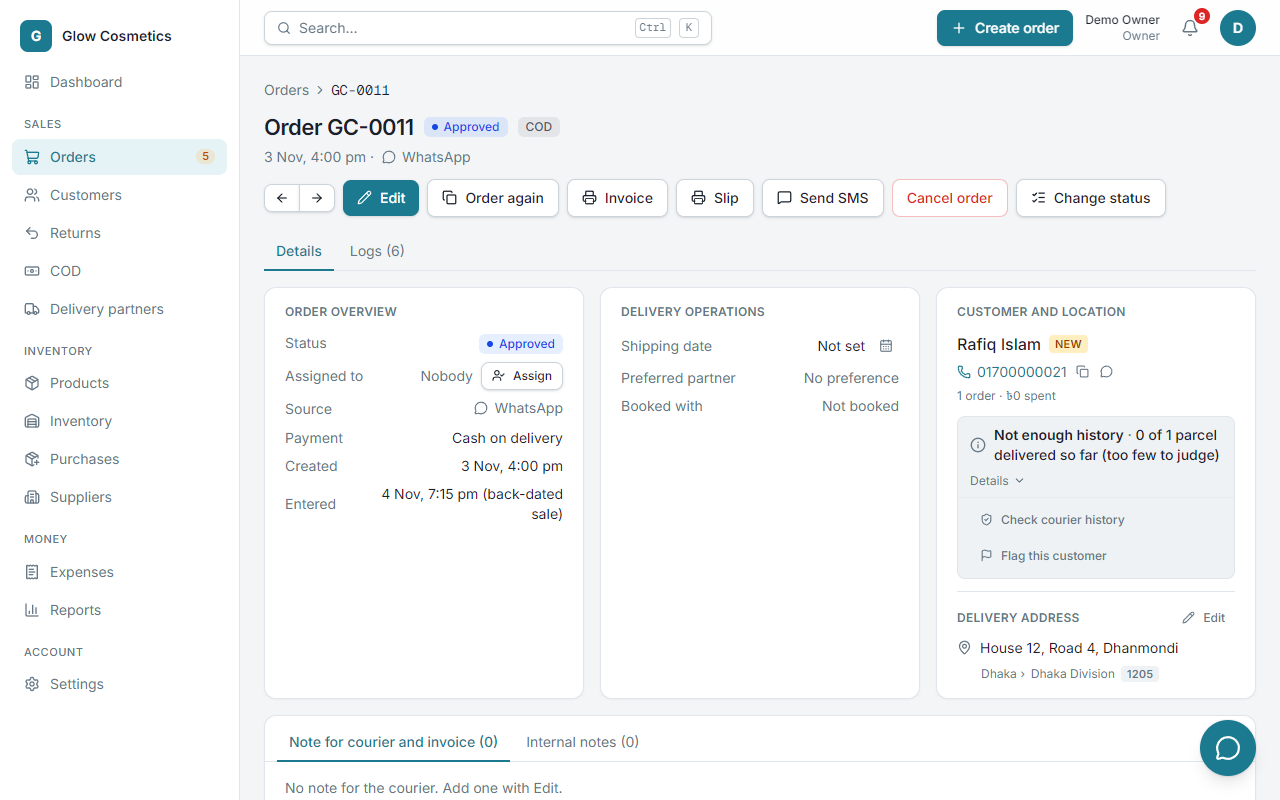
Booked a parcel by mistake, or the customer changed their mind? What you can do depends on the courier, because each one lets other systems do different things:
| Courier | Before the rider takes it | After it is on its way |
|---|---|---|
| RedX | Cancel at RedX (one tap, from the order page) | Ask RedX in its panel or by phone |
| Steadfast | Ask for it back: Ask Steadfast to bring it back | The same button |
| Pathao | Cancel in your Pathao merchant panel, then press Refresh status | The same: ask Pathao in its panel or by phone |
RedX: cancel from the order page#
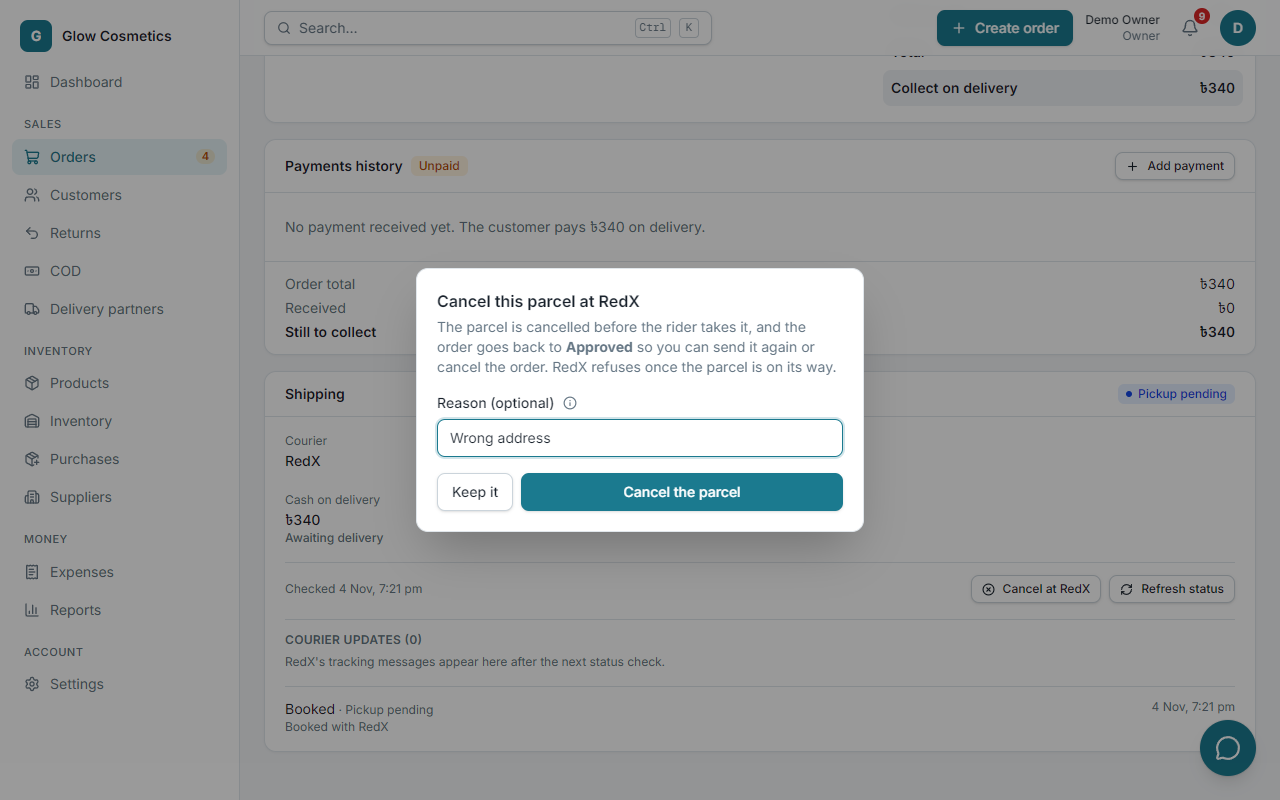
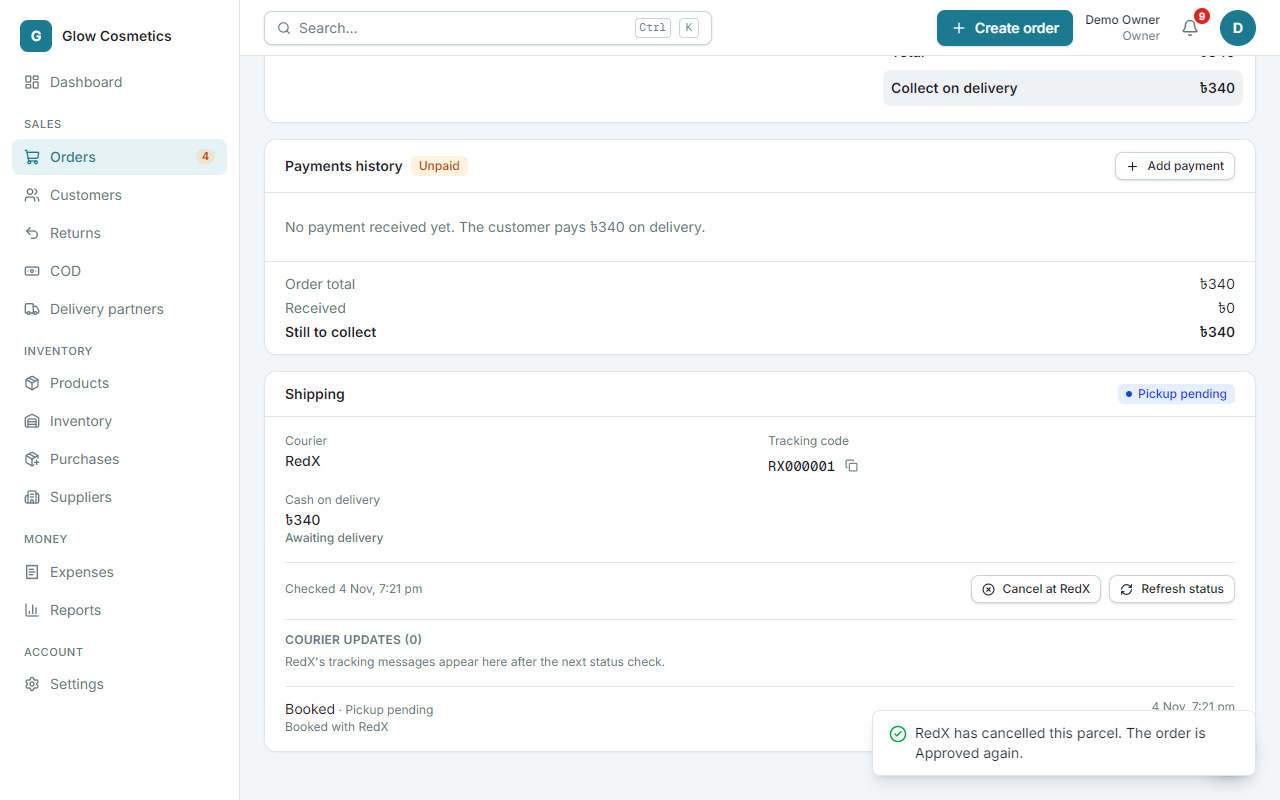
- Open the order. On the Shipping card of a booked RedX parcel press Cancel at RedX.
- Write a Reason if you like and press Cancel the parcel.
- RedX cancels it. The parcel shows Cancelled, a note Cancelled at RedX is added, and the order goes back to Approved so you can send it again or cancel the order. Stock is not touched.
Steadfast: ask for it back#
Steadfast has no way to cancel a parcel from outside. Press Ask Steadfast to bring it back on the Shipping card, add a reason and press Send return request. Steadfast stops the delivery and returns the parcel to you. This cannot be undone. When it arrives press I have the parcel back so the stock is restored.
Pathao: use the Pathao panel#
Pathao does not let other software cancel or return a parcel. The Shipping card says so and tells you where to do it: cancel it in your Pathao merchant panel (or call Pathao). Then press Refresh status and Enpod sets the order back to Approved by itself.
Returns#
When a courier brings a parcel back, it shows Returned and the stock goes back to the shelf. With Steadfast a parcel that is coming back is not yet back: stock returns when the return is received. If you hold the parcel already, press I have the parcel back. See Returns.
How statuses stay up to date#
You do not have to open anything. Enpod asks each courier about your parcels by itself, around the clock, even when nobody has the app open: about every 15 minutes while a parcel is out for delivery, every hour while it travels, every 2 hours while it is on hold. Opening an order or the Orders list also checks it. If a courier is down or rejects your keys, the parcel says so, and the checks slow down instead of piling up; a rejected key stops them until you fix it in Settings.
The order follows the courier only at the end of the road: Delivered, Partly delivered or Returned, and when the courier cancels the pickup (the order goes back to Approved so you can send it again). Until then the order shows the courier's own word.
When the courier changes its mind#
Sometimes the courier says something after a delivery: the customer sent it back, or it was only partly delivered. Enpod never changes your order silently for that. The order page shows a yellow box, you get a notification, and you choose:
- Confirm: it was returned makes the order Returned and puts the goods back in stock;
- Confirm: partly delivered records a partial delivery;
- Dismiss leaves everything as it was.
If the courier only says the parcel is coming back, there is nothing to confirm yet: the goods are not back. A partly delivered parcel, or cash that is different from what the order expected, also gets a yellow box with a plain sentence; record what came back in Returns and press Mark reviewed.
Instant status updates#
Without this, "delivered" is noticed at the next check (within the hour). With it, the courier tells Enpod the moment a parcel is delivered or returned, even when nobody has the app open, and it also reports the exact cash collected.
- On the courier's card press Set up instant updates.
- Copy the web address and the token (Steadfast) or secret (Pathao) shown, and paste them into the courier's panel (their webhook settings).
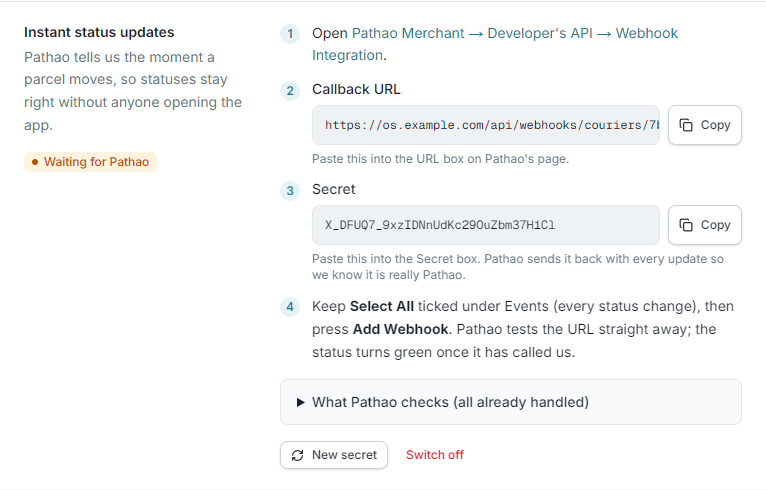
Pathao. Open Pathao Merchant → Developer's API → Webhook Integration. Paste the web address into Callback URL and the secret into Secret, keep Select All ticked under Events, and press Add Webhook. Pathao tests the address straight away; the status on the card turns green once it has called. Pathao asks for a few things from the address (it must be reachable over https, answer within 10 seconds, and answer its test with a fixed code and header). Enpod already does all of them. Open What Pathao checks on the card to see the list. If you create a new secret, paste it into Pathao again.
Steadfast. Open Steadfast → API → Webhook and paste the Callback URL and the Auth token.
Pickup requests#
Steadfast can send a rider to collect your booked parcels.
- On the Steadfast card, fill in the Pickup address ID (the number of your saved address on Steadfast's Pickup Addresses page), the Contact number for the rider, the Pickup address and the Thana. Press Save pickup details.
- On the Orders list press Request pickup whenever you are ready.
Courier costs#
Couriers do not always tell you what they charged. Under each courier fill in your own Delivery cost, Return cost and COD charge (%), and press Save costs. The profit report uses them. See Reports.
Your own riders and local couriers#
For your own delivery boy or a small local courier with no online connection:
- Under Your own delivery & local couriers press Add partner and give it a name.
- Pick that partner when you submit an order.
- Update the parcel yourself: out for delivery, delivered (with the cash collected) or returned.
Is a customer risky?#
Before sending, you can check a customer's record: on the order or in the new order form press Check courier history. It shows how many parcels were delivered and returned with the connected couriers. It is a hint, not a ban.