
Team and permissions
Invite your people, give each a role, decide who sees costs, changes prices and gives discounts, and who sees only some orders.
On this page
Under Settings → Team you decide who can use your business and what each person may do.
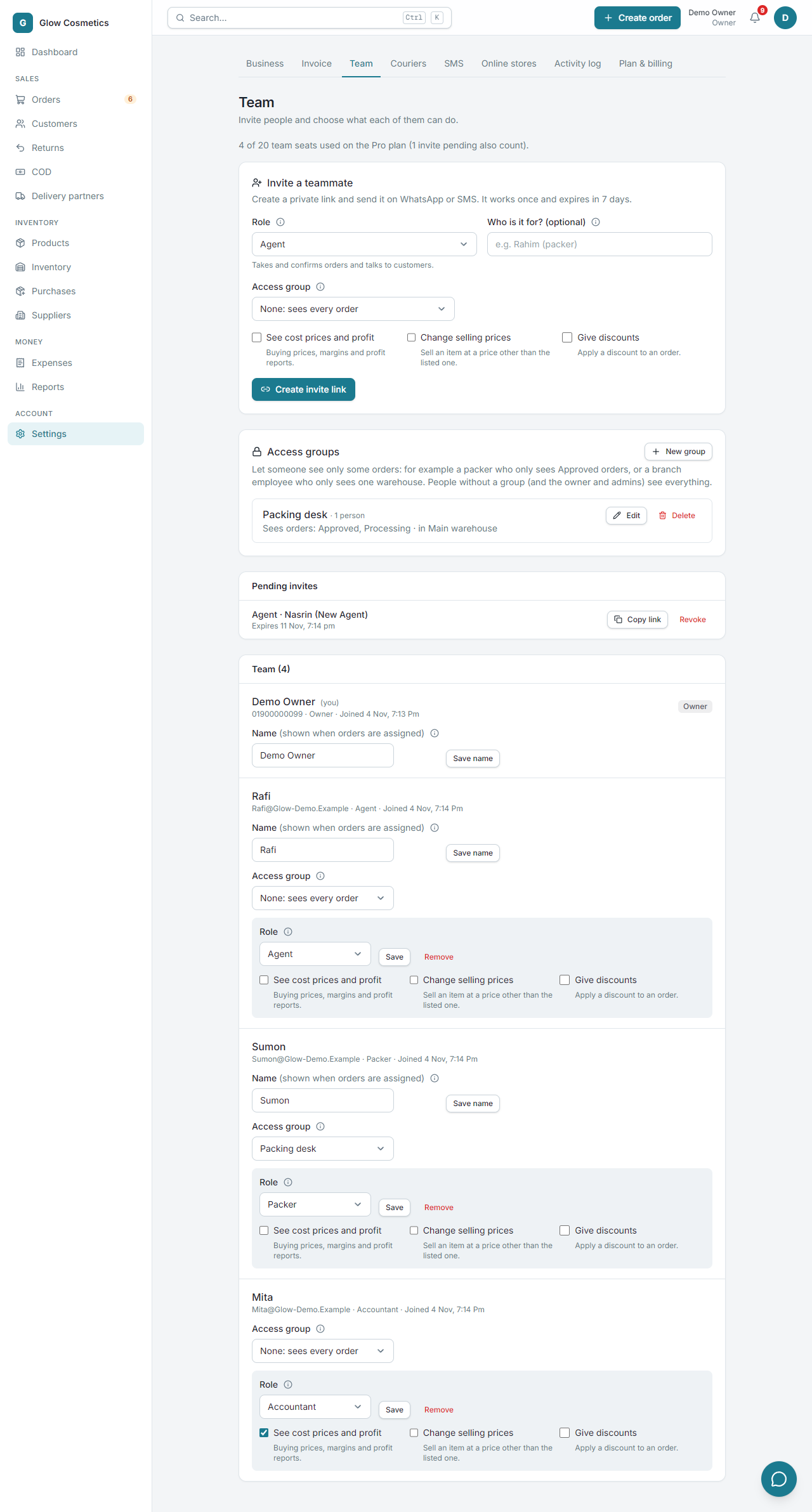
At the top it says how many team seats you have used on your plan (for example 4 of 20). A pending invite also uses a seat.
Roles#
| Role | What this person is for |
|---|---|
| Owner | Full control of the business. |
| Admin | Everything except changing the owner and the team roles. |
| Agent | Takes and confirms orders and talks to customers. |
| Packer | Packs and ships orders, books couriers. |
| Accountant | Views money: COD, payouts, reports. |
Three extra permissions#
These are separate from the role. Tick them for the people who need them.
| Permission | What it allows |
|---|---|
| See cost prices and profit | Buying prices, margins and profit reports. (Accountants have it by default.) |
| Change selling prices | Sell an item at a price other than the listed one. |
| Give discounts | Apply a discount to an order. |
Owners and admins always have all three.
Agents and packers work orders that are still open. An agent can approve, hold, un-hold or cancel an order that is Pending, On hold, Approved or Processing; a packer ships approved ones. Moving an order out of Delivered, Cancelled, Returned or In transit by hand (which gives stock back or takes it again) is for the owner and admins. An agent reopens a cancelled order with Reopen order, which is logged.
Invite a teammate#
- Under Invite a teammate choose the Role.
- Type Who is it for? (optional), for example Rahim (packer), so you remember.
- Tick the extra permissions you want to give.
- Press Create invite link.
- Press Copy link and send it by WhatsApp or SMS. The link works once and expires in 7 days.
Your teammate opens the link, creates an account (or signs in) and joins with the role you chose. Under Pending invites you can Copy link again or Revoke it.
Change or remove a person#
Each person is listed under Team.
- Name (shown when orders are assigned): type it and press Save name.
- Change the Role and the permissions, then press Save.
- Remove takes the person out of the business. Their past work stays in the activity log. Orders that were assigned to them go back to Nobody, and invite links they made stop working.
Let someone see only some orders (access groups)#
By default everyone on the team sees every order. An access group limits that: the person sees only the orders of certain statuses and / or certain warehouses (the order's Ship from).
Examples: a packer who only sees Approved and Processing orders; a branch employee who only sees the Chattogram warehouse; an agent who only handles Pending and On hold orders.
- Under Settings → Team, in Access groups, press New group.
- Type a Group name, for example Packing desk.
- Orders they can see: leave Every status, or choose Only these statuses and tick them.
- Warehouses they can see: leave Every warehouse, or choose Only these warehouses and tick them.
- Press Create group.
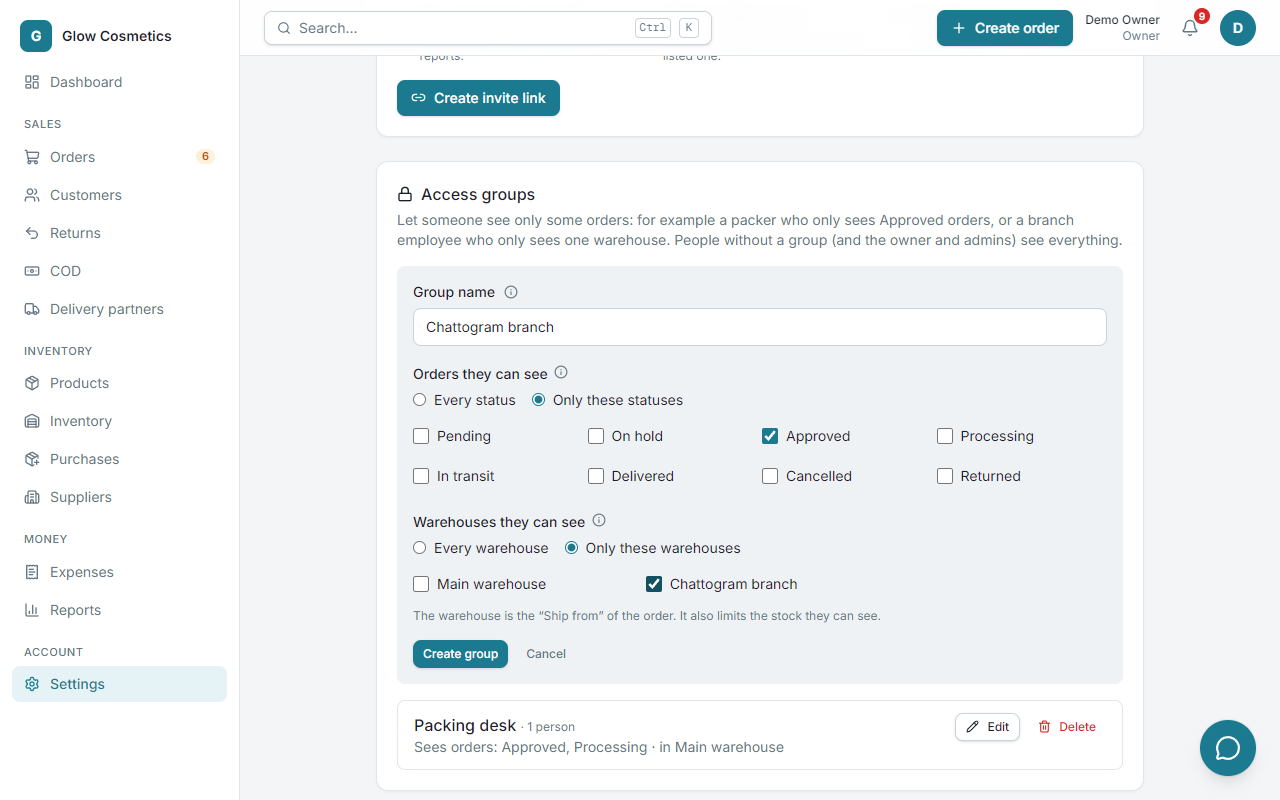
Then put people in it: every member (except the owner and admins) has an Access group box. Choose the group, or None: sees every order. An invite can carry a group too: choose it in the invite form, and whoever accepts the invite starts in it.
What a person in a group sees and can do
- The Orders list and its tab counts show only their orders. An order outside the group cannot be opened, not even from its address, and the parcel, payments, notes and files of such an order are hidden too.
- They cannot change, print, ship or take payment on an order outside the group. They are told Your access group does not include this order.
- Stock and Warehouses show only their warehouses, and a new order can only be created in one of them.
- An order that leaves the group's statuses (for example the packer ships it) simply disappears from their list afterwards.
- Their home page lists their counts and latest orders. Sales totals and Reports are closed to them: those numbers cover every order, so they cannot be limited.
Change or delete a group. Edit changes what its people see at once. Delete asks first and tells you how many people it frees: they then see every order. Every change is written in the activity log.
Give orders to people#
On the Orders list or an order page, press Assign. The teammate sees them under My orders, and is told by a notification.